Creating a Runbook

Contents
Example: Create a runbook to troubleshoot issues on a traffic path, and escalate to admin.
1.Click the  icon on the taskbar and select New Runbook. The Runbook pane opens on the current map.
2.In the Start node, specify the required information.

Tip: When you save the runbook as a template, both device types and tags can be used to filter runbook templates.
3.Add the Path action node.
1)Click Select Action or the  icon to select Path.
2)In the Path node, specify two endpoints, and click Path.

Tip: To modify the node name, point to the node and click the  icon to select Rename.
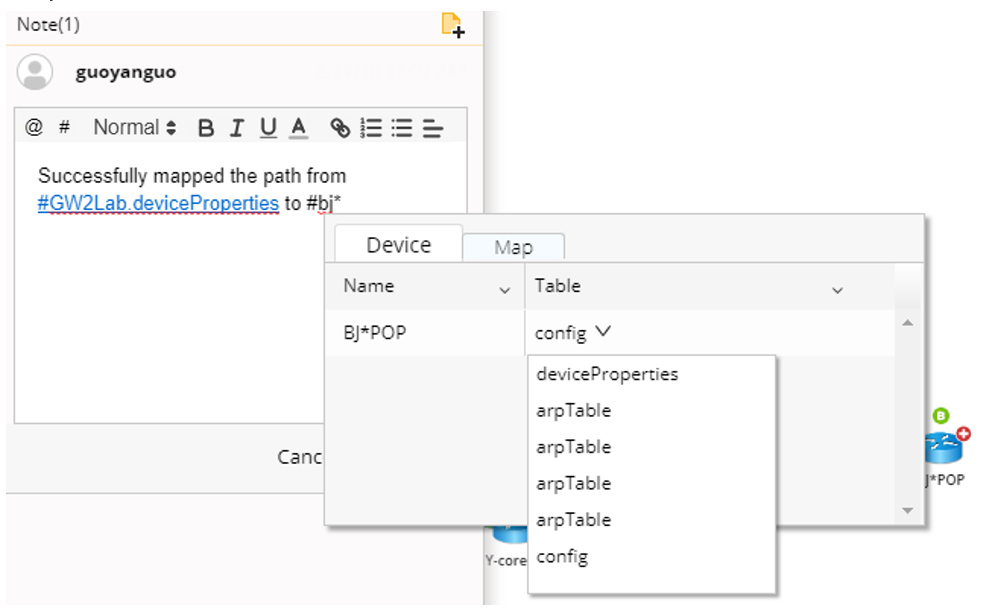
3)After the path is diagrammed on the map, click the  icon to make a note. To mention a device, enter # and further select a device asset. A link will be generated for other users to quickly access the required information.
4.Add the Ping node and execute the action. Make a note to record the result.
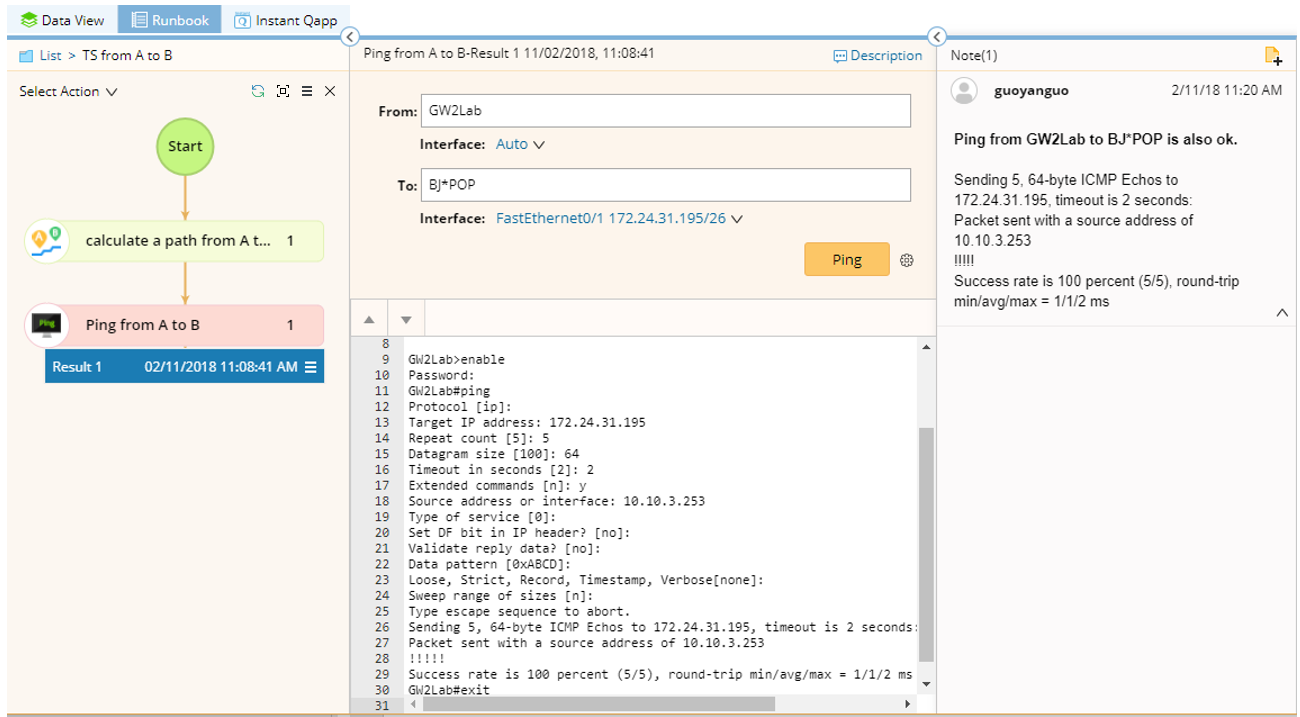
Tip: To save an action node and its settings for reuse, point to the action node and click the icon to select Set as Favorite.
5.Add the Traceroute node and execute the action. Make a note to record the result.

6.Add the Retrieve Live Data node, click the icon to load CLI commands via template, and then click Run.

7.Add the Overall Health Monitor node, and then click Run. See Running a Qapp for more reference. After running the Qapp, make a note to describe the issue and enter @ to mention admin for escalation.
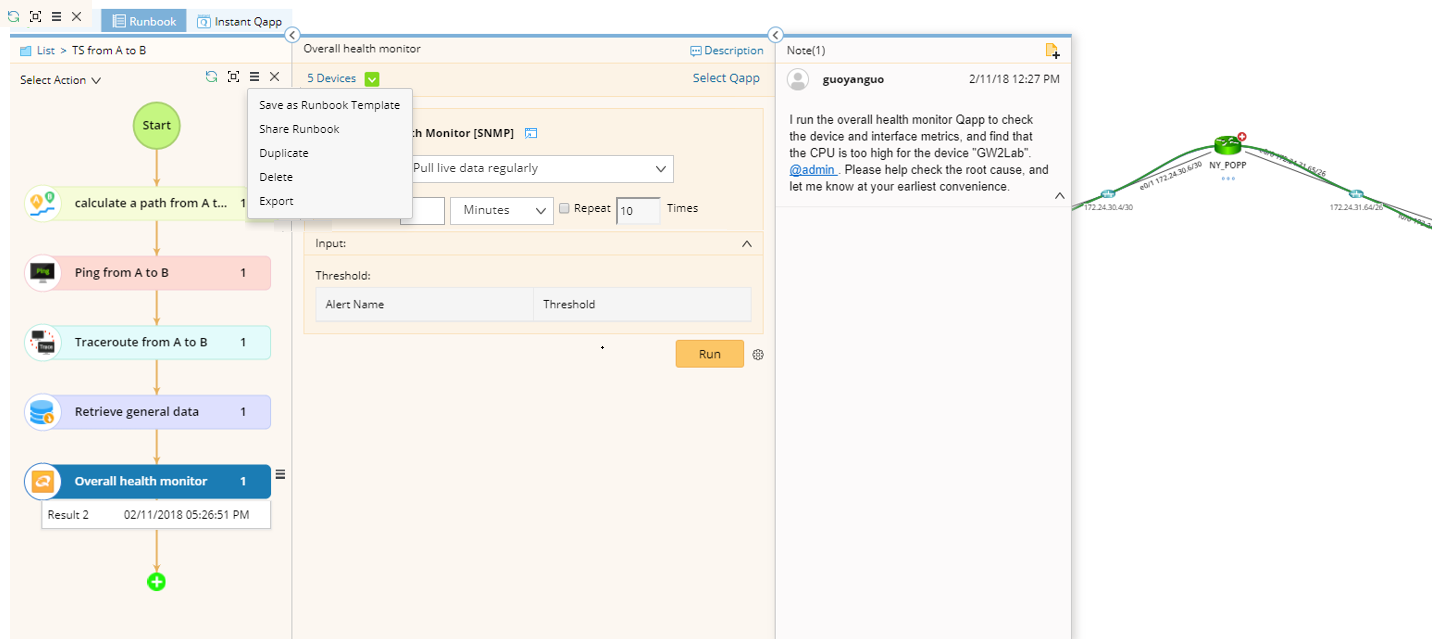
8.(Optional) Click the icon to share the runbook, or save it as a runbook template for reuse.