R12 Publication-2025July16
Define Report Property
Follow the steps below to define the basic properties of a report:
- Define the basic settings, including the name and description of the report.
- Select the Report Objects and define their relationship to define the purpose of the report.
- View the report fields and add related fields if necessary.
Define Basic Settings
- Click the start menu
 and select Intent-Based Automation > Report Manager.
 - Under the desired folder, click
 and select New Report.
 - Enter the name and description.
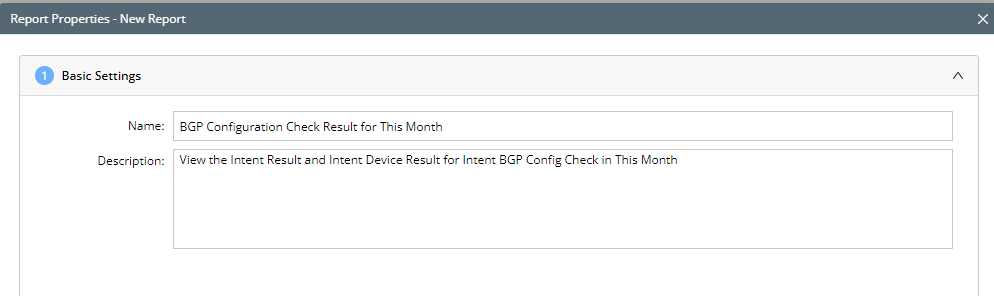
- Click Next.
Select Report Objects and Define Relationship
Report Objects are analogous to database tables that organize NetBrain data by categories, such as Device Property, Change Management, and Intent Property.
After selecting the report objects, you can define their relationships. This helps create the barebone of the Report Field Tree.
You must select one Primary Object and can add up to five Related Objects for the report.
- To define the Primary Object: click Select.
Primary Objects should be determined by the major purpose of the report.
Example: If you want to create a report to view network intents, select Intent Property as Primary Object. - (Optional) After selecting the Primary Object, if you want to add additional information to the report, select Related Objects.
Example: You can add Intent Result as a Related Object to view Intent level results in the report. Furthermore, you can then also add Intent Device Result as Related Objects to include device-level Intent results in the report.
Note: The Related Objects are added via a lookup relationship. 
- Select the joined relationship between the Primary Object and Related Object(s).
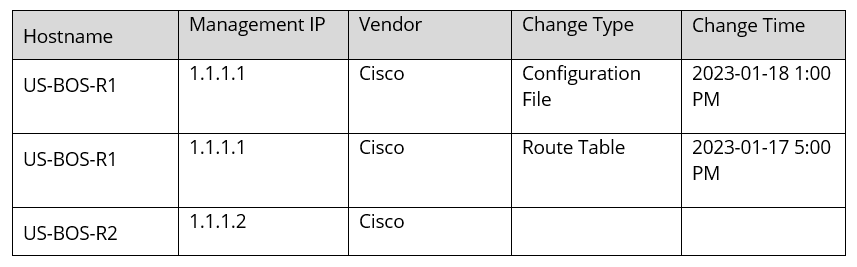
Example:(A)Primary Object: Device Property
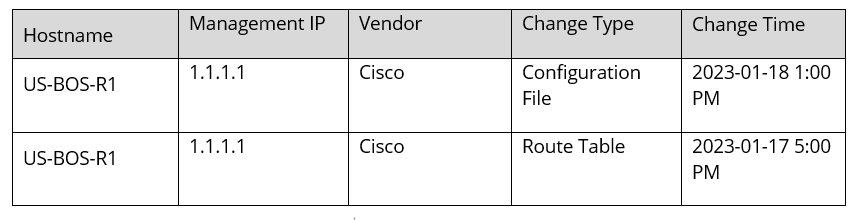
Hostname Management IP Vendor US-BOS-R1 1.1.1.1 Cisco US-BOS-R2 1.1.1.2 Cisco (B)Related Object: Change Analysis
Hostname Change Type Change Time US-BOS-R1 Configuration File 2023-01-18 1:00 PM US-BOS-R1 Route Table 2023-01-17 5:00 PM Method Graphic Example Each ‘A’ record must have at least one related ‘B’ record 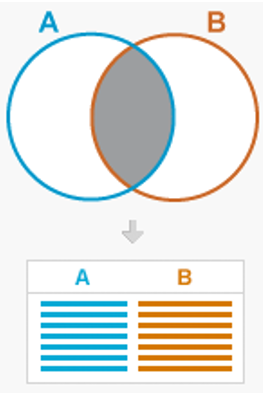
‘A’ records may or may not have related ‘B’ records. 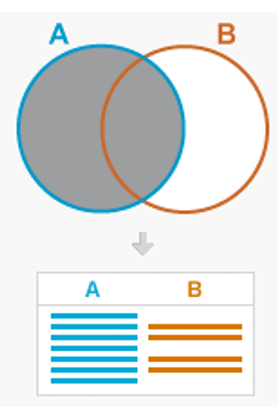
- Click Next.
View Report Fields and Add Related Objects
Report Fields under the Report Objects selected in the previous step are listed on the screen to provide a preview of the Report Field Tree.
If you would like to add additional information to the report, you can also add Related Fields to the Report Objects.
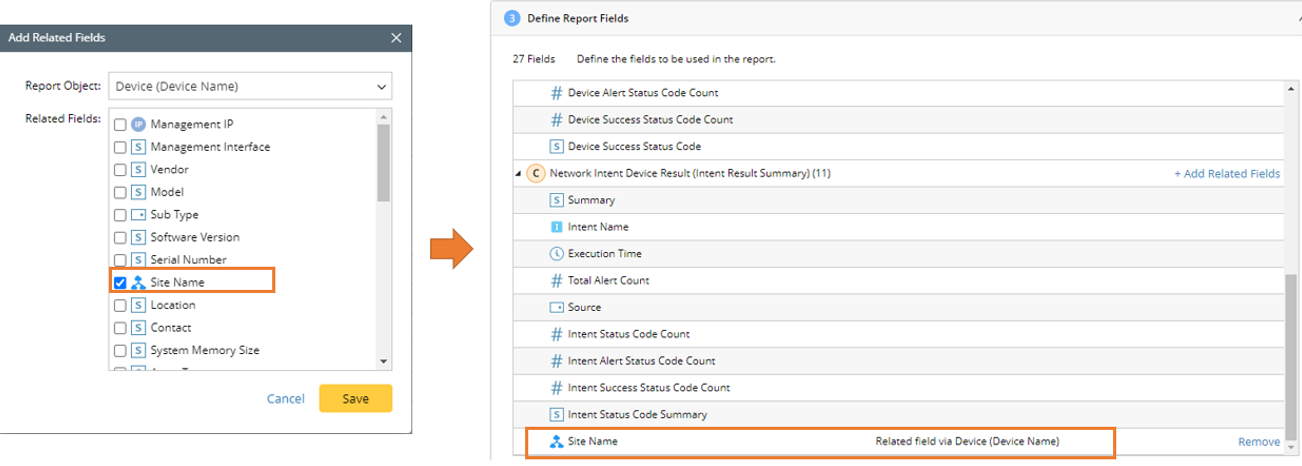
- Click Add Related Fields.
Note: Depending on the lookup relationship, not all report objects have Related Fields. - In the Add Related Fields window, you can select all the Related Objects that this Report Object (Network Intent Device Result) lookups to from the drop-down list.
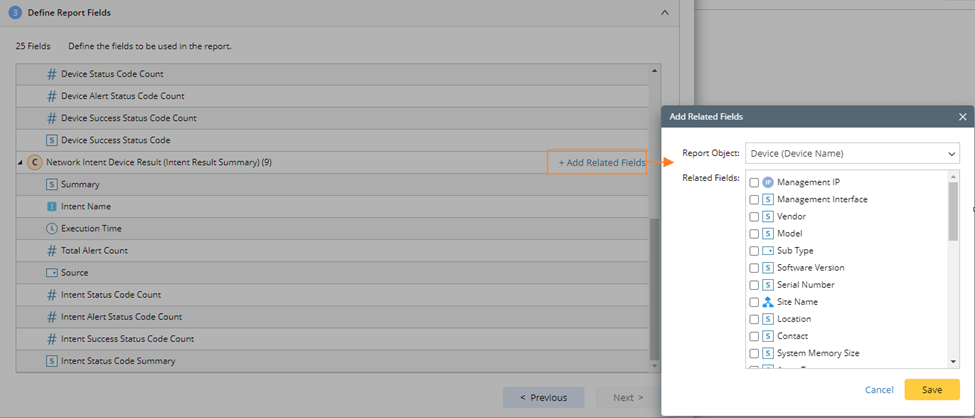
- Select the desired field, and click Save.