R12 Publication-2025July16
Define Report Input
Report Input defines the report rows with filtering criteria. It selects the data in the NetBrain database and only records meeting the criteria specified in Report Input are included in the report. Each report has one built-in default input and can have multiple additional report inputs.
- Default Input is included in the report by default and cannot be deleted. It helps provide first-level filtering to narrow down the data scope. The default input is usually related to the Primary Object of the report.

For example, if the Primary Object of the report is Intent Property, then the default input is Intent Name which allows you to select the desired Intent by name, by ADT columns, or by automation tags in ADT.
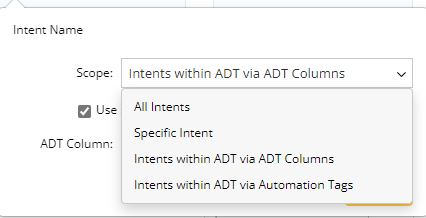
- Besides default input, you can add multiple additional input by drag-and-drop Report Fields from the Report Field Tree to Report Input.
Example: To filter the report content by execution time, you can drag and drop Execution Time to Report Input and set the time range to This Month.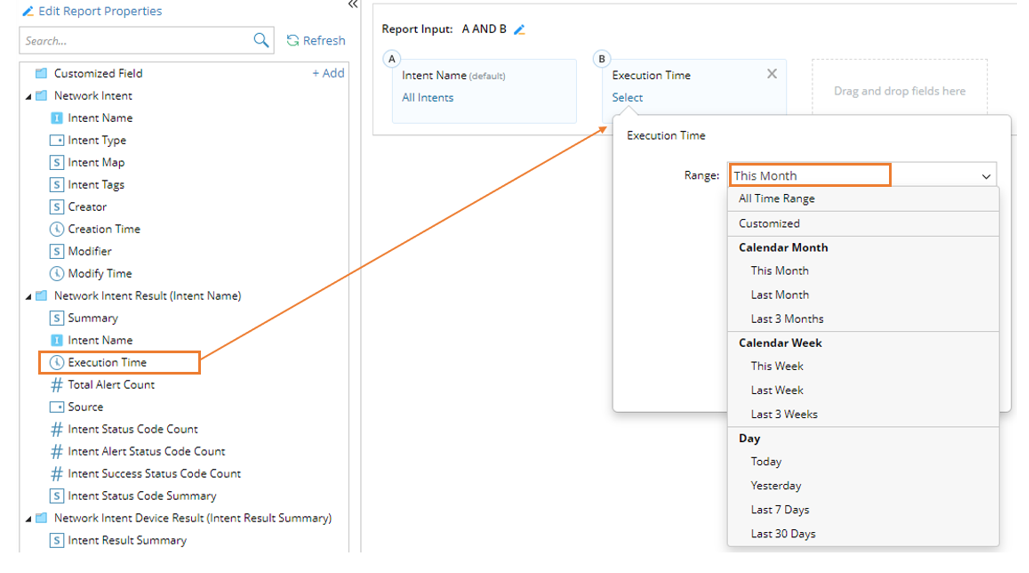
- The relationship between Report Inputs can be managed by clicking
 beside the logical expression.
Note: The default input will always have an ‘AND’ relationship with the rest of the additional inputs. 
You can decide whether the execution results of follow-up intents will be included in the report input. Please see: Include Follow-up Intents.
You can quickly narrow down the report input with Aggregation.
Example: Create Report to View Intent Results
Goal: Create a report to view the Intent result from the ADT column OSPF Config Check for this month. Also only include Intent results with at least 1 alert.
Follow the steps below to define the report input:
- Click the hyperlink under Intent Name to define the default input.
- Set the Scope to be Intents within ADT via ADT Columns.
- Select OSPF Config Check as Intent Column.
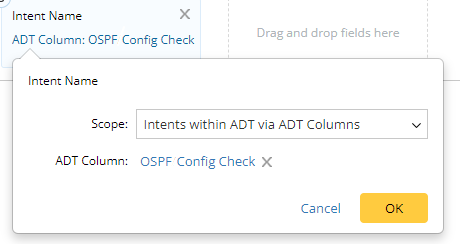
- Drag and Drop the field Execution Time to Report Input,and set the time range to This Month.
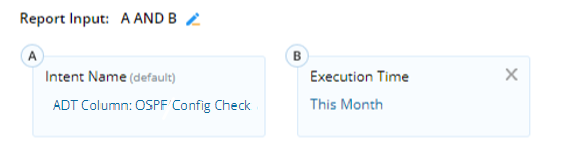
- Drag and Drop the field Intent Alert Status Code Count to Report Input, and set the value to be Greater Than 0.

- Click the
 beside the logical expression for report inputs, and confirm if the relationship is A AND B AND C.
 - Click
 to confirm the setting.
- Click Apply to generate the sample data based on the report input.