Define Customized Field
Besides built-in report fields, you can define customized fields using formulas and use them in the report.
There are two ways to define the customized field:
Calculated Field
Calculated Field allows you to define a customized field using functions as well as mathematical and logical operators.
To define the formula:
- You can select the available functions and fields from the tree on the left side.


Tip: For more details on the supported functions and operators, please see Supported Functions and Operators. - Click Insert to insert them into the formula.
- After defining the formula, you can click Validate to verify the formula.
Tip: All the report fields in the Report Field Tree can be used in the formula, except for customized fields.
Example: Create Customized Field ‘Elapsed Time’
Goal: Create a Customized Field to calculate how many days ago the Intent alert happened.
Follow the steps below to define the report input:
-
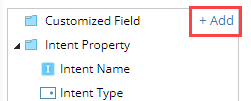
Click +Add.
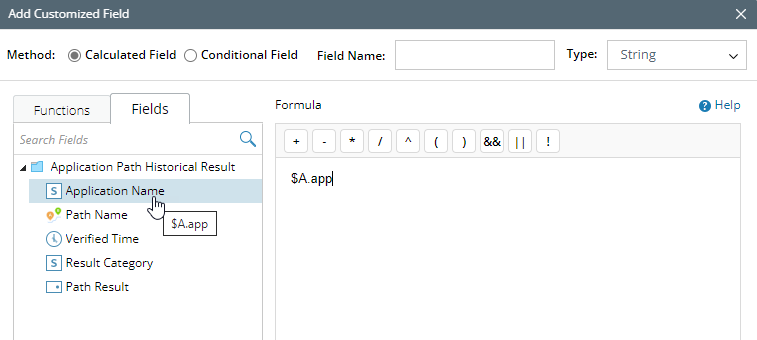
- In the Add Customized Field window, select Calculated Field as Method, set the Field Name to Elapsed Time(day), and set the Type to Number.
- In the Functions tab, select Duration from the Function List and click Insert to insert it into the Formula.
- Navigate to the Fields tab, select Execution Time from the Fields tab and click Insert to insert it into the Formula.
Tip: The filed name displayed in the formula might be different from the actual filed name.
Example: Application Name is the actual field name. You can hover over it, and see the filed name used in the formula is $A.app.
- In the Functions tab, select Now from the Function List and click Insert to insert it into the Formula.
-
Enter day as the unit for function Duration.
-
Adjust the formula and click Validate to check the formula

-
Click OK to add the customized field.
-
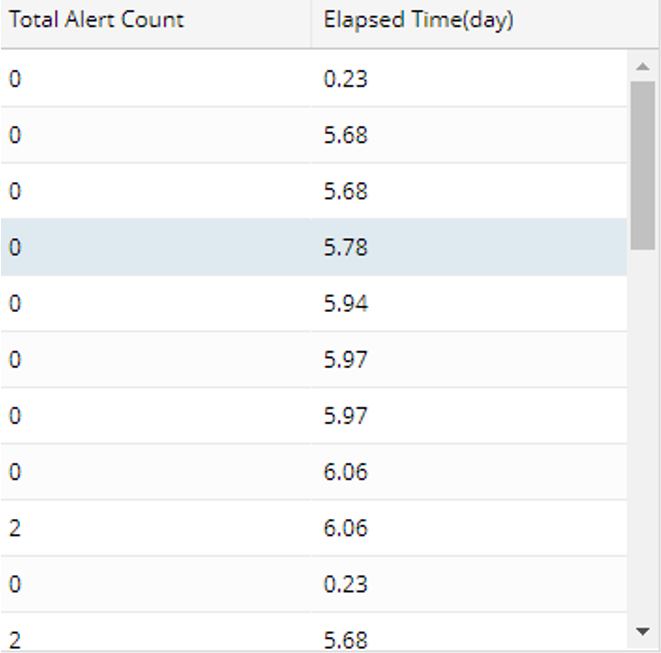
Use this customized field Elapsed Time(day) in Report Columns.
Conditional Field
Conditional Field provides quick and easy-to-use UI-based conditions for the most common customized fields.
For the Conditional Field, the report field can only be of data type 'number', ‘picklist’ and ‘datatime’. The conditional field type can only be string.
Example: Create Customized Field ‘Execution Date’
-
Click +Add.
- In the Add Customized Field window, select Condition Field as Method, set the Field Name to Execution Date, and set the Type to String.
- Select Report Column to be Execution Time.

- On the Group Time by pane, select Day.
- Click OK to save the customized Field.
-
Use this customized field Execution Date in Report Columns.
