Reference Cluster
A Reference Cluster is a set of device groups with a reference device for each group. The reference device is selected from a pool of devices (using either a Dynamic or Static method), and a criteria condition is applied to ensure the selected devices meet specific requirements. Devices that meet the criteria are classified as Classified, while those that don't match are classified as Unclassified. The procedure to define a reference cluster is as follows:
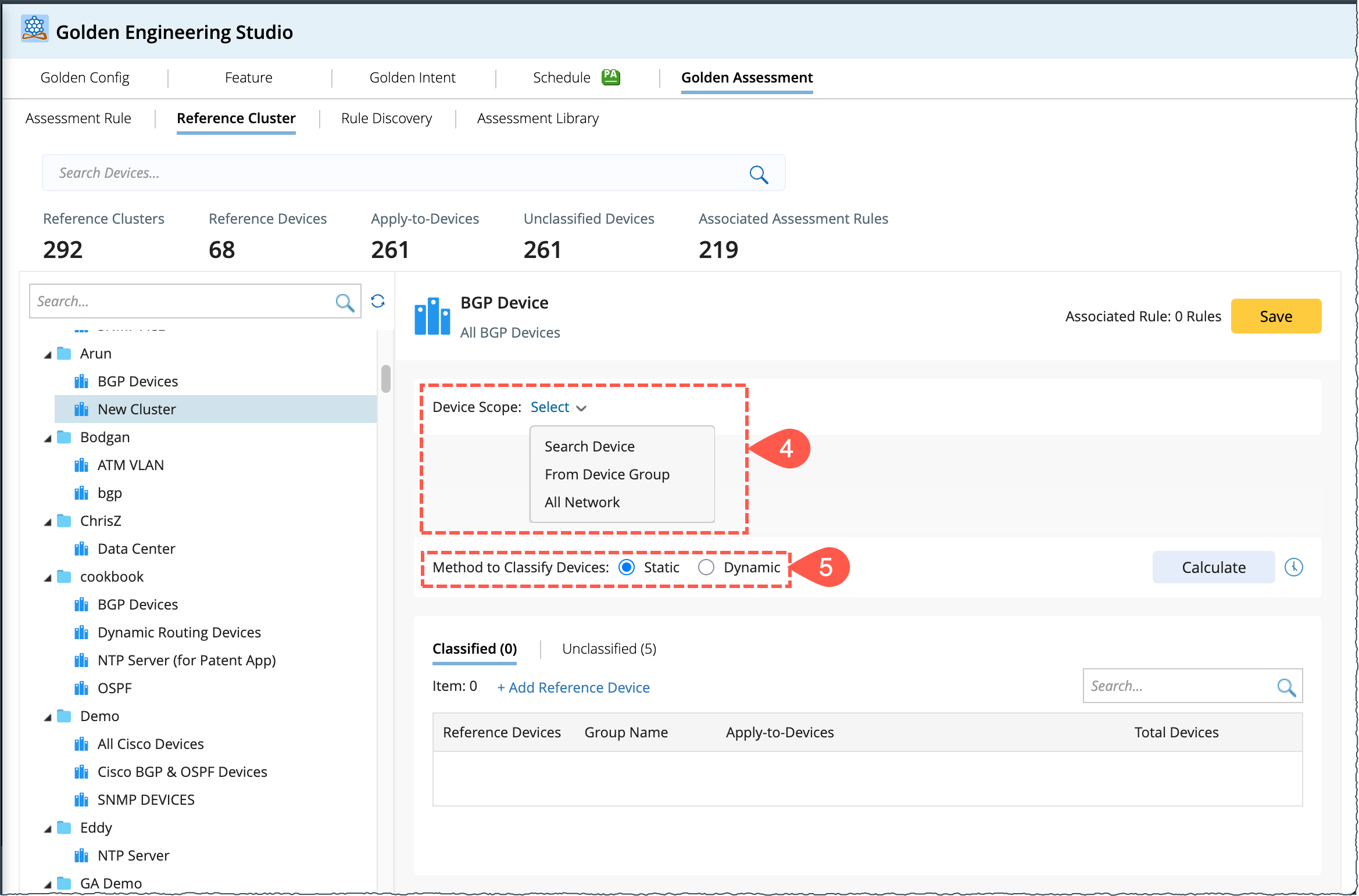
- Go to the Reference Cluster Manager located on the left side of the UI and select a specific folder.
- From the drop-down menu, select New Cluster to create a new Reference Cluster.
-
Click on the pen icon and enter a name and description for the new cluster.

- Choose any of the following methods to define the Device scope:
- Search Device: Use the dynamic search with standard criteria filters.
- From Device Group: Select a predefined device group.
- All Network: Select all devices in the network.
-
Classify the devices using one of the methods, Static or Dynamic, and define the Reference Device along with Apply-to-Devices.
Static Method
The Static method filters reference devices based on unique parameters like Device Type, Model, Software Version, Site, and Geo-Location:
- Click on the +Add Reference Device button, and the window Select Reference Device will pop up.
- In the window,Select Reference Device:
- In the filter Show Device by, select the criteria to refine the unique devices.
- The selected devices count will be updated as per the selected filter combination.
-
Click Select to save and close the window.

-
Define the Apply-to-Devices for each reference device using the criteria condition in Rules. These devices matching the criteria will be filtered from the Device Scope list and created as a Rule under each Reference Device. Multiple rules can be created for each reference device.
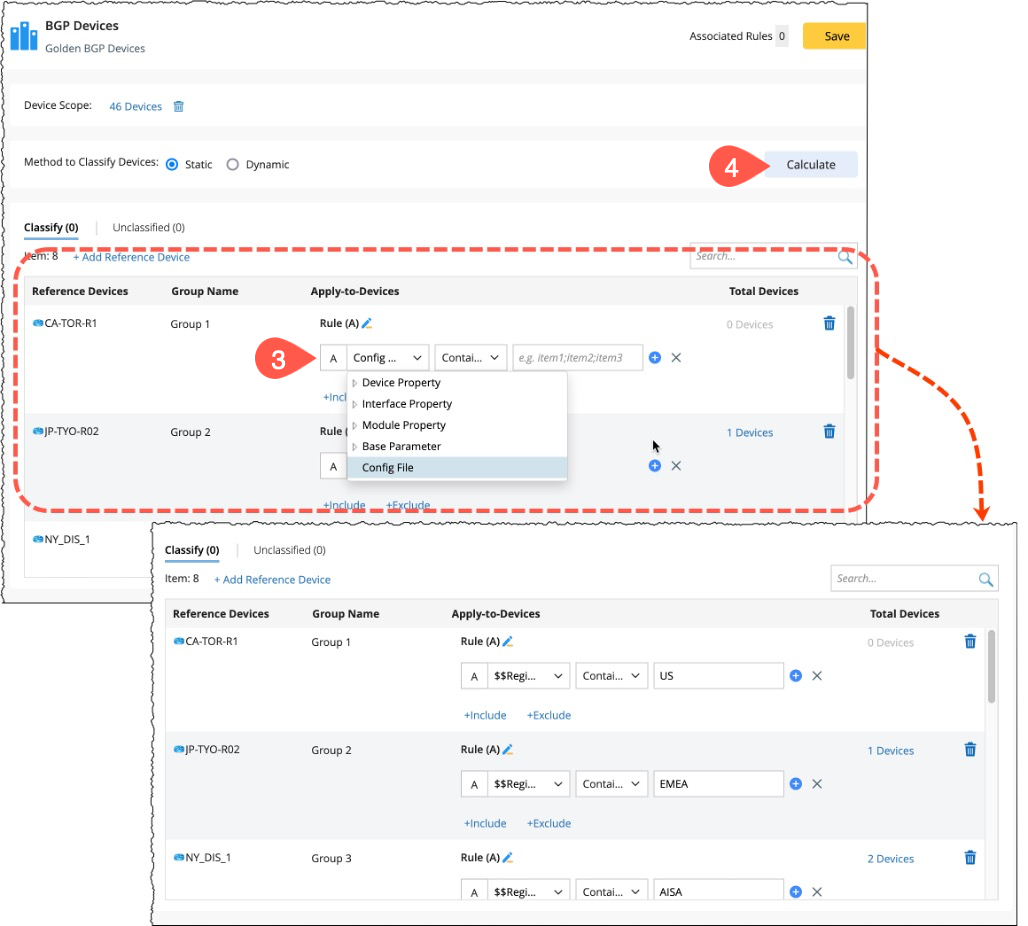
- Click Calculate, and the system will search for the variable values of the devices that meet the conditions. These values will be grouped, and the results will be displayed in two parts: Classified and Unclassified.
- Classified Devices: Devices from the Device Scope that meet the criteria specified in Apply-to-Devices.
-
Unclassified Devices: All other devices that do not meet the criteria will be placed in the unclassified device list.
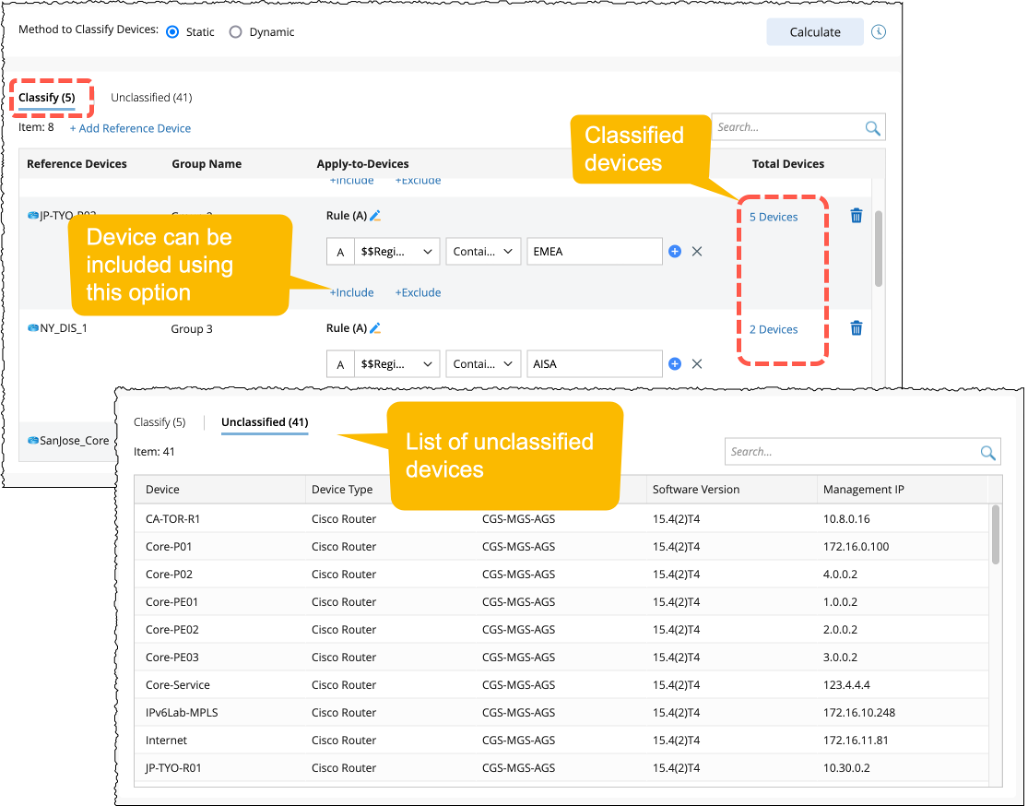
- You can further refine the Classified devices by Include Devices/Exclude devices within the device scope.
- Save the reference cluster.

|
Note: Devices applicable to a reference device cannot be duplicated in a group under another reference device. |
Dynamic Method
The Dynamic Method allows users to create complex search queries using keywords in multiple search criteria. In other words, the user will parse the eigen value from a device and then the devices with the same value are grouped.
-
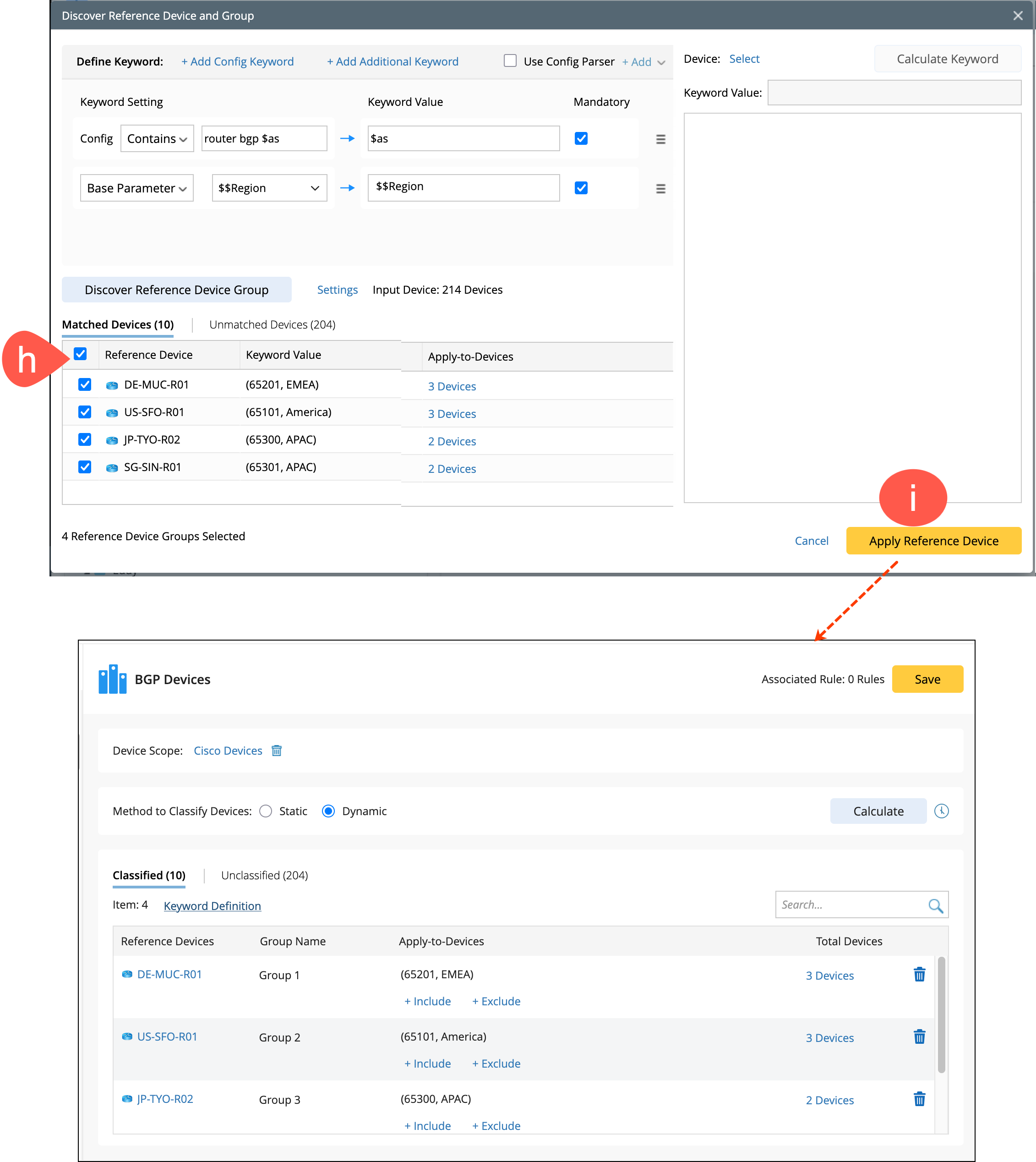
Click Keyword Definition to open the window Discover Reference Device and Group.
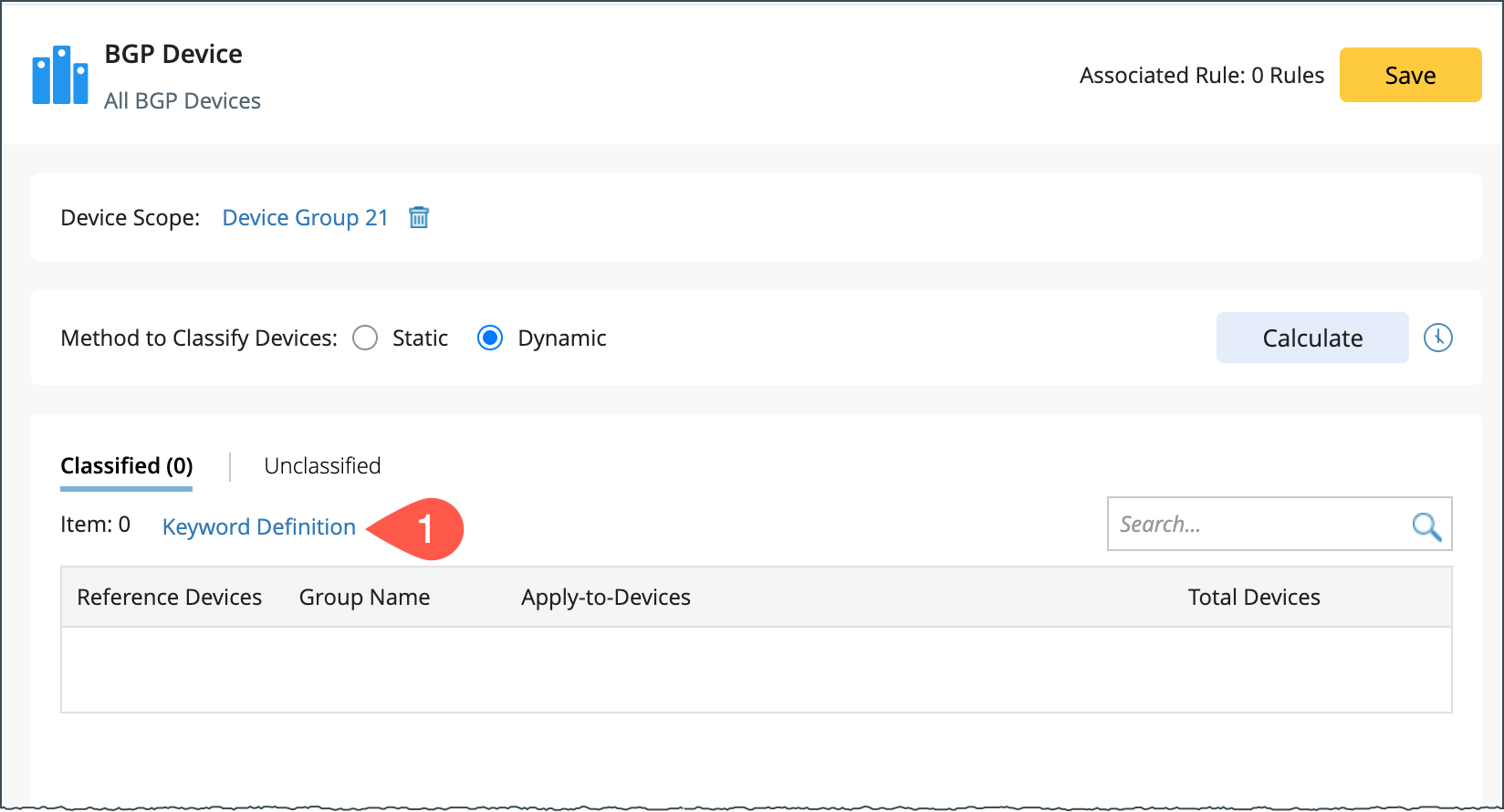
-
Configure search criteria in the Keyword Setting using Config, Device Property, and Base Parameter options:
- Click +Add Config Keyword or +Add Additional keyword or both to create a unique combination of criteria search.
-
Keyword Setting for Config:
- Choose either Contains or Regular Expression from the drop-down menu.
- Specify the keyword from the configuration that you need to parse.
- For more accurate results, add sub-keyword conditions to refine the search within the initial results.

Note: Delete is also provided in the menu  to remove any unnecessary conditions.
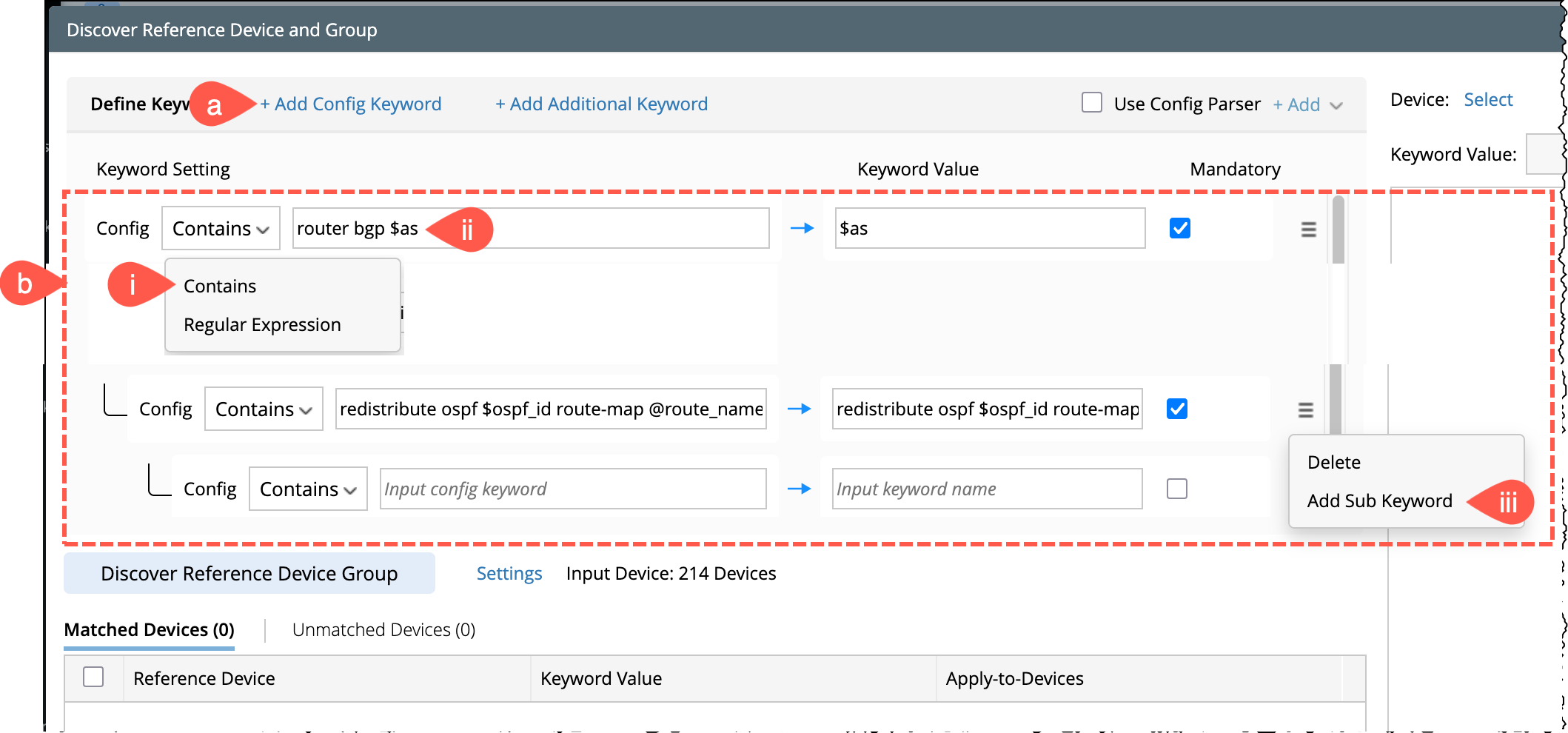
-
Additional Keyword Setting with Device Property and Base Parameter:
- Select Device Property or Base Parameter from the first drop-down menu.
-
Select a data source from the second drop-down menu.
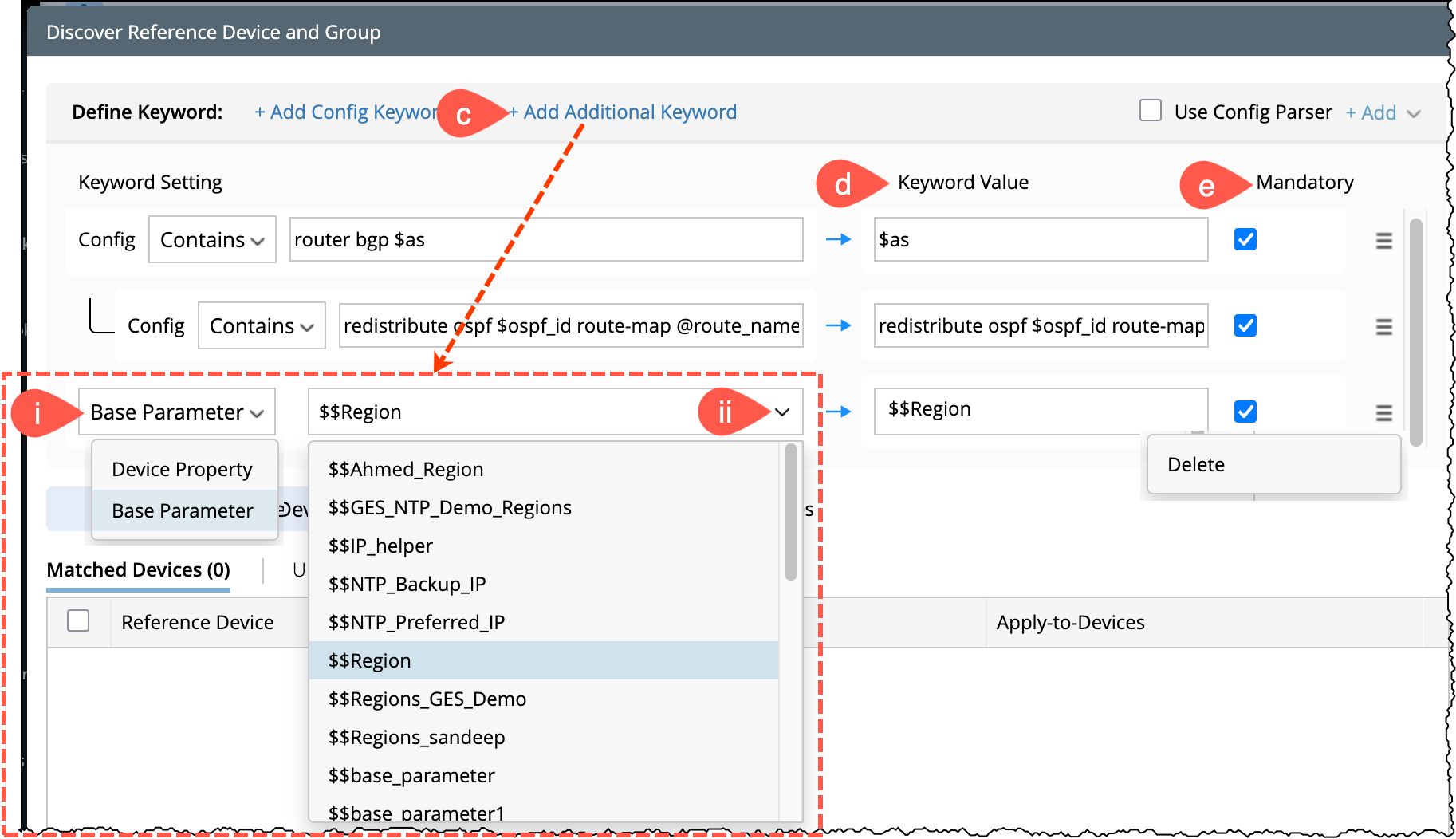
- Keyword Value: Displays the calculated values for Keywords and Variables based on the defined criteria.
- Ensure all the mandatory conditions are selected.
-
Click Discover Reference Device Group, which initiates a search for devices matching the specified Keyword and Variable values. Results are categorized into Matched Devices and Unmatched Devices.

-
Discovery settings can be adjusted in the Settings:
- Maximum number of devices per group.
- Maximum number of groups.
-
Pick reference device for each group: It can be defined either by config file size or by adding a device property filtering criterion.
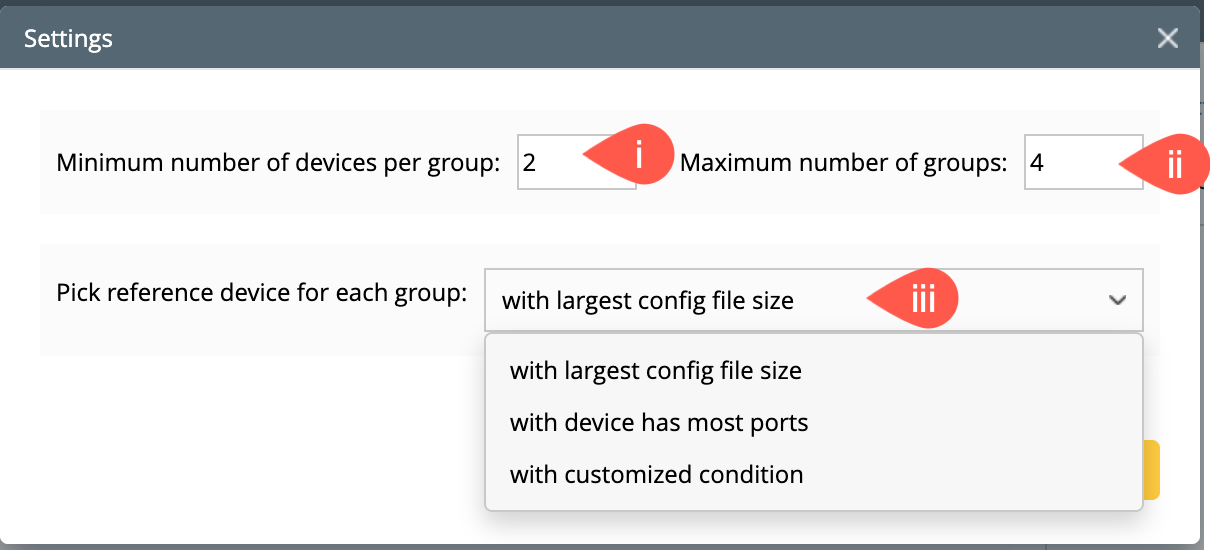
- Select the reference devices in the Matched Devices results device list.
-
Click Apply Reference Device, and the selected devices along with their Apply-to-Devices will appear in the reference cluster pane.