Assessment Feature
The Golden Assessment feature will enable users to define Golden Rules. You can compare the configuration of a set of devices with a reference device and view the results in the dashboard. In the Assessment Feature, you will create and associate the Reference Cluster and Assessment Rule with each other.
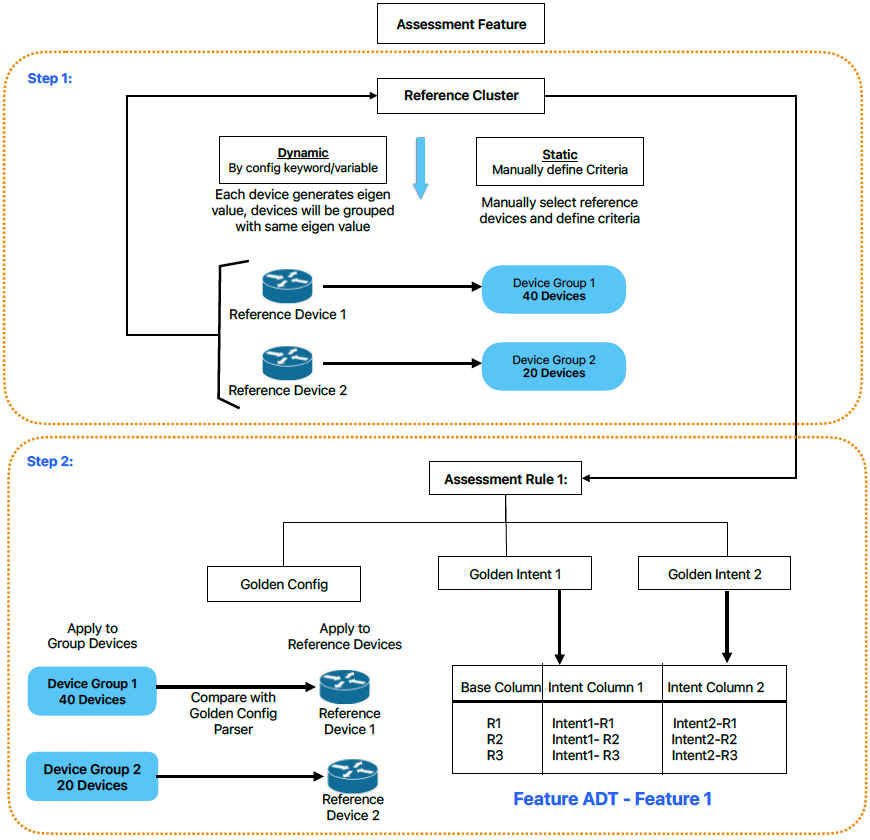
Create Assessment Feature
The detailed procedure to create a feature is as follows:
- Go to GES > Golden Assessment > Assessment Rule.
-
In the Assessment Rule manager located at the left side of the screen, click + Add Assessment Feature.

-
Add a suitable name and description to the newly created feature. Hover the cursor on the name/description field and click
 icon to edit the description.
- Method: There are two methods to define an Assessment Feature:
E.g., Name the feature as BGP Devices and a brief description as All BGP devices.

Create New Feature
In this method, you can search the devices using the intersection of Device Group and specific Criteria. You can refine the device list by choosing multiple predefined device groups as follows:
- Choose the method Create New Feature from the drop-down menu.
-
In the Device Scope, select either the option via Criteria or via Device Group.
-
Via Criteria: Apply criteria to refine the filter and retrieve the applicable devices from the device scope list as follows:
E.g., Config File | Contains | 'router bgp'.

-
via Device Group: Choose one or more predefined device groups.

(or)
-
Via Criteria: Apply criteria to refine the filter and retrieve the applicable devices from the device scope list as follows:
-
Proceed to Generate Feature, and the results will display a list of devices and their corresponding Feature Instances that match the defined criteria.

Note: The Calculate operation might require some time, and users can adjust the Data Source settings as needed. By default, the data is obtained through Live Data.
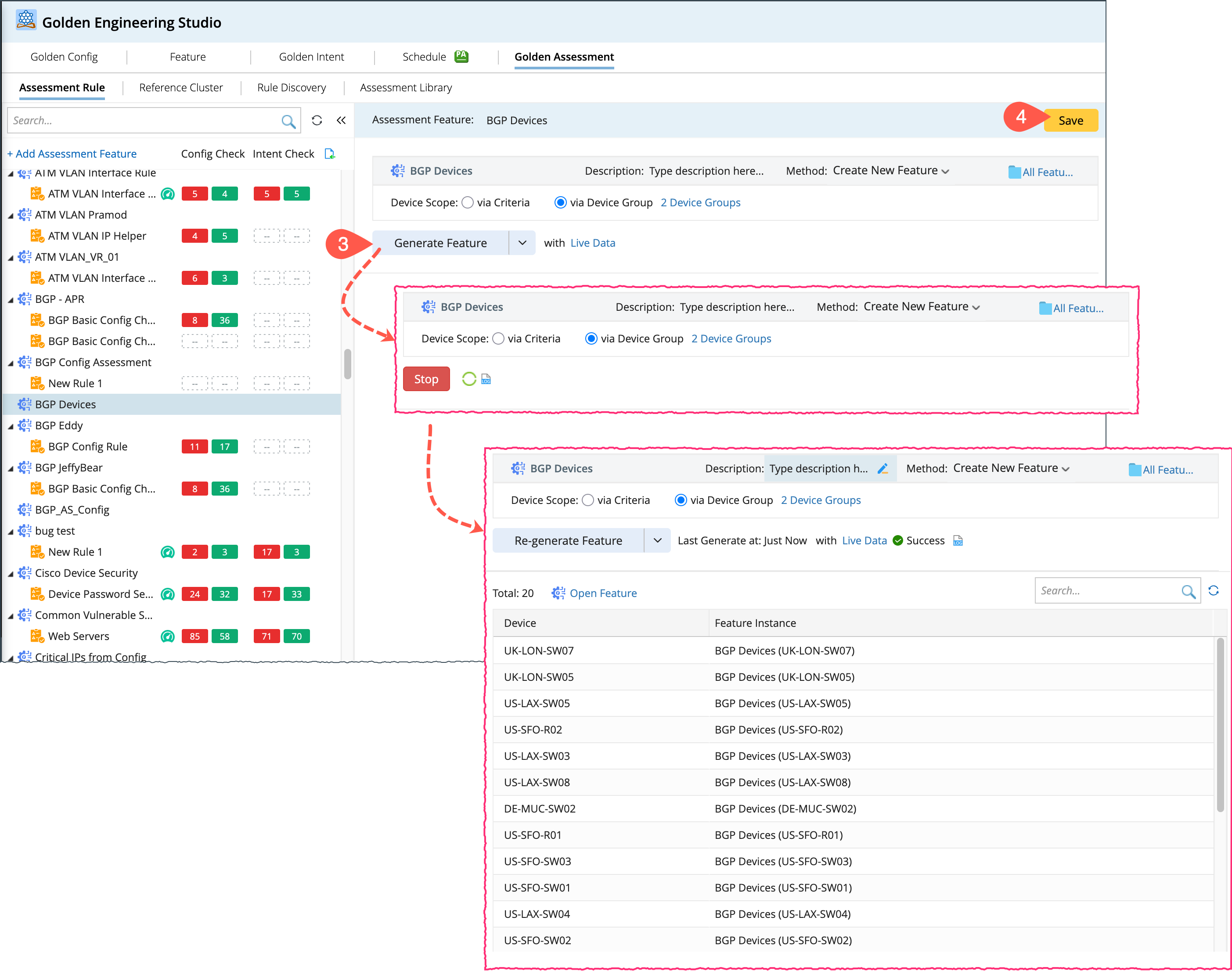
- Click Save to save the settings in the assessment feature.
Associate Existing Feature
Instead of creating a new feature, you can associate with an existing feature.
- Navigate to Method and select Associate Existing Feature.
- Click Select Feature and choose the features from the pop-up window.
-
Click Update Feature to update the feature, and the results will be displayed with a list of devices and Feature Instances that match the defined criteria.
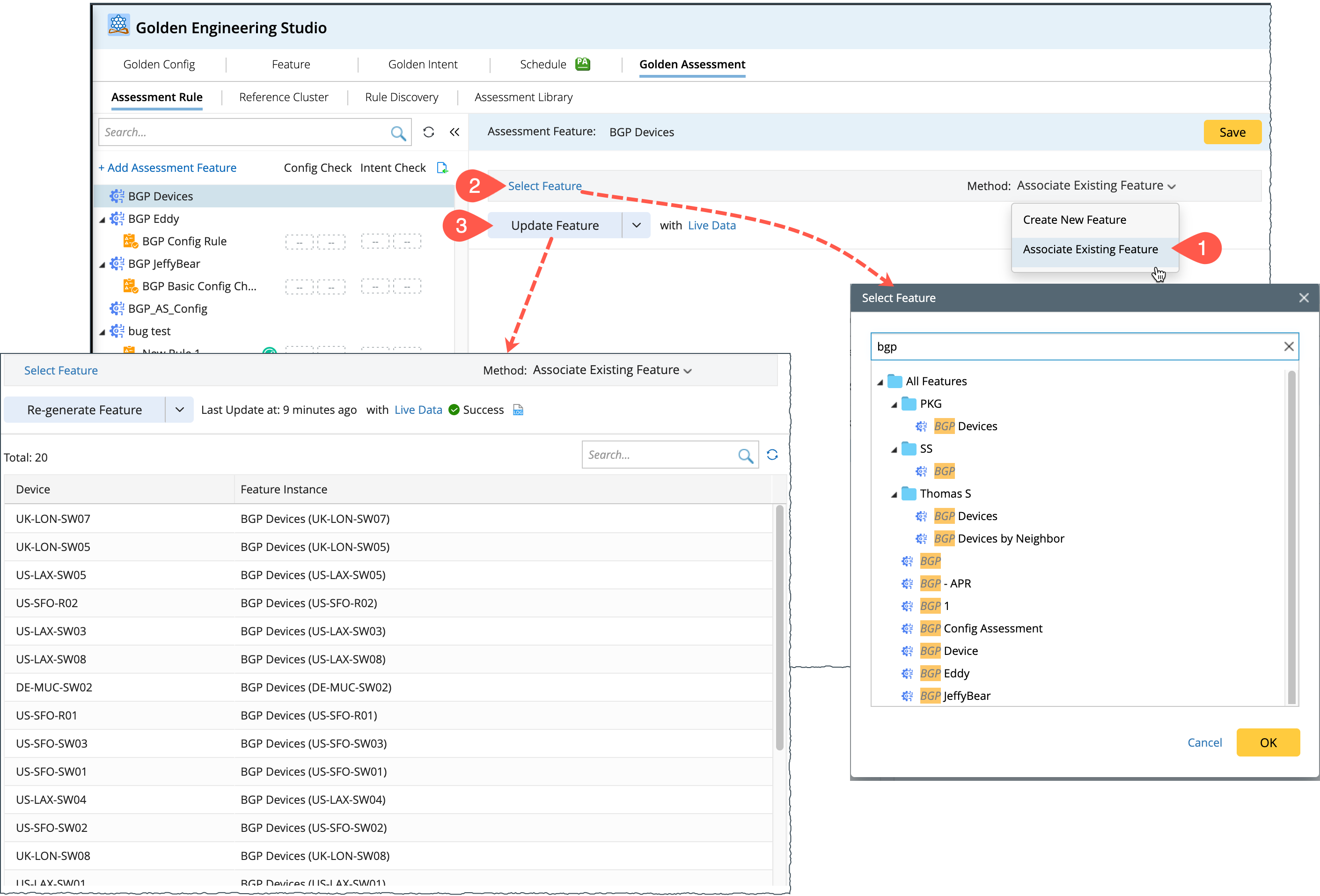
Now, multiple rules can be defined under this generated feature, making it easy to monitor these multiple rules from the Rules Manager pane. See Reference Cluster and Assessment Rule.