R12.1 Project Publication-2025Dec23
Assessment Rule
A golden rule can be defined with golden config or golden intents, and users can view the execution results within the assessment rule pane:

Define a Golden Rule
Each feature can have multiple Assessment Rules tailored to specific use cases. You can create an assessment rule with a Golden Config, Golden Intent or both:
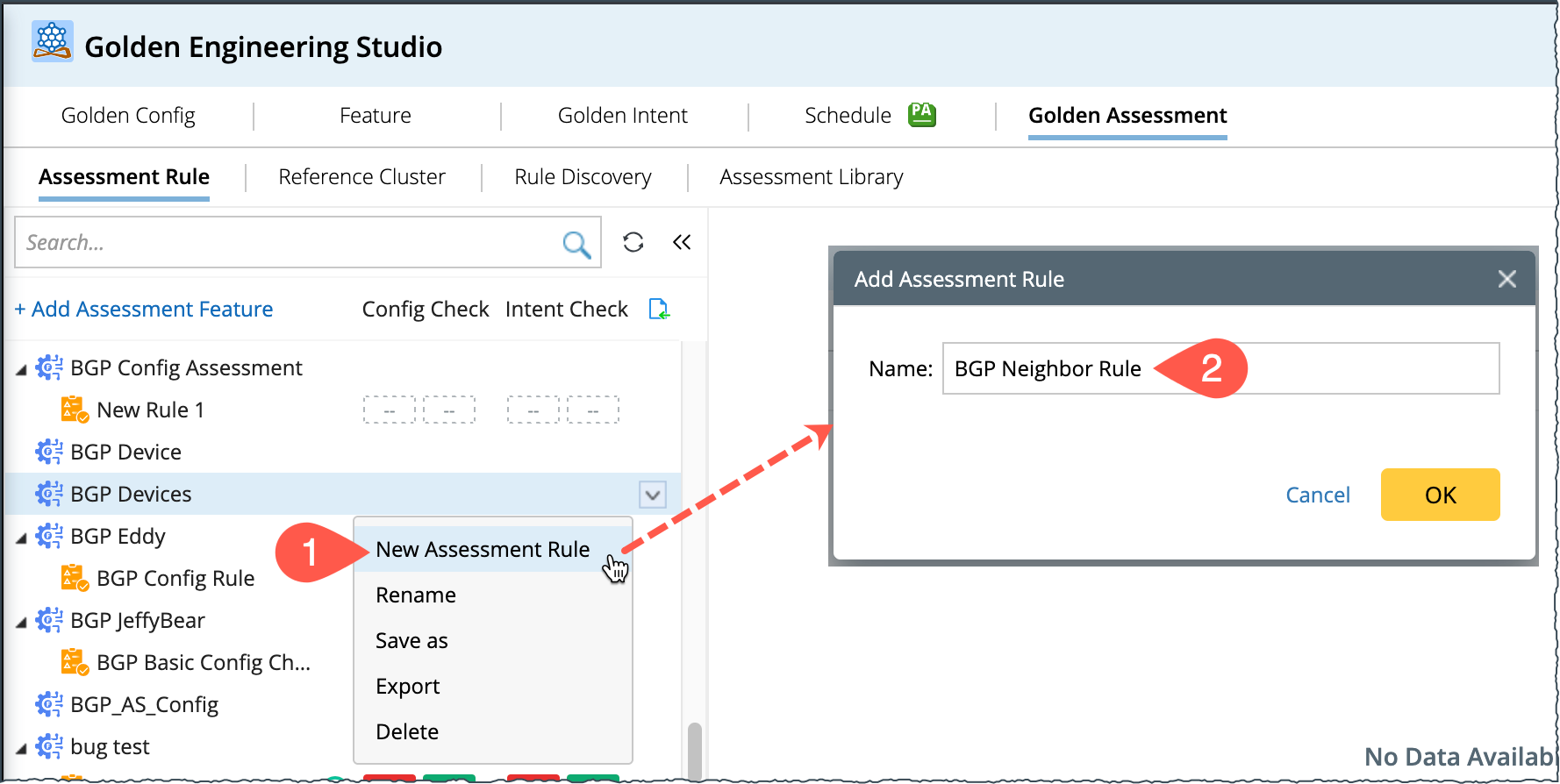
- Go to the Assessment Rule manager pane and select a feature (under which you want to create a rule) drop-down menu.
- Select New Assessment Rule and enter the rule name in the pop-up window.
- The Rule Definition pane will appear on the left side of the UI. Enter the basic information, such as Rule Name, Description, and Location.
- Select a Reference Cluster to define the device scope.
- Proceed to create Golden Config or Golden Intent as detailed in the following procedures:

|
Note: The Golden Intent generator can utilize devices from the feature if no reference cluster is selected. |

Golden Config/Intent Execution Results
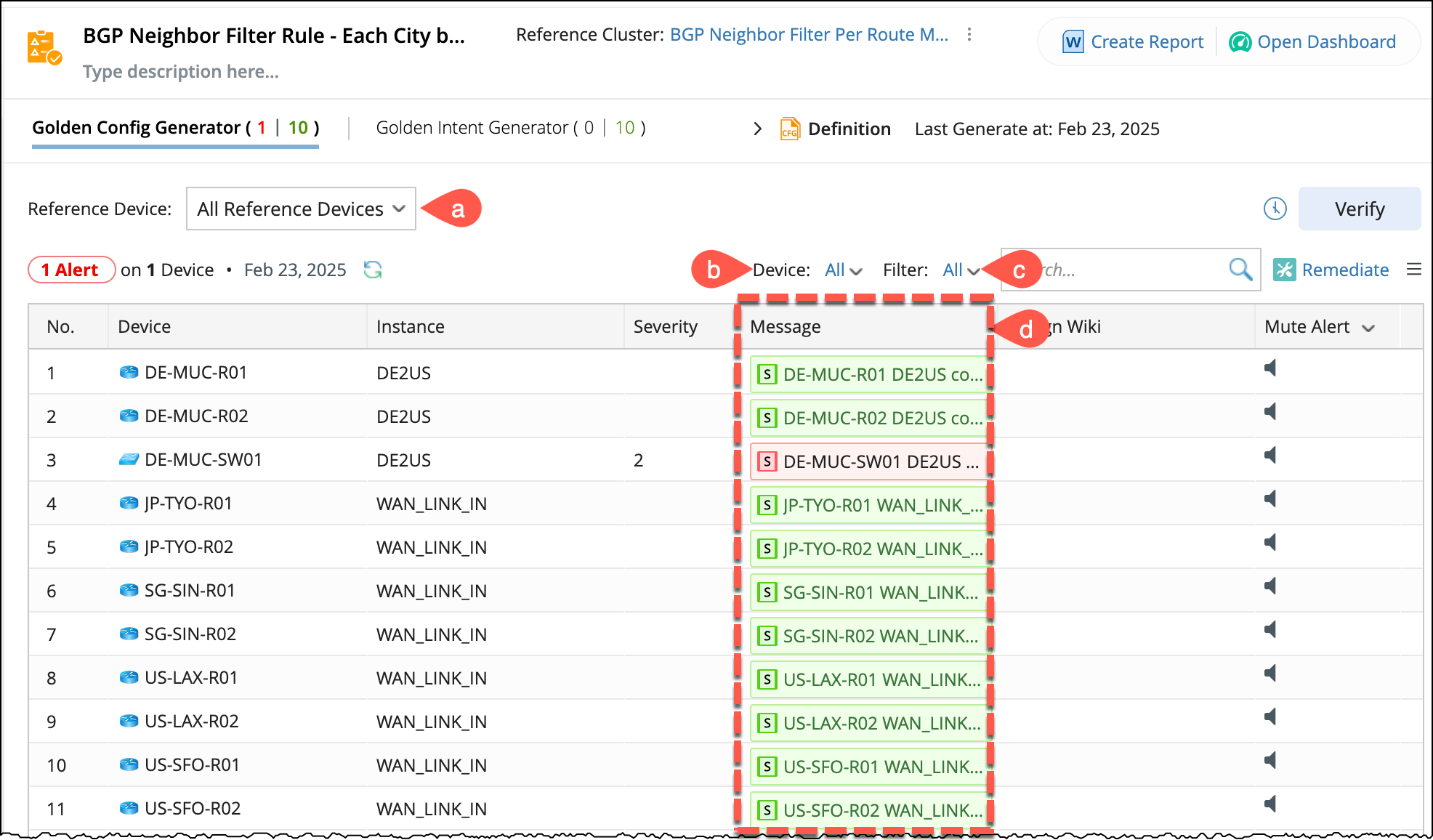
After generating Golden Intents and Member Intents, the execution results and functions are displayed in the table as shown below. The following functions are provided at the top of the table:
-
Golden Config Results:
- Reference Device: You can filter the results by choosing the specific reference device.
- Device: This filter can be used to find the specific target device results
- Filter: You can filter the results by Error, success and muted alert messages.
- Message: Display the predefined execution messages (e.g., Alert, Success).
-
Golden Intent Results: Intent Diagnosis message with alert count.

- Open Dashboard: If the Auto-create Dashboard option is enabled in the rule definition, the dashboard is automatically generated during Golden Config/Intent execution. A link to access the dashboard is provided.
- Create Report: Golden Config and Intent execution results can be exported as a Microsoft Word file.
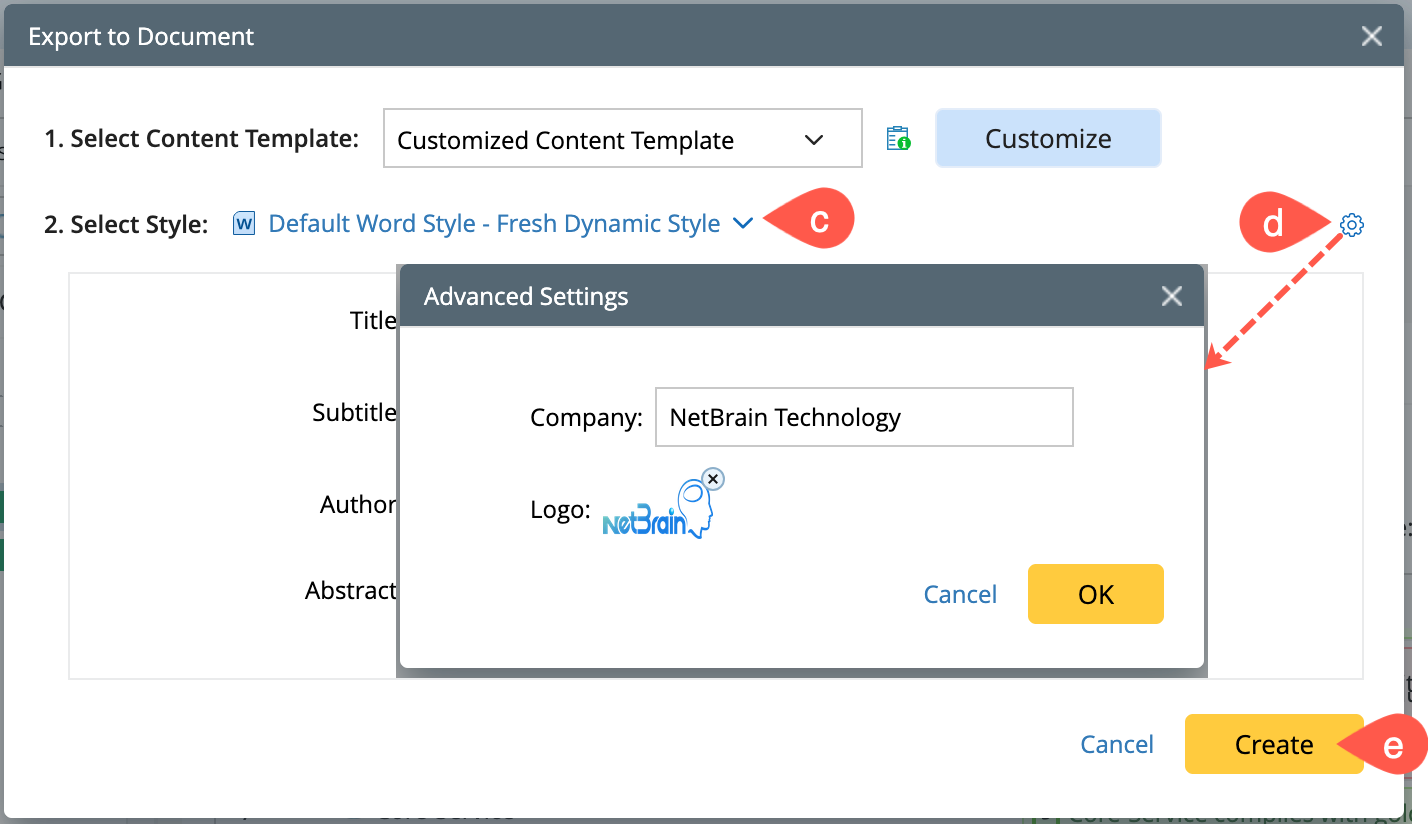
- Select Content Template: Select a content template from the drop-down list.
-
Use the Customize button to modify the selected template. Refer to Content Template Manager for the detailed customization procedure.
If you customize the template, it will be saved as Customized Content Template. If you modify this template again, the corresponding content will be overwritten.
- Select Style: Select a Word template first, and then fill in the basic information.
-
In the advanced settings
 , you can configure the company name and logo. These settings will apply at the domain level.
-
Click Create to generate the document, and a new result will be created.
-
The system will run the export process, and a success message prompt, along with a document with a download link, will appear as follows:

Note: You can export the document as an AI Document, refer to AI Document for more details.