R12.1 Project Publication-2025Dec23
Increase AI Usage Quota
Increase through NetBrain
If you would like to increase the AI usage quota through NetBrain:
- Contact NetBrain support for assistance.
- After NetBrain enters the OpenAI API key into the system, you can monitor the usage and select which domain to enable.
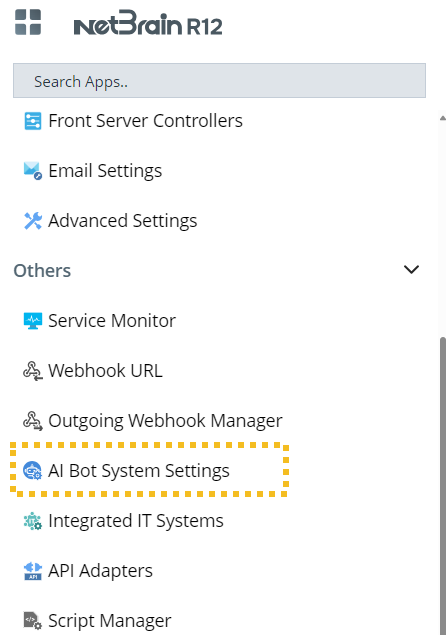
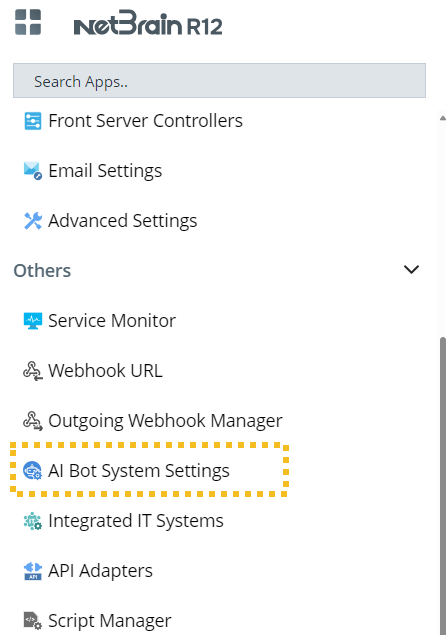
- On the System Management page, navigate to AI Bot System Settings.
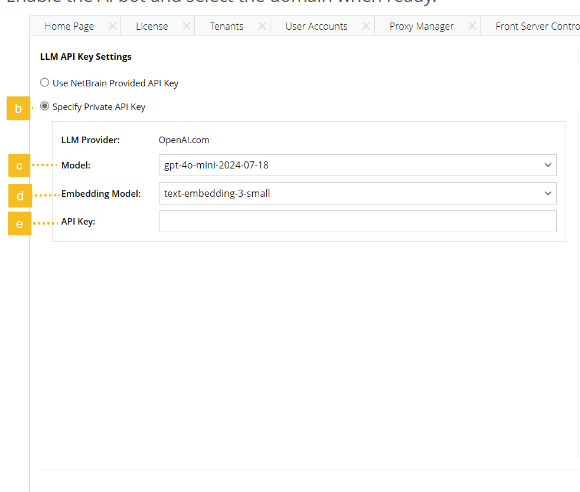
- Select Use NetBrain Provided API Key on the left pane.
- Click OK.
- On the System Management page, navigate to AI Bot System Settings.
Increase through your own OpenAI account
- Have an OpenAI account ready.
- Create a new project in the OpenAI account.

Tip: You can use an OpenAI Project to organize API usage, manage API keys, and set budgets for different applications. - Click View all projects or Projects in the sidebar.
- Select Create project.
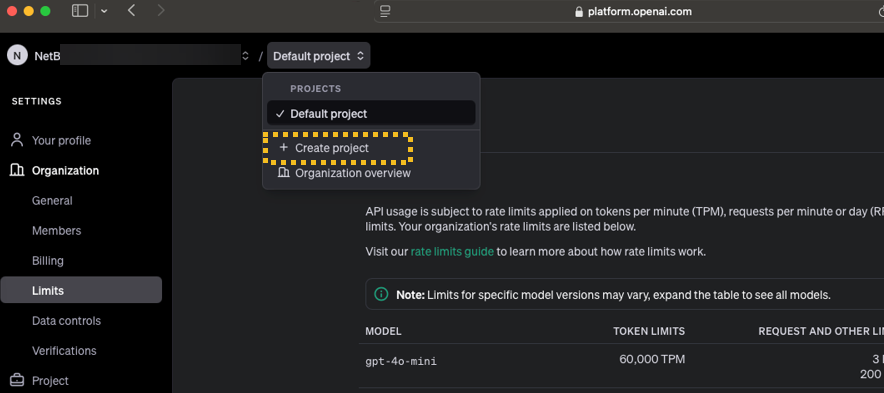
- Name your project.

- Create the API key.
Tip: An OpenAI API key is a unique identifier used to authenticate requests associated with your project. - Navigate to Dashboard.
- Click
 on the sidebar.
 - Click Create new secret key.
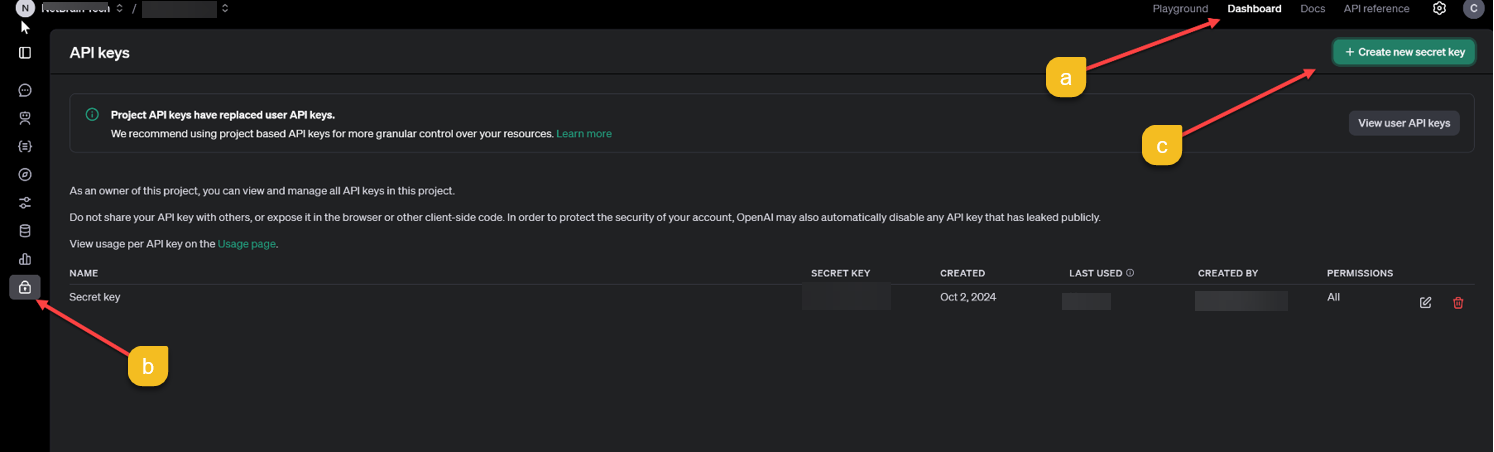
- Set the Owner to 'Service Account' and input a Name, e.g., the license ID.
- Choose the current Project Name.
- Copy and record the API key.
Note: Please record the API key before closing the window as the key will NOT be displayed again.
- Set the project budget and model.
- Navigate to Project Settings.
- Click
 Setting icon in the top right.
 - Click Limits in the left sidebar.
- Click
- Set usage limits and model.
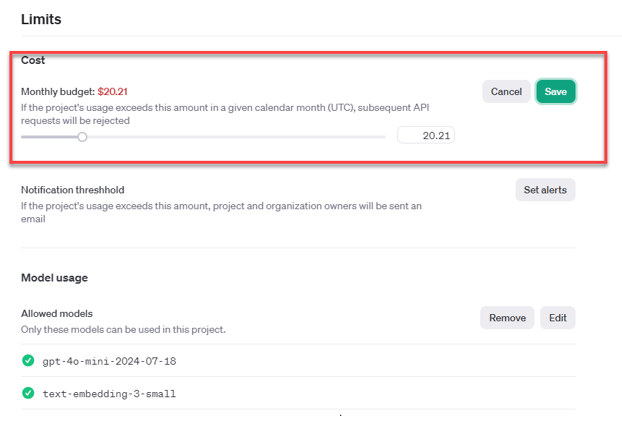
- Under Limits, you can set a monthly spending limit.
- It is recommended to select the following two modes:
- gpt-4o-mini-2024-07-18
- text-embedding-3-small
- Navigate to Project Settings.
- Enter the API key in the NetBrain system.
- On the System Management page, navigate to AI Bot System Settings.
- Select Specify Private API key on the left pane.
- Select the model. The default and recommended one is gpt-4o-mini-2024-07-18.
- Select the embedding model. The default and recommended one is text-embedding-3-small.
Note: The models should be the same as the ones selected when setting the model (step 4). - Enter the API Key obtained from step 3.
- Click OK.
- On the System Management page, navigate to AI Bot System Settings.
See also: