Method 2: Reverse Engineering from Group of Devices
This method allows you to calculate the configuration from a batch of devices, potentially identifying the Golden information. On a specified set of devices, calculate the values for the target-config or config variables. Aggregate the results to identify the number of distinct values and the corresponding device count for each value.
Sort these values in descending order based on the number of devices. Configurations with a device count exceeding a pre-configured threshold, will be designated as candidate golden config templates. From these, only the top configurations determined by another pre-configured threshold will be selected as candidates. You can then review these candidates and choose the final golden config template. The definition flow is as follows:

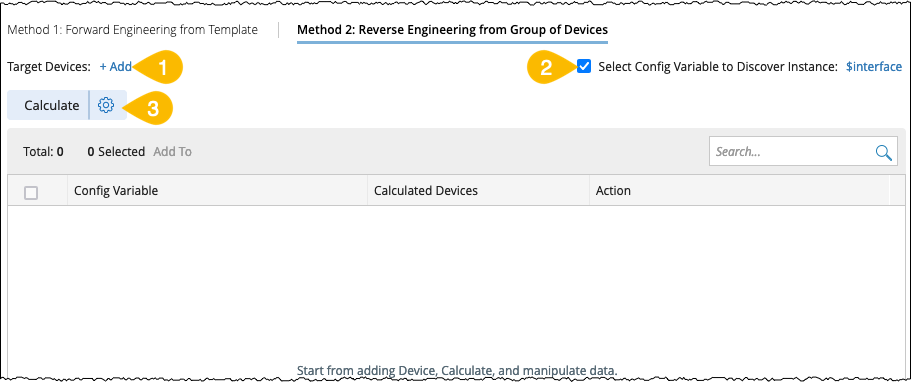
- Add the target devices by clicking +Add, select all devices that need to comply with the current golden configuration rule.
- You can choose a Normalized Config Variable for calculation. If Normalized Config variable is not selected, target Config Variable will be directly used for calculation.
-
Click Calculate to perform calculations, you can modify the calculation settings such as minimal devices, maximum golden config and instance conditions settings for the calculation from the
 .
.
- Upon matching the number of devices/instances conditions, the system will display the configlets.
- Click the link XX Devices (XX Instances) in the table column Calculated Devices to view the details of the specific devices/instances with the current config variable information:
-
If Normalized Config is selected: This window will also display the Original Config information. The columns will include:
- Device
- Instance
- Target Config Variable
-
If Normalized Config is not selected and Target Variable Config is directly used for calculation, the Target Config Variable will no longer be displayed.

- Define and Test: The settings are same as in the Forward Engineering, refer to Section Define and Test.
- Click Add to Golden to move the Candidate Golden Config information into the Golden Config. Upon adding the current record to the Golden Config successfully, a Golden label will appear on the entry, indicating it as Golden Config Template. And the last column Add to Golden will display Added label. After a successful Add, you can view and edit the Golden entry by opening it from the Golden section.
-
Update Device Scope: To recalculate the latest golden information based on the most recent configuration, click Calculate.
If the Golden information does not completely match the calculated devices device scope, a function Update Device Scope will appear in the last column. - Batch Add Golden Config to Adopted Golden Config Template: You can add multiple candidate golden config templates to the Adopted golden config at once by selecting multiple check boxes provided on the left side of the pane.
- Name Conflict: If the names are same, the system will prompt that it cannot be duplicated and the item cannot be added again.
-
Existing Golden Config Template: The system will provide options for handling a Golden Config Template that already exists. The options include:
- Append: Add the new information to the existing Golden Config.
- Overwrite: Replace the existing Golden Config information with the new one.
- Cancel: Abort the addition process.
Config normalization is the process of replacing specific values in a configuration file with placeholders (such as $_dummy, $vlan, $ip, etc.). These placeholders allow flexibility, and they are not required to match a specific pattern during the verification of the golden configuration template.


|
Note: When adding multiple Candidate configs to the Golden Config, the system will check for the following conflicts: |
You can select a single or multiple Golden Config Templates and:
-
Export as a CSV file
- Save them as Golden Config Parameters.
Export as a CSV file
Using this function, all the selected configuration variables can be exported as a CSV file:
- Select multiple config templates.
-
Navigate to Add To and choose Export-CSV.

The exported CSV file includes the following columns:

Add to Golden Parameter
- Select multiple config templates, click Add to > Config Parameter.
-
A new window Add to Golden Parameter will appear on screen.

-
Create a Golden Config Parameter without a Device Group:
- Add a name to the config parameter.
- Select the appropriate location for the config parameter from the Location drop down menu.
- Click OK to save and close the window.

Note: A prompt will appear on screen with Success message. You can Open Config Parameter from the prompt and refine the parameter criteria.

- Create a Golden Config Parameter With Device Group:
- Select the checkbox for the Add to DeviceGroup option.
- Choose the folder location to save the device groups for each config.
- Edit the default device group names as needed.
- Click OK to save and close the window.
To create a new device group with the calculated devices for each corresponding configuration:
