SSH/Telnet Login Credentials Mismatch

Contents
1.Log into Domain Management page.
2.In the Domain Management page, select Operations > Domain Manager from the quick access toolbar.
3.In the Domain Manager, click Username/Password Mismatch in the left pane. All IP addresses with mismatched SSH/Telnet login credentials are displayed.
4.Select the entries in the list by pressing the Ctrl or Shift key, right-click them and select Discover Selected IPs.
5.On the Discover tab, click Network Settings to add the matched Telnet/SSH login credentials.
1)Click Telnet/SSH Login > Add to add the matched Telnet/SSH login credentials and click OK. Repeat the operations to add all the needed credentials.

2)By default, the newly added credentials are selected. Clear the check boxes of proxies and credentials that are not used in this discovery.
3)Close the Network Settings dialog box.
6.Select an access mode and click Start Discovery to rediscover the IP addresses by using the Scan IP Range method.
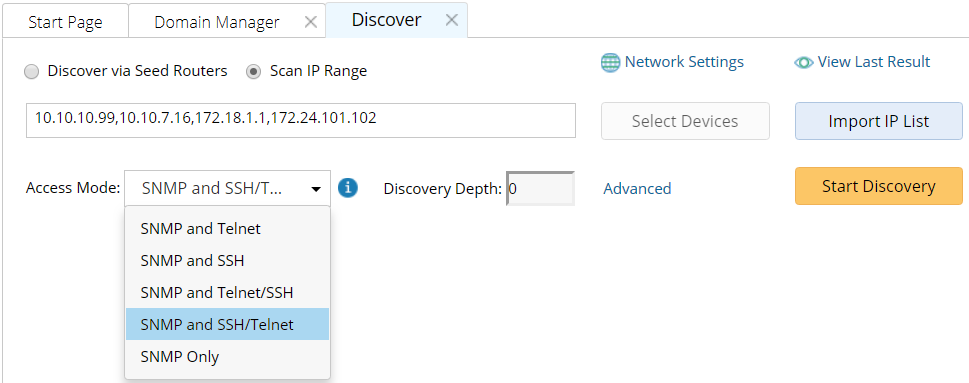
After the IP addresses are discovered successfully, they will be moved to the Discovered Devices list.
See also:
▪Context Menu in Domain Manager