Creating a Device Group

Contents
1.Click the start menu  and select Device Group.
2.In the Device Group pane, right-click the My Device Groups node or the Public node, and select New Device Group from the drop-down menu.
Note: The device groups in the My Device Groups category are accessible to yourself; the device groups in the Public category are accessible to all domain users.
3.In the Device Group Properties dialog, enter the name and short description for the device group.
4.Use one of the following ways to add devices to the device group:

Click Dynamic Search. See Dynamic Search for further operations. Tip: A device group with devices added by dynamic search can be updated in a Benchmark task. See Benchmark Task Settings for details. |
1)Click Add Devices. 2)Specify the scope and select the devices. 3)Click OK. |
|---|
1)Click Import. 2)Select a .csv file with the required device information from your local folder. Here is a sample of the .csv file: 3)Click Open. |
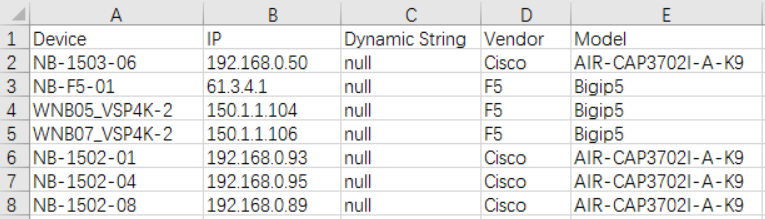
5.Click OK. The devices are listed in the table. The value of the Type column indicates whether the device is added via dynamic search or via statically added or imported. Only static entries can be deleted.
Tip: As soon as a device group is saved, its map file is generated automatically. See Opening a Device Group Map for more details.
Tip: To share your device group, right-click it and then select Move to Public.