Viewing Data Accuracy Alert on Data Accuracy Wizard

Contents
1.Click on Data Accuracy on the left navigation bar to open the Data Accuracy Wizard.
Tip: You can open the Data Accuracy Wizard from:
a. the Device Details pane
b. the start menu
c.the left navigation bar
d.the map

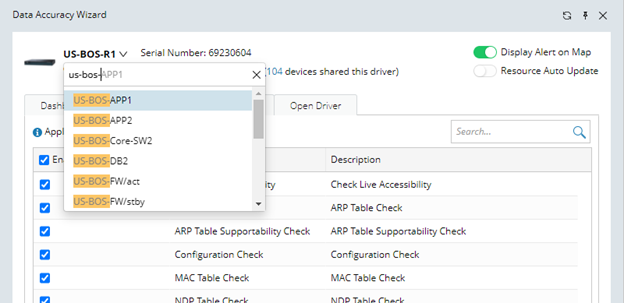
2.Click on  the drop-down menu and search with the device hostname to switch to the target device.
3.On the Dashboard tab, view the alerts generated by System Validation and Platform Validation.
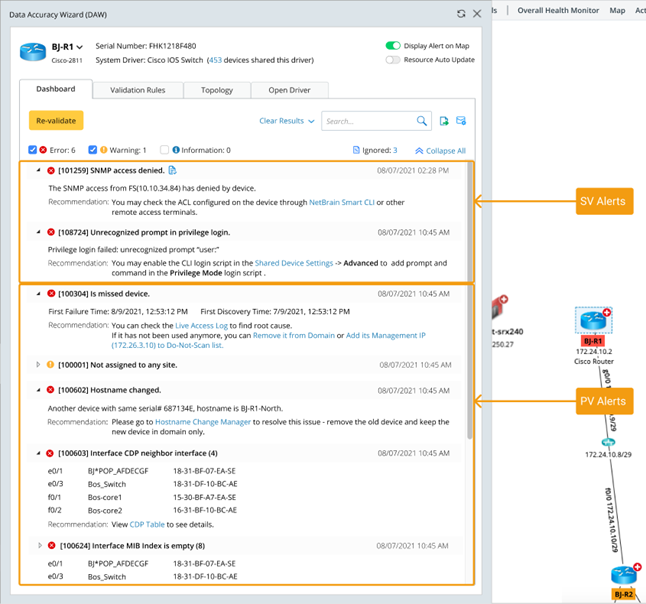
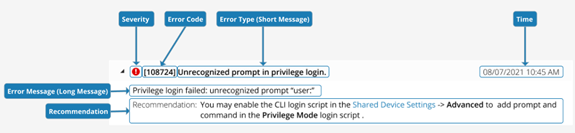
Each alert has the error code, error message, and recommended actions.
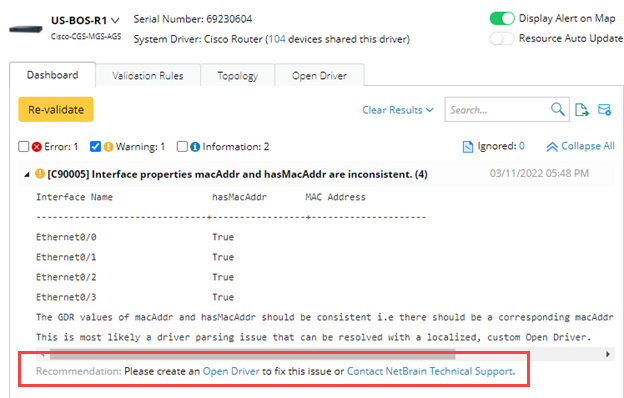
4.If the alert is valid, you can click on the link provided in Recommendation to fix the issue.
After following the recommendations, you can click on Re-validate button on the DAW dashboard to confirm that the issue has been fixed.
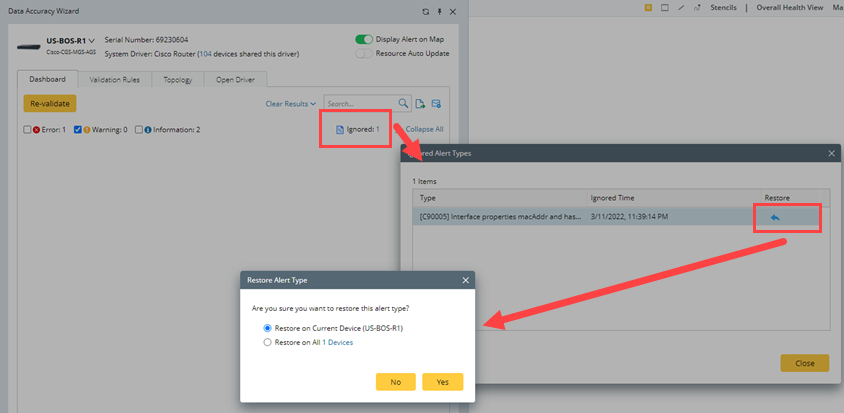
If the alert is invalid, and you don’t want to see this message in future, select Ignore from the drop-down menu, and click Yes on the Ignore Alert Type window. Ignored messages will not appear in the future validation result.
If the alert is invalid, and you don’t mind seeing this message in future, select Delete from the drop-down menu, and click Yes on the Confirmation window. Deleted messages will still appear in the future validation result.

Tip: You can also ignore this alert on other devices by checking the Ignore on other devices as well option.
Tip: The ignored alerts can be viewed and restored by clicking on the number.
6.Click  and select Locate Validation Rule from the drop-down menu to locate and manage the validation rules.

7.On the Validation Rules tab, select Enable on More Devices from the drop-down menu to enable or disable the validation rules on more devices.

8.Click on Topology tab to view the Open Topology results for this device, such as the VLAN group, L3 and L2 topology links.
9.Click on Open Driver tab to view the relevant Open Driver for this device.
You can enable, disable, or test the Open Driver in this tab.