Other Operations on a View
Refresh/Auto-refresh ADT View
ADT View data can be manually refreshed or refreshed by schedule.
- Refresh ADT View: Click the
 icon to refresh the view data to get the latest intent results. The original table and all its associated views share the same data, therefore, even if refresh is done from a view, the refresh operation applies to the entire table data to ensure data consistency.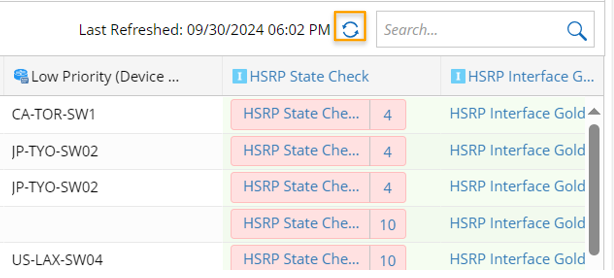
- Auto-refresh: Both original ADT and View can be auto-refreshed.
Auto-refresh the original ADT: Enable this function, then input a value to set the frequency of auto-refresh, click OK to save the setting.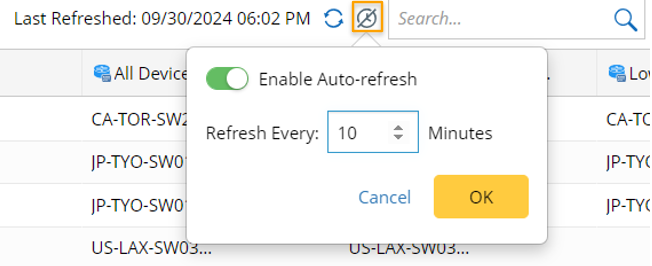
- Auto-refresh ADT view: View can be refreshed at the same frequency as the original Table. To auto-refresh a view, turn on the auto-refresh function, then click OK to save the settings. To enable auto-refreshing ADT view data, define the frequency of auto-refreshing the ADT from the original table first.

 | Note: Users can enable/disable the auto-refresh function for each view, respectively. |
Publish/Unpublish ADT View
A view can be published/unpublished.
Publish ADT view: The published view is visible to all end users.
- Choose Publish from the main menu of a view.
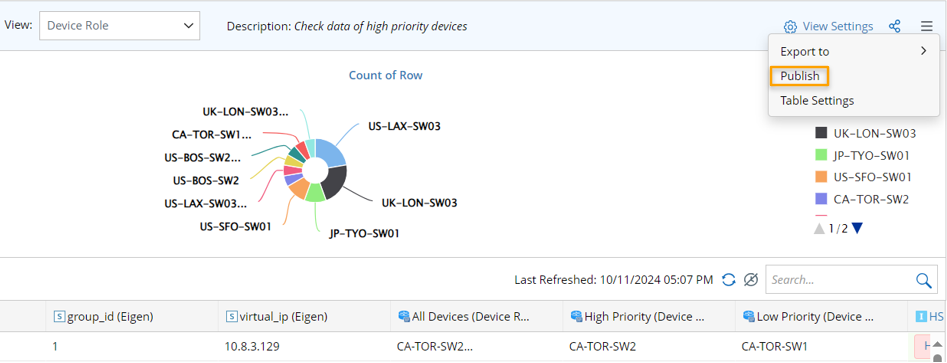
- In the pop-up Publish window, select a folder for storing the published view, then click OK to close this window.
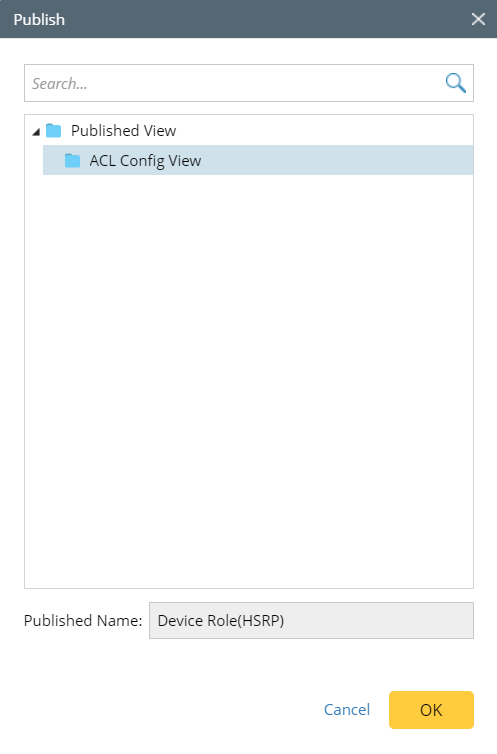
- Go to ADT Manager > Published View folder to check the published view: The published view will be stored in the Published View folder tree in ADT Manager.

Unpublish ADT view
The view will be removed from the Published View folder Tree. Corresponding user privilege is required to unpublish a View.
You can directly unpublish a view from the Published View folder in ADT Manager.
- Go to ADT Manager > Published View folder.
- Select the view to be unpublished, click
 , then select Unpublish from the menu.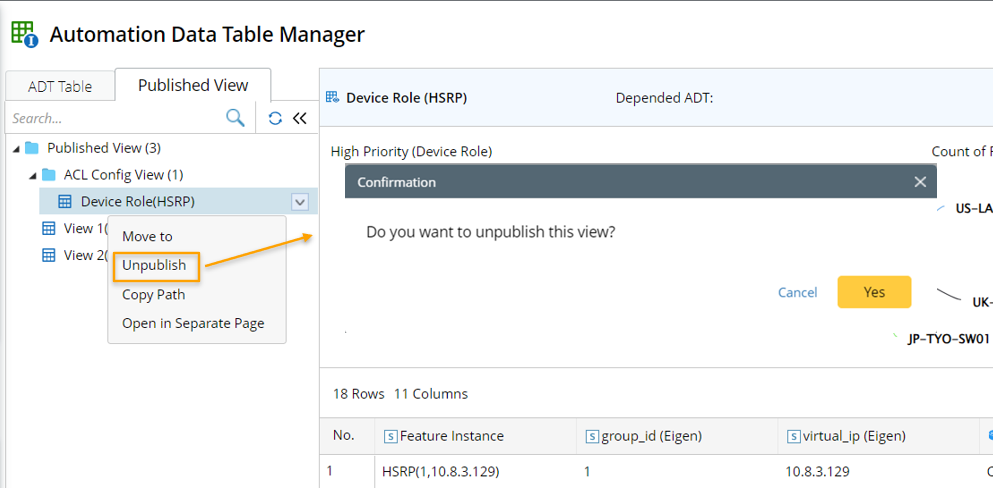
- In the pop-up confirmation box, click Yes to confirm the action.
Alternatively, you can unpublish a view from the main menu of the view in ADT Manager. 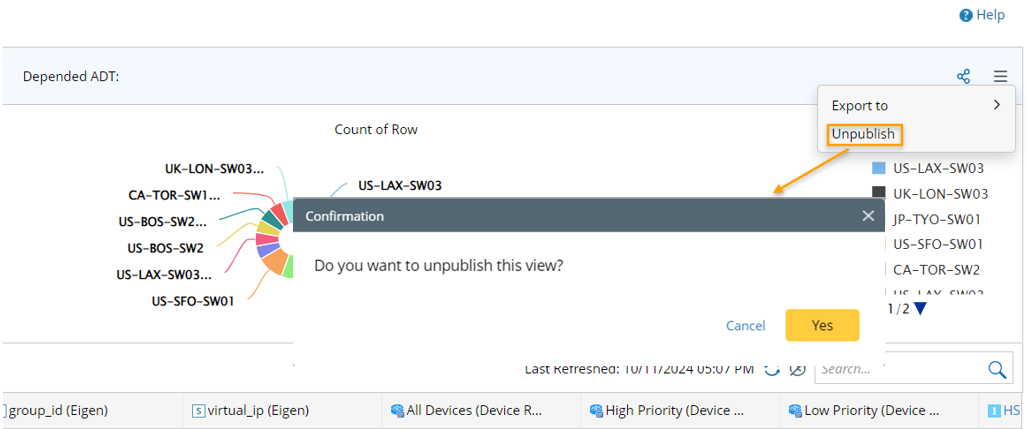
Also, you can unpublish a view from the main menu of the view. 
Open ADT View in a Separate Page
A view can be opened in a separated webpage with its unique URL from the Published View folder.
To open ADT view in a separate page, follow the steps below:
- Go to ADT Manager > Published View folder.
- select the target view, click the
 icon, then select Open in Separate Page from the dropdown menu.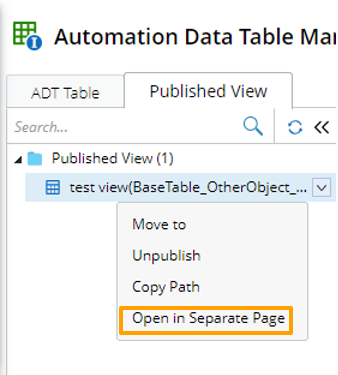
- The view will be open in a new webpage without showing the View list.
Export ADT View
ADT views can be exported along with the original ADT table in .xlsx or .csv format. When exporting view to csv, the view is exported together with the original ADT. When exporting view to excel file, an individual view will be exported.
To export an ADT view to Excel, follow the steps below:
- Click the
 icon from a view to open the main menu of view.
 - Select Export to > Excel. The view will be exported to excel format and will be saved in the local default folder.

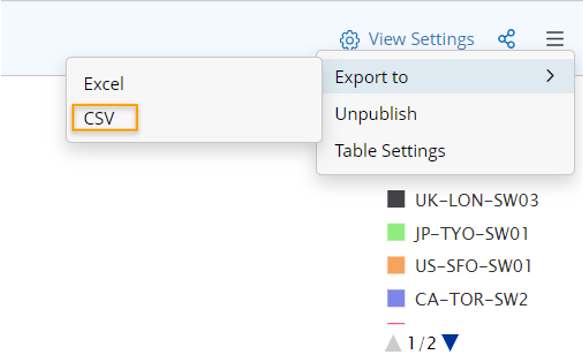
To export an ADT view to CSV, follow the steps below:
- Click the icon from a view to open the main menu of view.
- Select Export to > CSV. The view will be exported to CSV format and will be saved in the local default folder.
Share ADT View
Through ‘Share’ functionality, the URL to the view can be shared with other users via email or by copying the URL.
follow the steps below
- Open the target ADT view, click the
 icon.
icon. - in the pop-up window, input the email receivers with whom the view will be shared and the email contents.
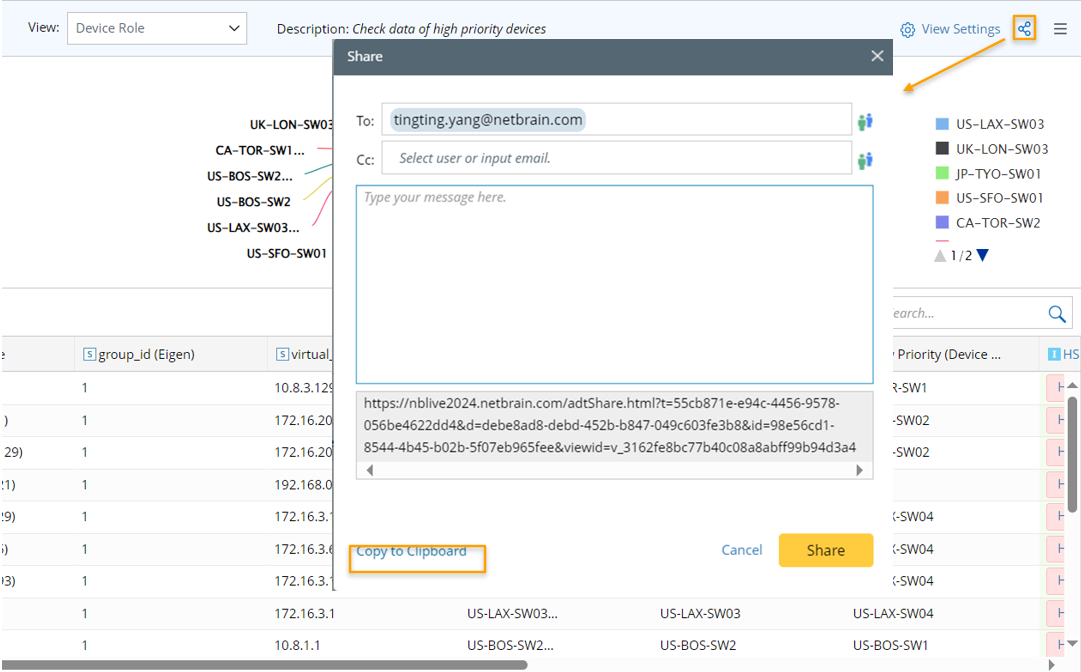
Alternatively, you can click Copy to Clipboard to share the URL to the view with other users. - Click Share.
Lock an ADT View
ADT view is locked by locking the ADT, which means that if the original ADT is locked, all its associated views will be locked in the same manner. If ADT is locked by one user, other users without corresponding privilege can only switched views of the ADT but cannot open any view of the ADT. when the original ADT is locked, a message "The Automation Data Table is locked Enable Editing" will appear on the associated ADT view. You can click Enable Editing in the message to try to unlock the view.
