R12 Publication-2025July16
Auto Parser in Multiple Mode
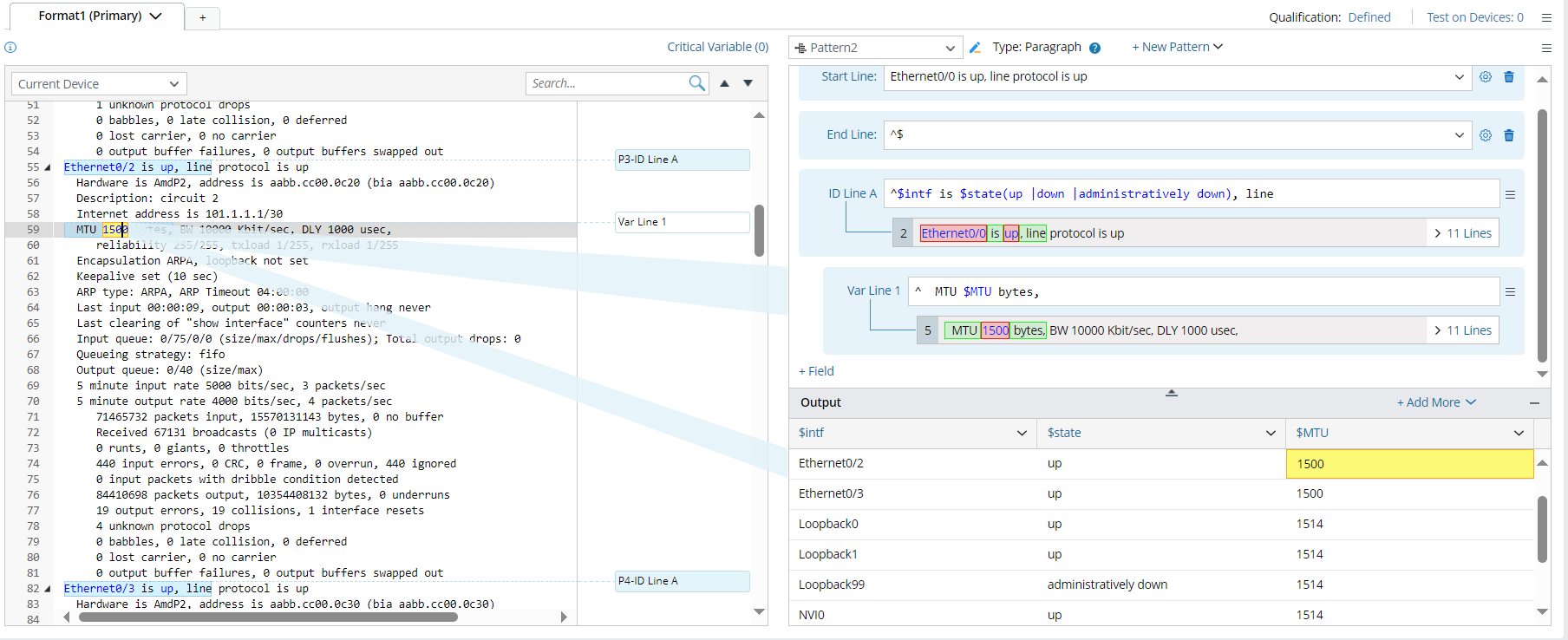
If more than one variable value is matched based on your selection of word, the system will guide you to the multiple mode of auto parser, which will output a variable of table type. The current mode is called Temporary-edit mode (in red background).
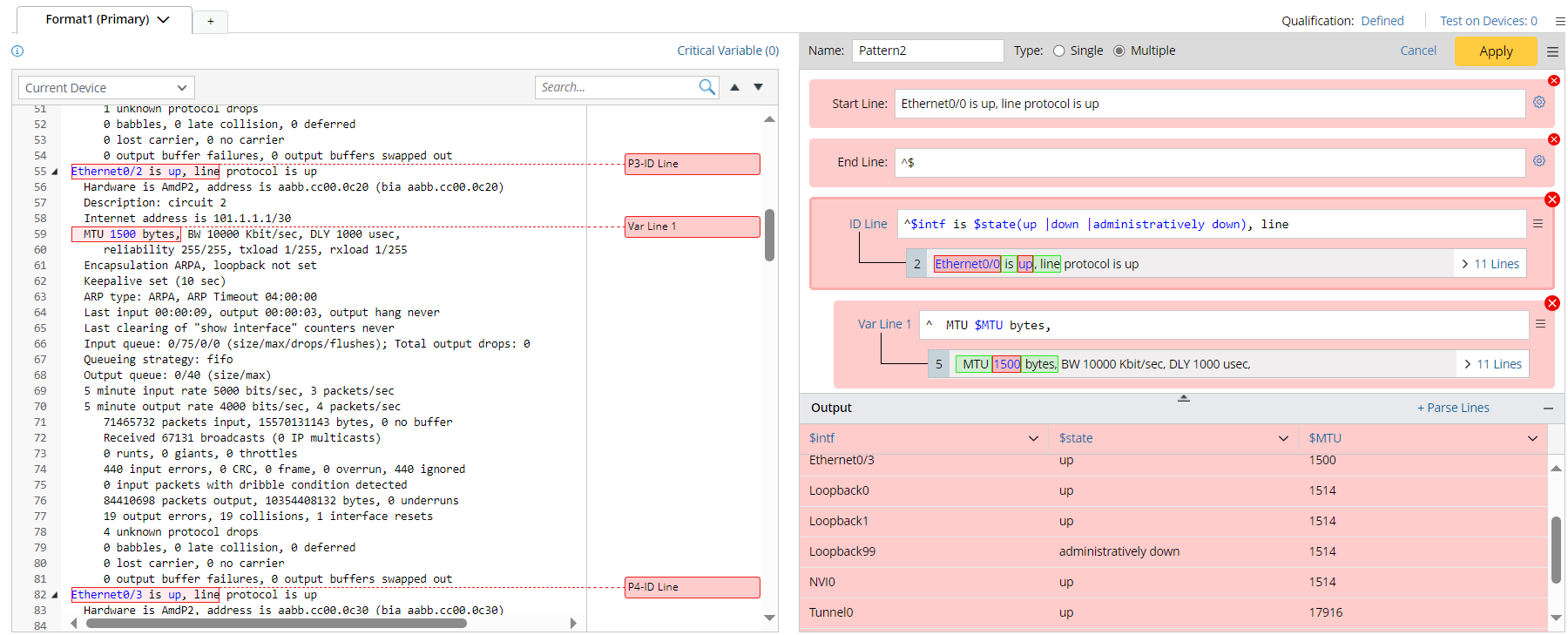
- Double-click the variable in the left input area, the searchlight in red color appears to locate the corresponding line pattern and output. The specific variable value in output table will be highlighted.
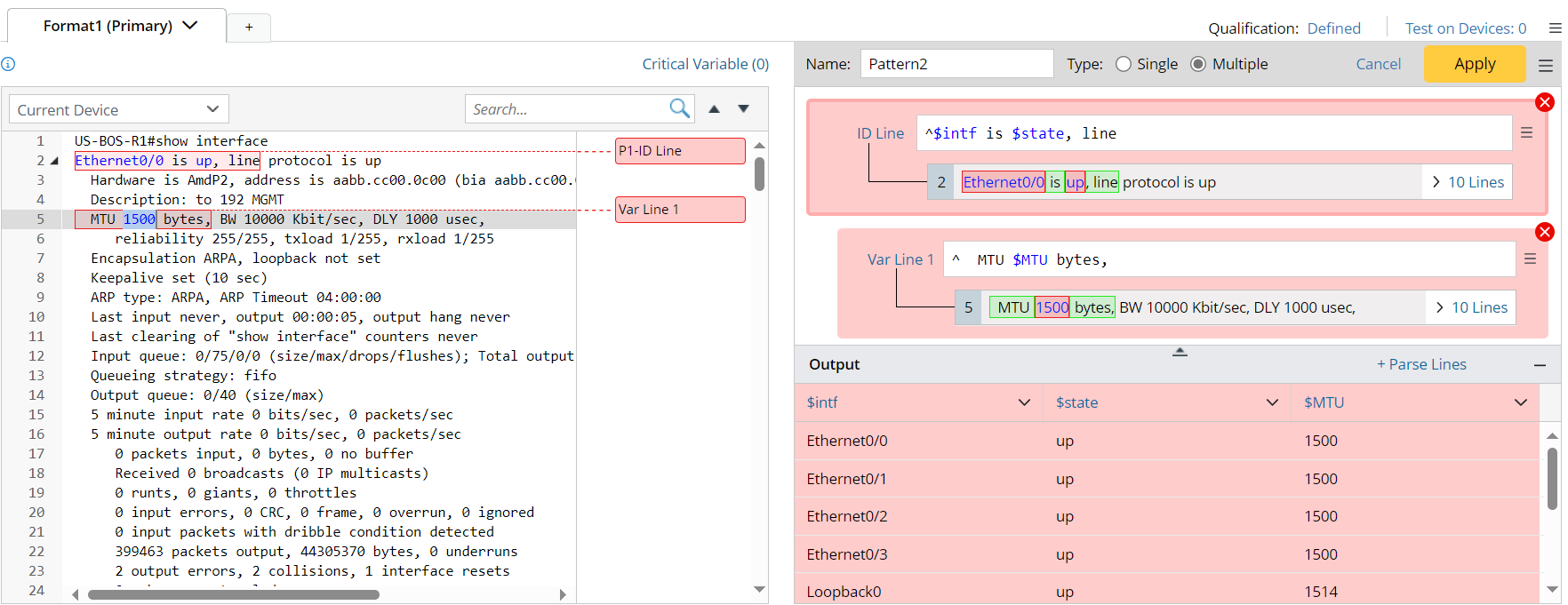
- In multiple mode, the first line pattern is the unique one ID line for dividing lines of text into segmented paragraphs, then Var line patterns are added after the ID line pattern to define more variables in the same paragraph. The system supports setting a Var line as the ID line (“Set as ID Line”). The target Var line will be placed on the top as the ID line.
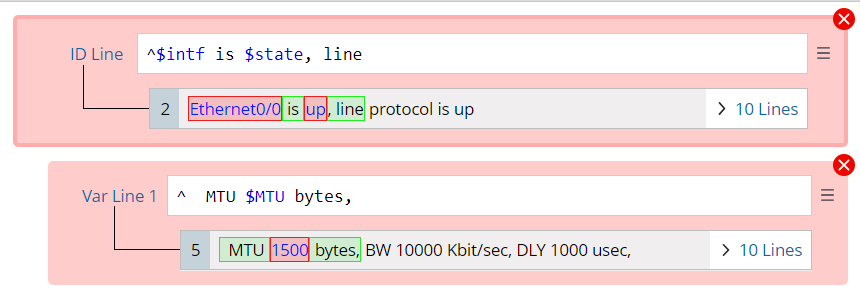
- Click the variable in the matched line area or column header (which is the variable name) in the output area, variable name and variable type can be modified, and Enumeration can be defined.

- Add Start line/End line to define the scope of original lines in the parser input for matching variables in the current paragraph. Input the target line text then paste in the line pattern. After adding the start/end line pattern, the menu will be disabled.


Note: Start Line and End Line can also be added in the single mode of auto parser. - Line pattern can be removed (Click
 ).
). - Continue to select variables, the variables will be parsed within the text scope based on the current pattern.
- Click Apply to confirm the current parser pattern, then the background turns to blue color to indicate switching to Confirmation Mode. In confirmation mode, the line patterns can be edited directly.
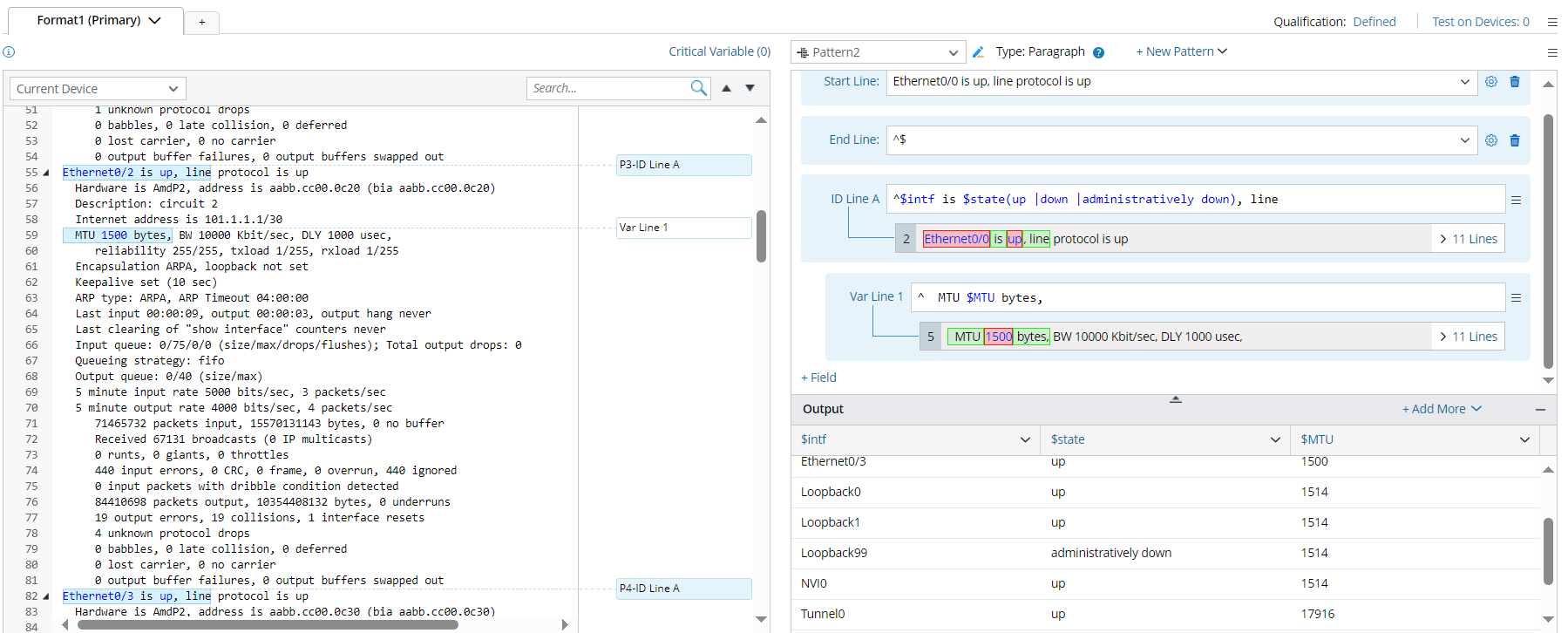
Note: After this step, you actual enter the add-on parser mode, and a paragraph pattern is created. - In confirmation mode, if variable is selected from the left input area, the searchlight in blue color will be appeared to show the matching relationship.
- When you switch from multiple mode to single mode, the ID line in the multiple mode will be changed to a Var line in the single mode.