R12.1 Project Publication-2025Dec23
NetBrain TAF Automation
The NetBrain nextgen automation can be triggered from the Splunk.
Steps Required from NetBrain End
- In the System Management page, navigate to the Integrated IT Systems tab, and click Add Integrated IT Systems.
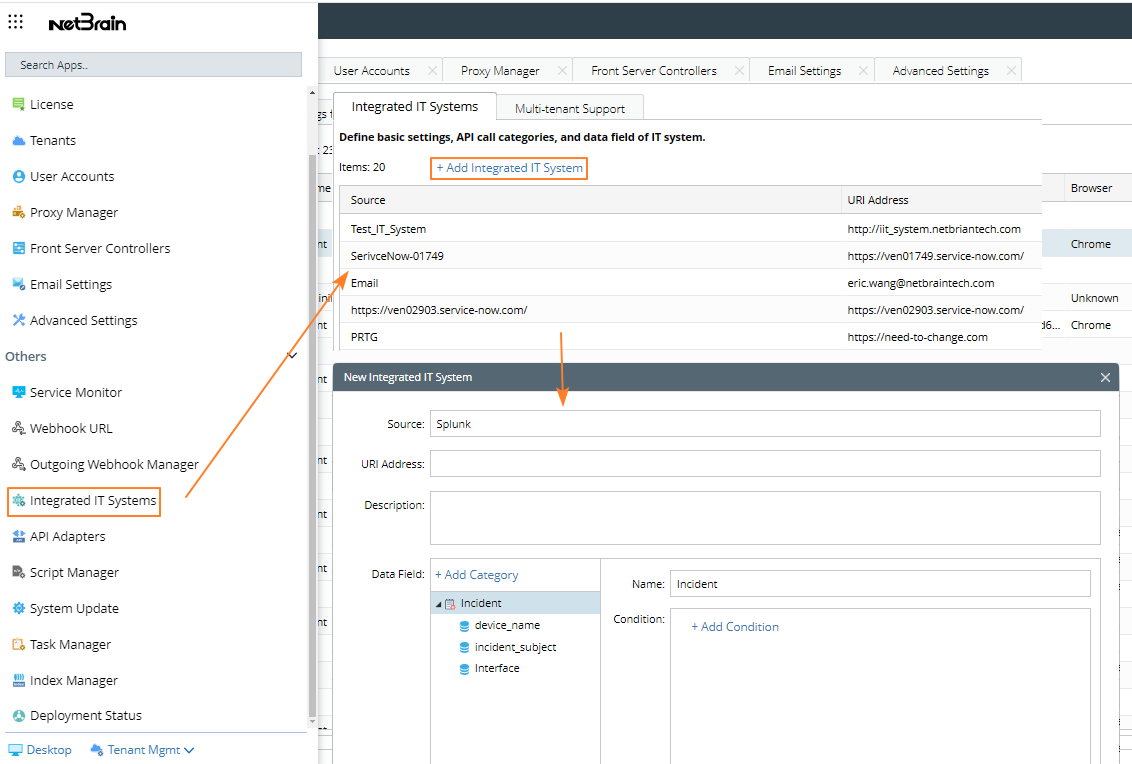
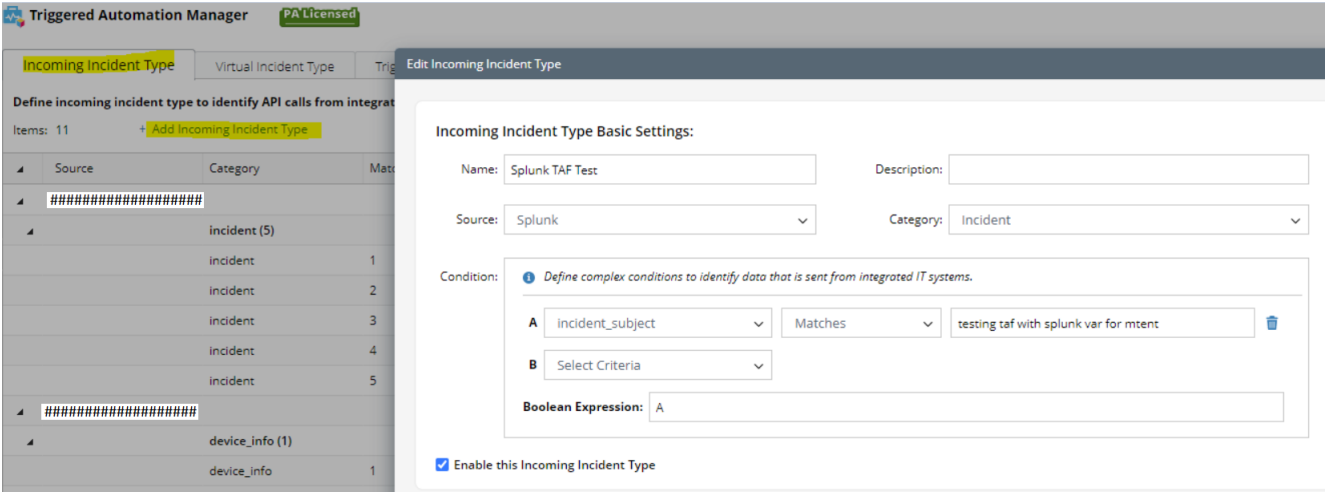
Click Add Category and fill these data fields: device_name, incident_subject, and interface. - Navigate to Triggered Automation Manager > Incoming Incident Type tab, and add an Incoming Incident Type based on the requirements.
- On the Triggered Automation tab, create a triggered diagnosis.
Define the information based on the requirement. Select the intent/intent template/ADT that needs to be triggered when the incident is received.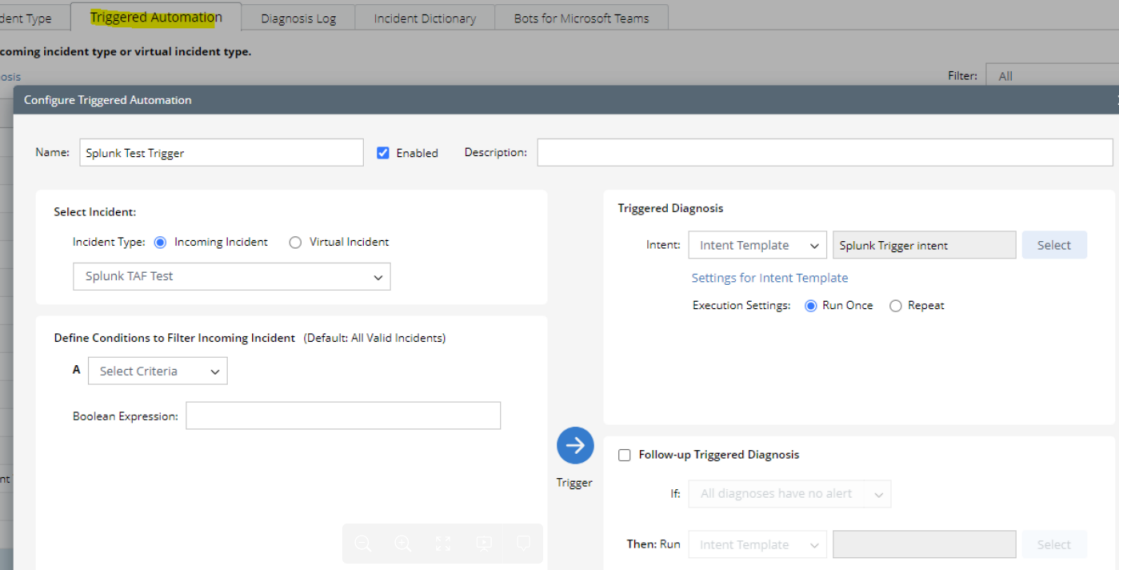
Steps Required from Splunk End
- Create a new alert or edit an existing alert by navigating to Alerts tab in Splunk.
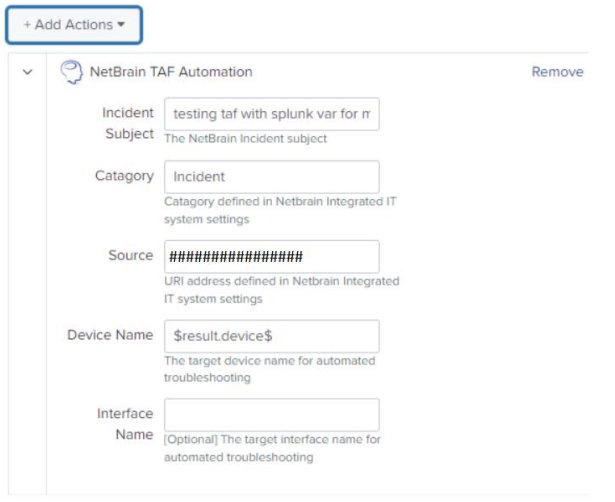
- Click Add Actions and then the list of automation that is supported will be available. Choose the Netbrain TAF Automation from the list.
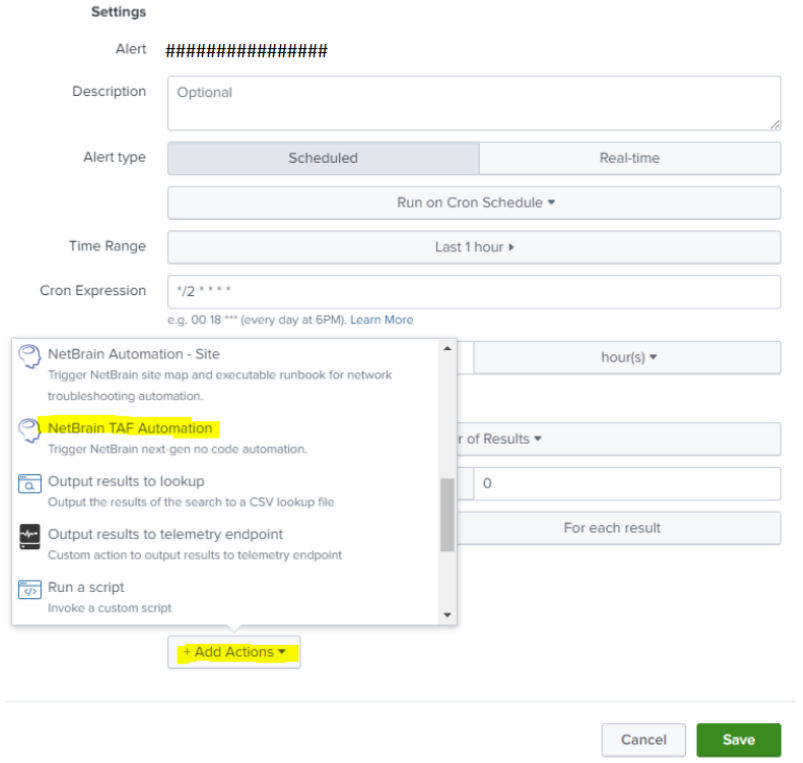
- Define the following information, making sure the data of Category and Source fields are same as what is set while creating integrated IT systems in NetBrain.
Review the automation result in Splunk.
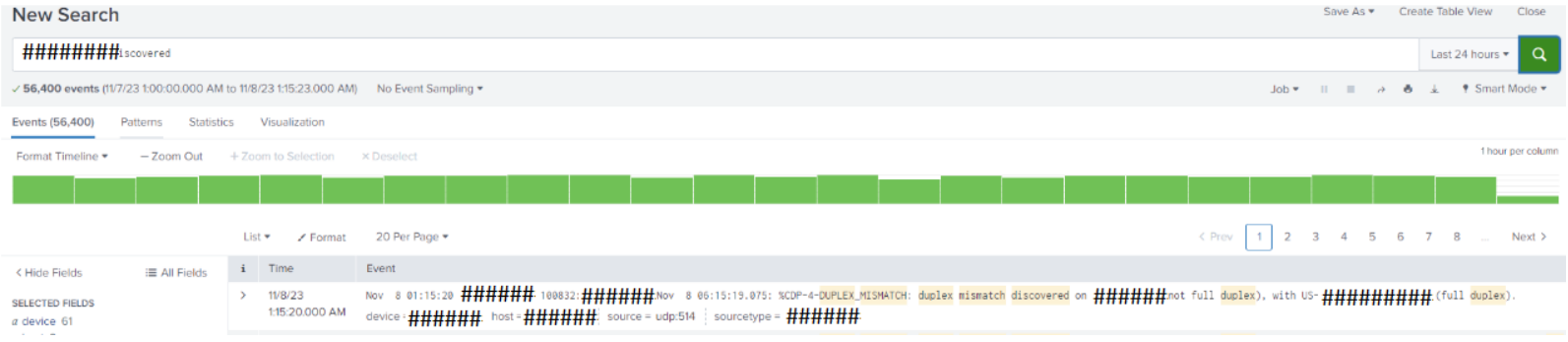
- Navigate to Search & Reporting.
- Search with the following search query and a time range that covers the alert triggering time.
- index=_internal sourcetype=splunkd "NB Incident url"
- (Optional) For easy access next time, save this search as a report and create a NetBrain dashboard.