R12.1 Project Publication-2025Dec23
Create a Path Intent via Auto Intent
When you map a path, the system lists all decoded intents applicable to the devices along the path under the Auto Intent. You can create an intent from the Auto Intent and save it as the path intent. For more information, see Save the Created Intent.
- Draw a path map or open an existing path map.
- In the Path Intent tab, click Create Intent > Via Auto Intent from dropdown.

- Create a Path Intent via Auto Intent Add Auto Intent to the Path.
- Select Intnet Profile from the dropdown. For example, Troubleshooting is selected.
- Select Seed Intent from the matching Intent. You can also select desired devices from the seed Intet to be replicated.
- Click Replicate to apply the Intnet on the Path.
- Click Run to run the diagnosis logic.
- Click Add to Path Intent to add the replicated Intent to the existing path.
- In the Save to Path Intent Dialog, enter Intent Name and Description, and then click OK.

Note: If a path intent with the same name already exists, users can select to append the new path intent to the existing one or overwrite existing one. 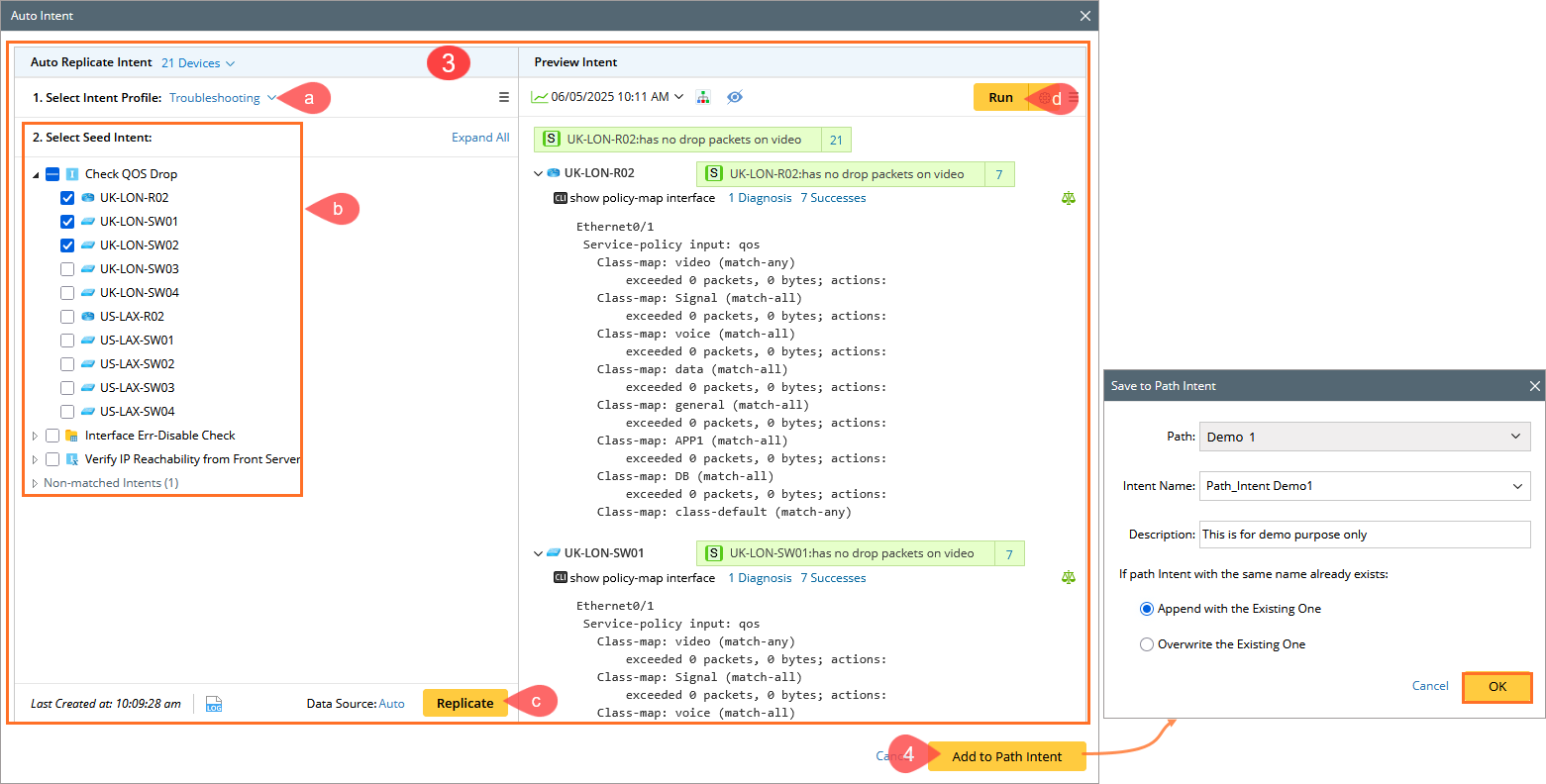
Follow the image below to check the created Path Intent for a Path.
