R12.1 JA-2025July15
Use NIC as Follow-up Diagnosis
In real-world troubleshooting scenarios, a diagnosis usually has a follow-up diagnosis, and the follow-up diagnosis may take the output of the upstream diagnosis as the input. Users can use NIC as the follow-up diagnosis for this scenario by defining which member NIs of the follow-up NIC are executed via the output of the upstream NI. For example, for each entry changed in OSPF neighbors, uses can do a “Ping to state changed neighbor” in follow-up NIC with macro variable and pass the obtained value to command: ping $neighbor_ip.
- In the NI Edit Mode, click the
 icon at the upper-right corner and select Replication Settings to Define Macro Variables to define the seed NI for NIC.
- Generate member NIs through NIC. See Network Intent Cluster for more details about how to generate the member NIs.

- In the NIC, define the neighbor IP in the eigen value as Signature Variables.

- Add NICs (member NIs) as the follow-up diagnosis. Execute ping OSPF neighbor command when the state of the OSPF neighbor is not FULL.

- Match member NIs through Signature Variable and Member Device in the NIC.

- Execute the intent, and check the result in the NI View Mode.

Diagnosis Tree of Follow-up NIC
- Pre-Execution: The NIC node will be displayed in the Diagnosis Tree (Pre-Execution) after adding the follow-up NIC.

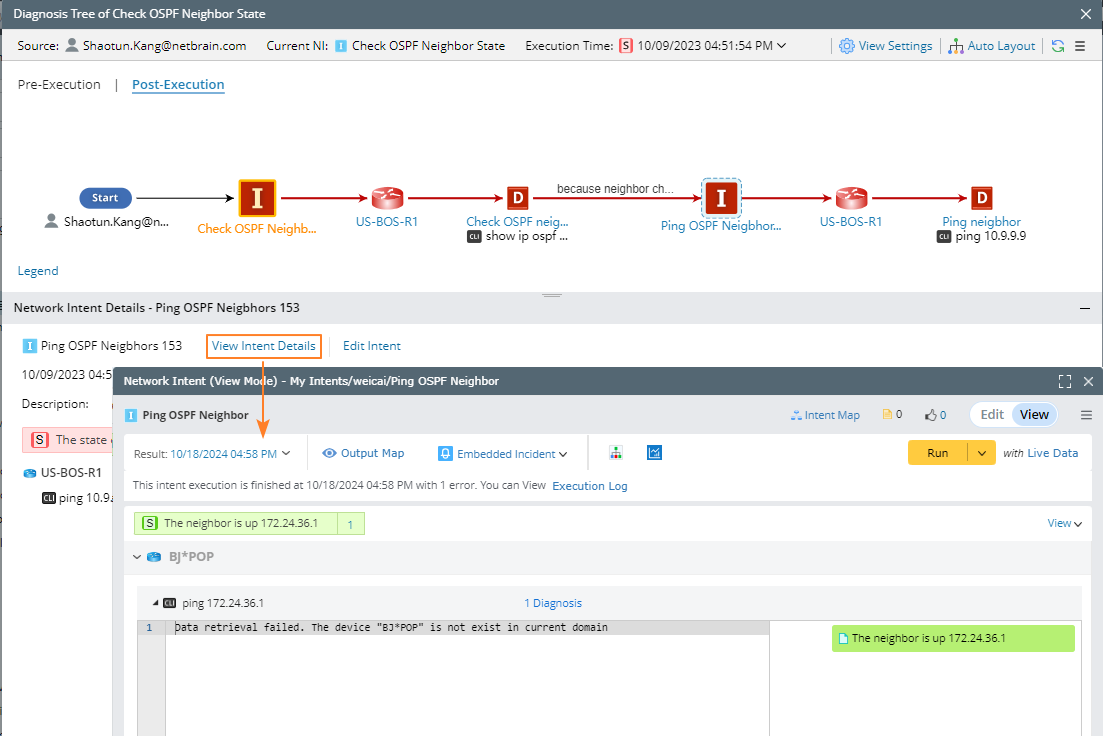
- Post-Execution: The matched member NIs in the follow-up NIC will be displayed in the Diagnosis Tree (Post-Execution).

You can also double-click the matched member NI to open its Details pane. Click View Intent Details to open the matched member NI.