Template Variable
You can create template variables in the Template Variable pane at the RBT level while creating an RBT to:
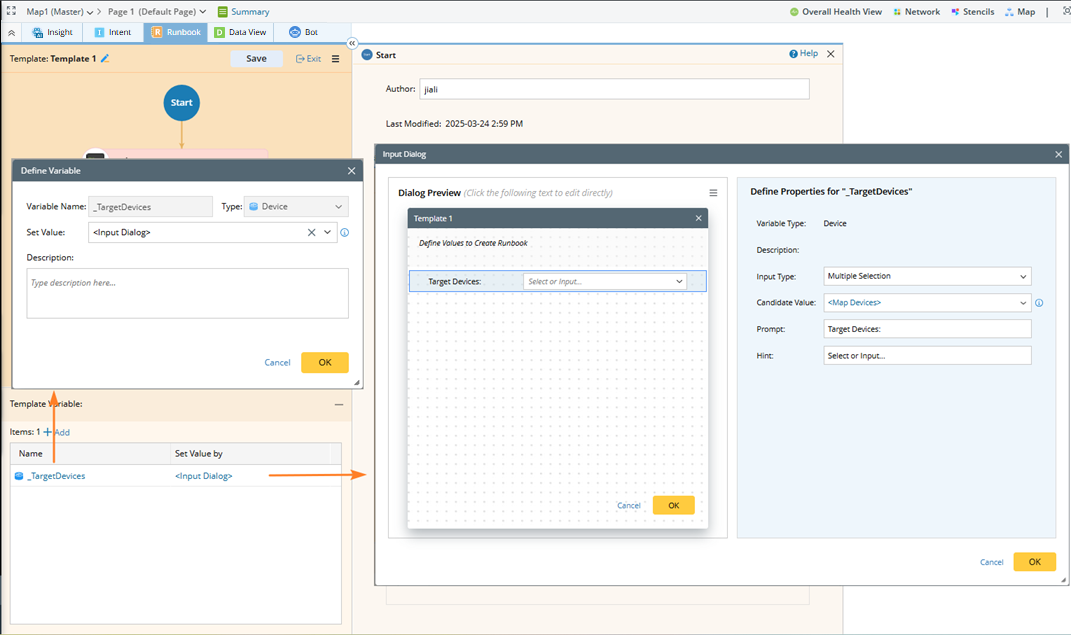

You can define the variable name and type, and set value for each type of template variable. The Input Dialog option controls whether the current variable value is user-defined or assigned through the input dialog. By default, this option is not selected. Once selected, the variable will appear in the input dialog and be assigned a value.
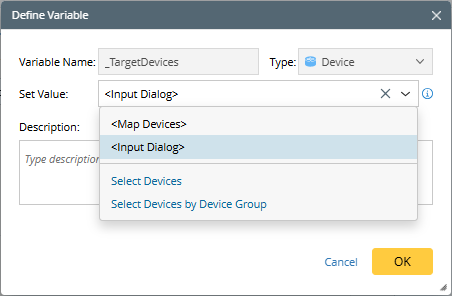
Define Table Variable
There are following methods to define the table variable or utilize the CSV data:
Table Via ADT: Define a table and all the candidate values of the column are referenced to an ADT column.
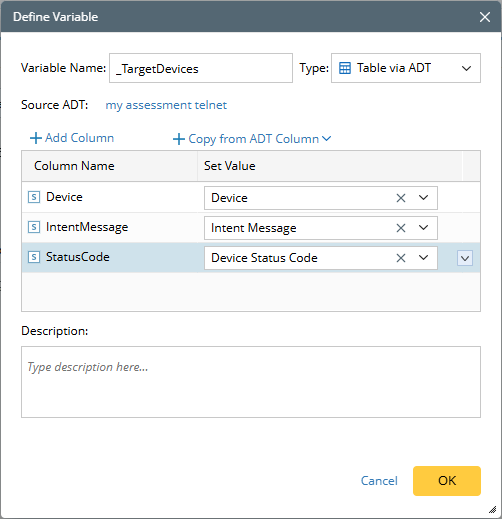
- Select an ADT.
-
Add column: Click Add Column and define the column name and type in the pop-up dialog.
You can also click Copy from ADT Column to directly select a column as the current table column.
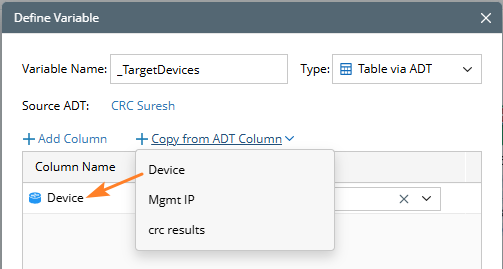
-
Set Value: ADT columns are directly listed for you to select. You can also choose the device or interface property to specify dependencies between columns. The rules here are consistent with defining candidate values in the input dialog.
Current Variable Type ‘Set Value’ Method Device - ADT Column
- <Map Devices>
- Select Devices
- Select Device by Device Group
Interface - ADT Column
- Device Properties
String/Int/Float - ADT Column
- Interface Properties
- Device Properties
The UI of an RBT with a table variable defined in the input dialog when creating a runbook is as follows.
You need to select value for each column, and all the candidate values are from the ADT. After selecting value for the first column (Device), column 2 (Interface) uses column 1 (Device) as the key — only the rows where the selected column 1 (Device) data matches will be considered as candidate value for column 2 (Interface), and so on.

Manual Table: Define a table and manually input the data for each row when creating a runbook via template.

When creating a runbook from an RBT with a manually defined table variable, no additional parameters need to be defined in the corresponding input dialog. You just need to add rows and enter the values, or directly import data from CSV file.

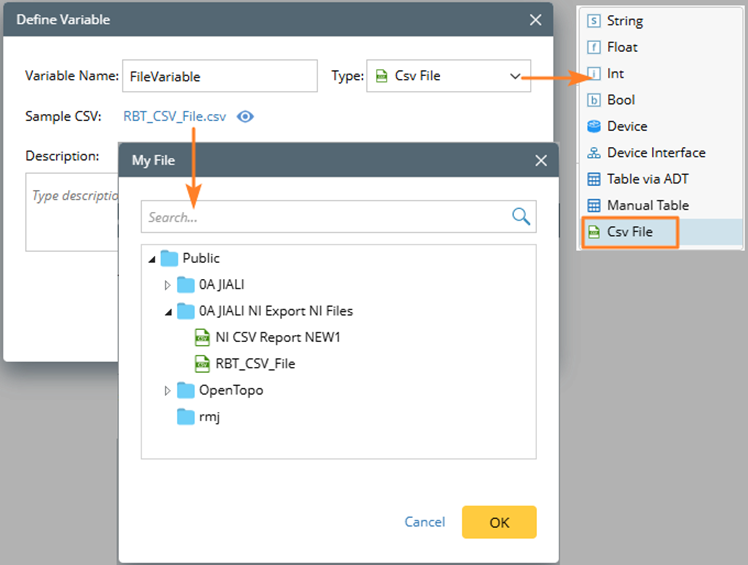
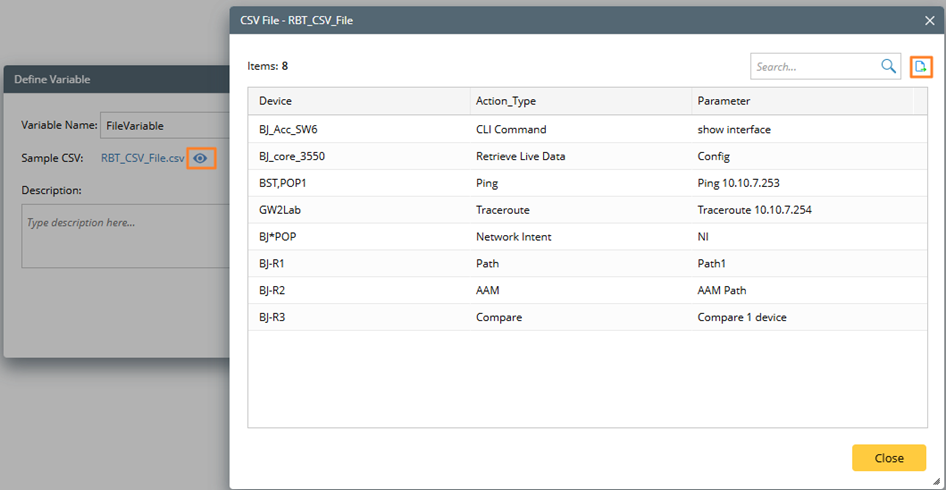
 icon to review its content and download it.
-
The Input Dialog:
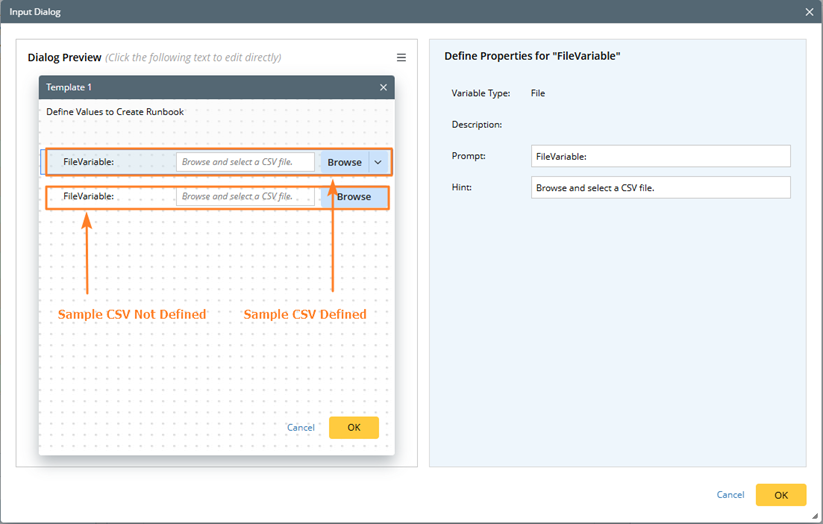
-
When Creating Runbook:

The file variable is used as a single-value variable at the node level, with the final passed value being a string (the complete file path).
