10.1.15.12-06212024
Create Network Intent
An NI defines the diagnosis on the specific target devices of a particular network.
The following steps to define an intent.
-
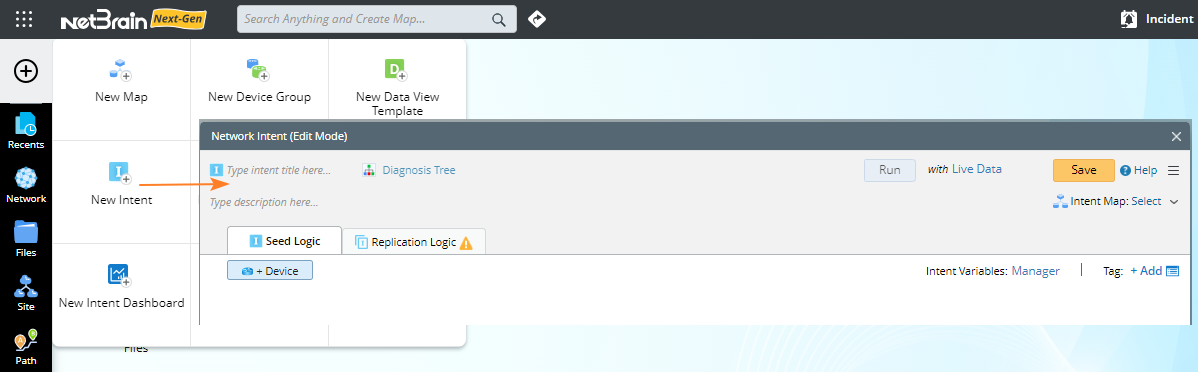
Click the
 icon and select New Intent.

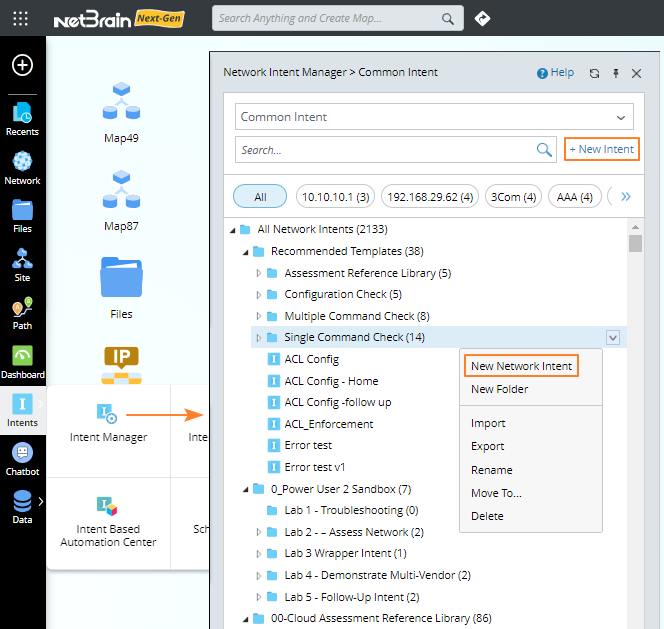
Note: You can also create a NI from Network Intent Manager:
-
The UI of NI edit mode is divided into two tabs:

- Seed Logic: The intent definition is made under this tab, and all variable types are also displayed here.
- Replication Logic: This tab displays all configurations related to intent replication. You can define the key replication logics under this tab.
-
Enter an NI name and add the following components.
-
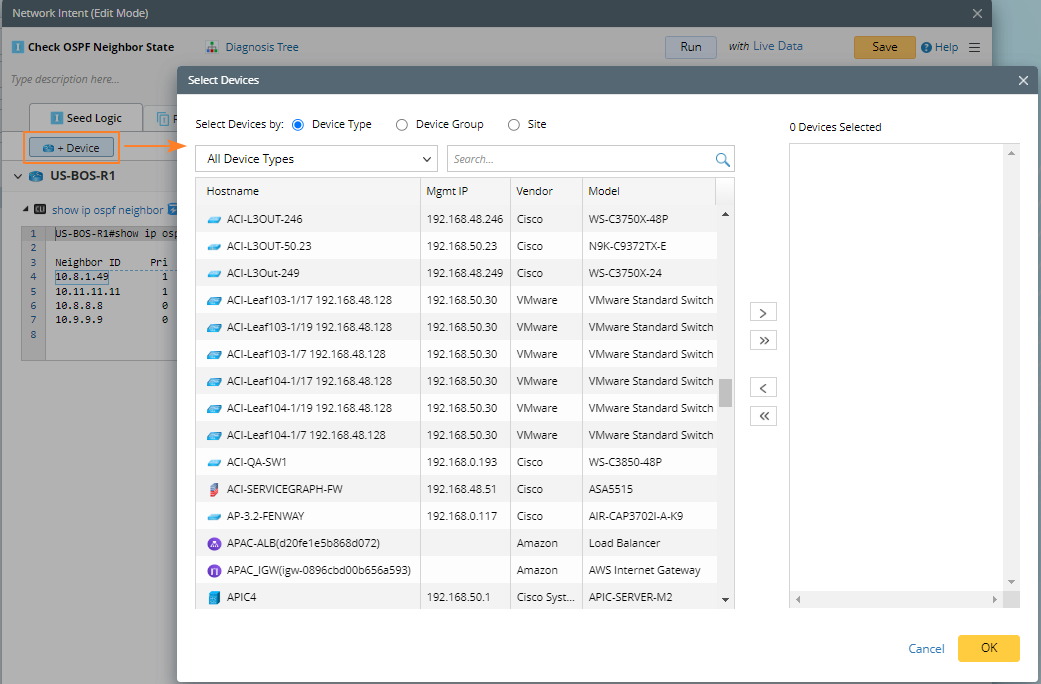
Click Add Device to add the target devices. You can add devices by device type, device group, or site, and when define NI on a map, you can also add devices by map.
-
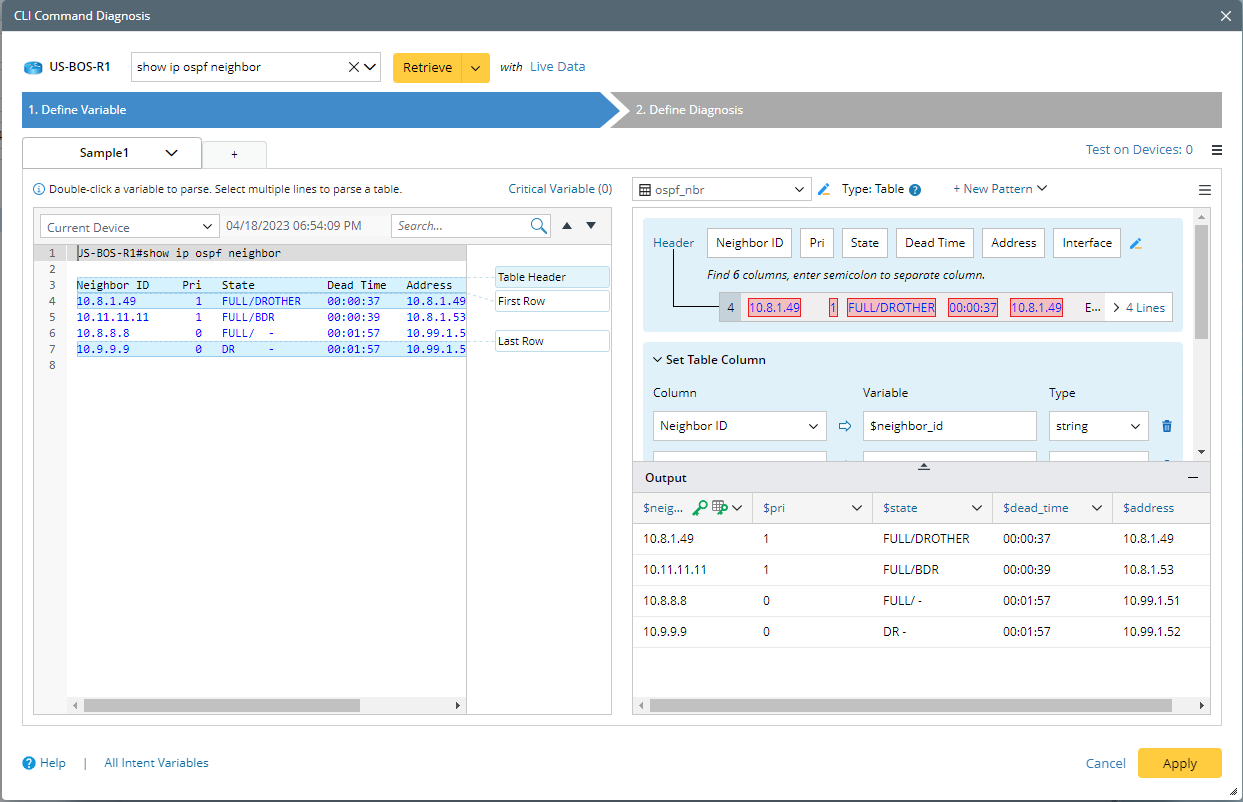
Click Add Config Diagnosis or Add CLI Diagnosis to add the Config or CLI commands to this NI. Enter a command and retrieve the data from the live data, cached data, or ADT dataset. You can also directly import text. After the data is retrieved or imported, you can edit the sample data.

-
Define parser for Config or CLI commands. See Define Variables for more details.
-
Define the diagnosis. See Define Diagnosis for more details.
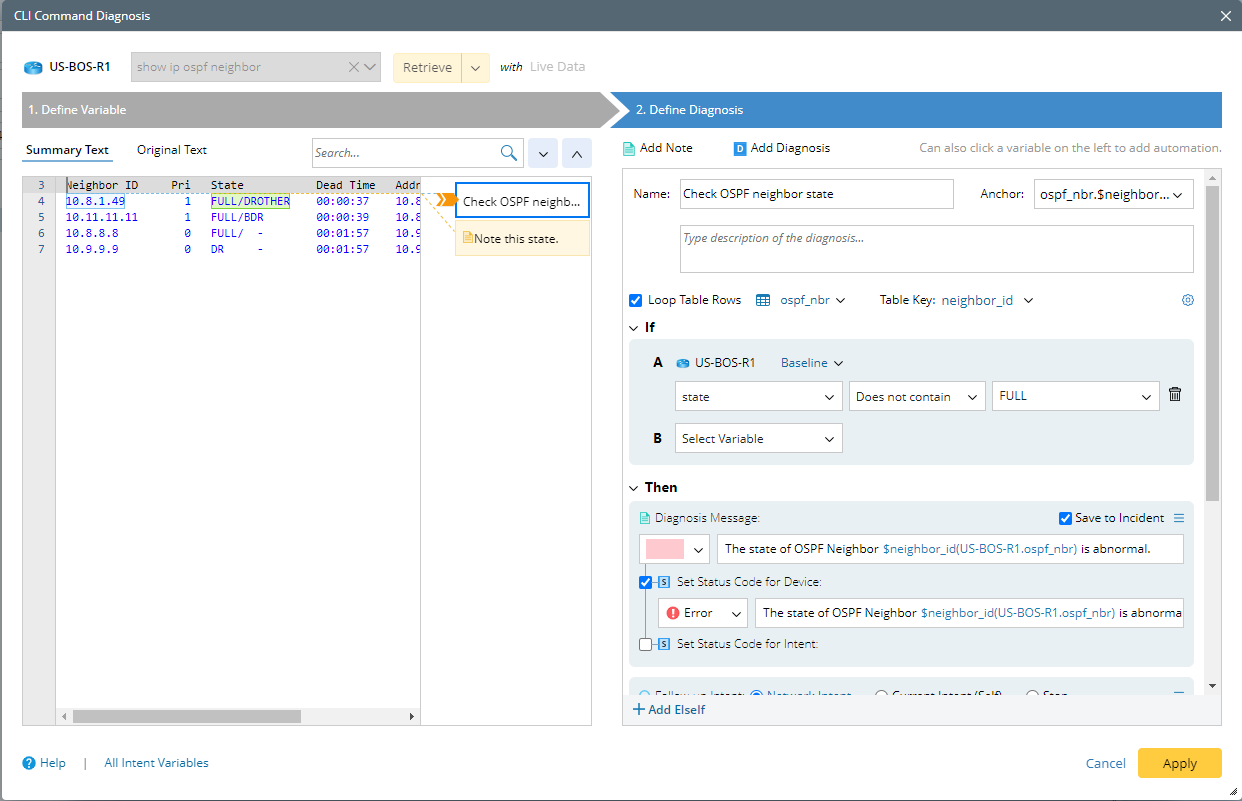
-
Define parser for Config or CLI commands. See Define Variables for more details.
-
Click Add Device to add the target devices. You can add devices by device type, device group, or site, and when define NI on a map, you can also add devices by map.
-
Add notes and device code to this NI.
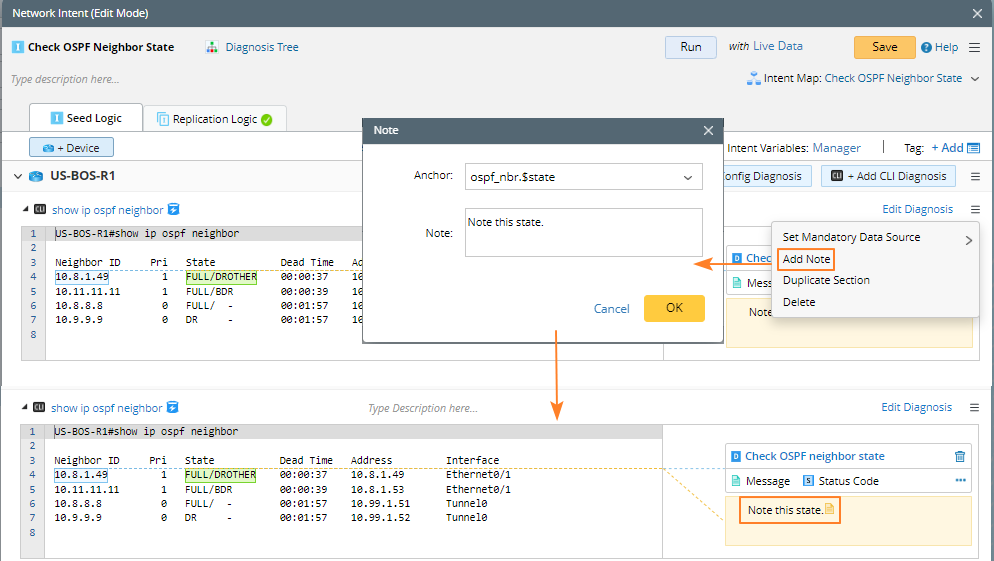

-
(Optional) Click the Intent Map area to associate the NI with a map to better express network problems.

Note: This will directly associate the path to an existing map. You may only have the View Only privilege of the reference map. - Define the Intent Settings before you execute the current intent.
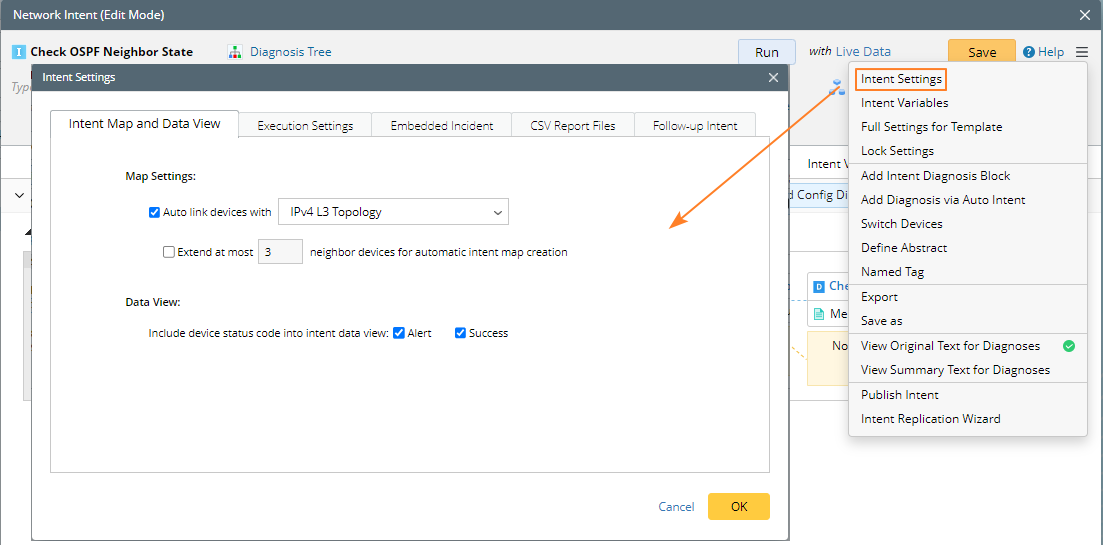
- Switch to the Replication Logic tab to transform the current intent into an intent template.
|
|
Note: To input commands more conveniently and quickly, the Netbrain system provides command lists under different data sources and prompts based on the characters entered by you. Two categories of commands can be listed in the intelligent prompt: Historical commands and Recent commands entered by the user during live access. 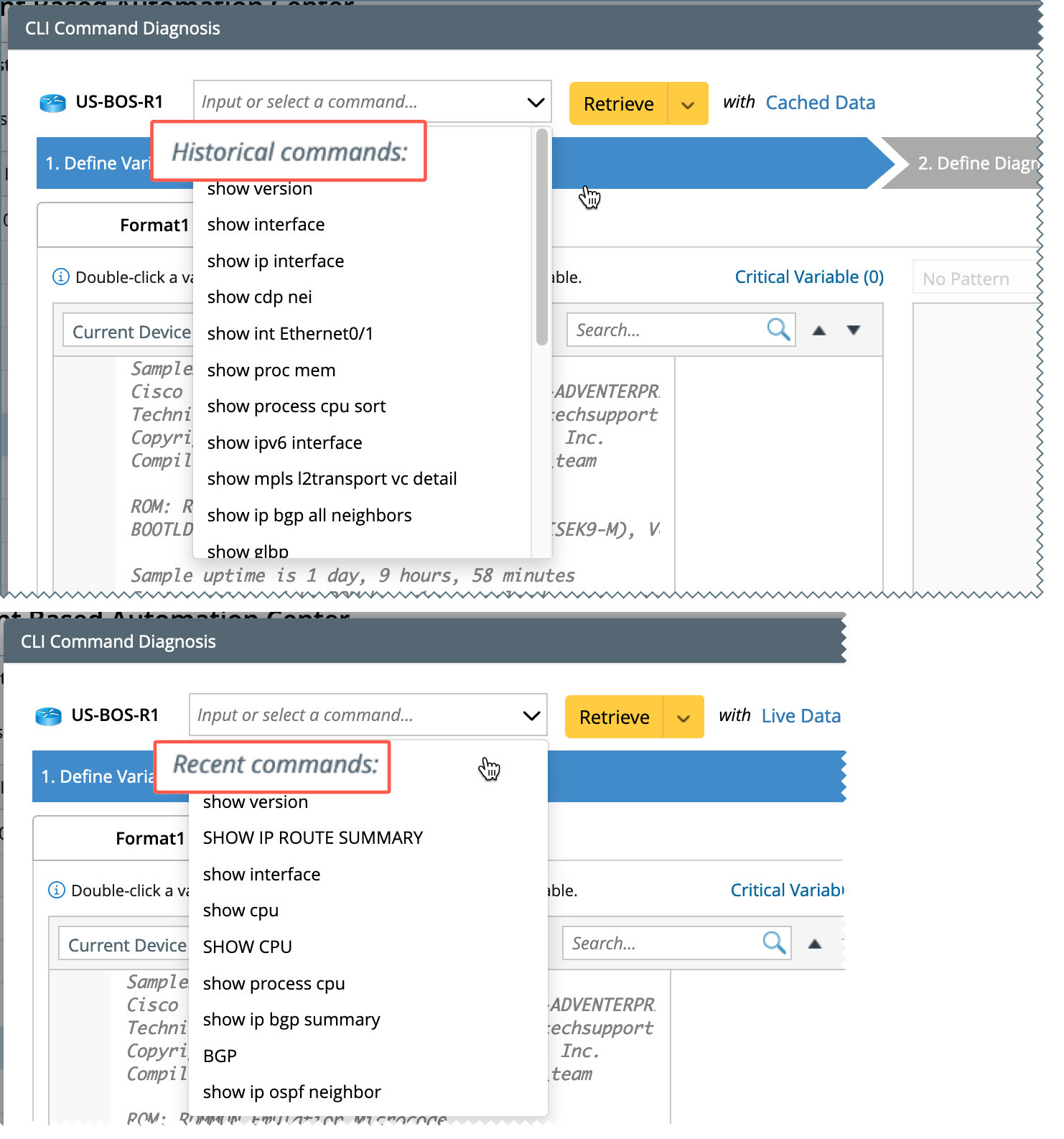
|