Guidebook Manager

Contents
Guidebook Manager offers a central location where users can manage their saved Guidebooks.
To activate Guidebook manager:
1. Click  in Guidebook interface.
2.Select Guidebook Manager from the drop-down.
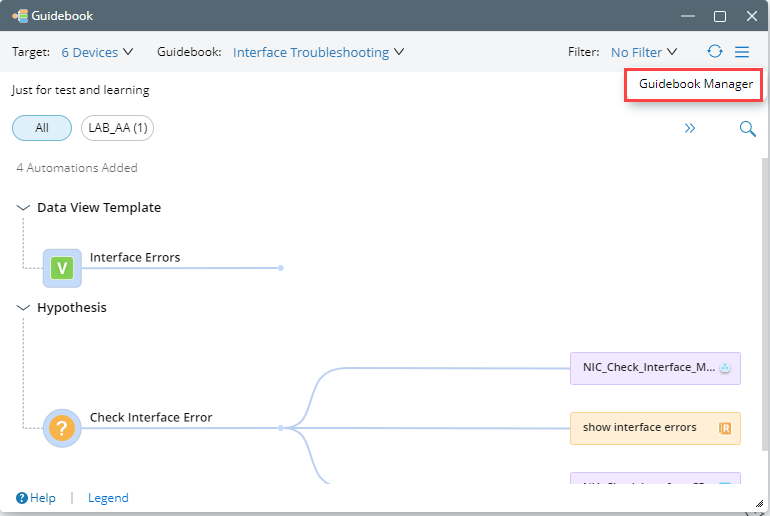
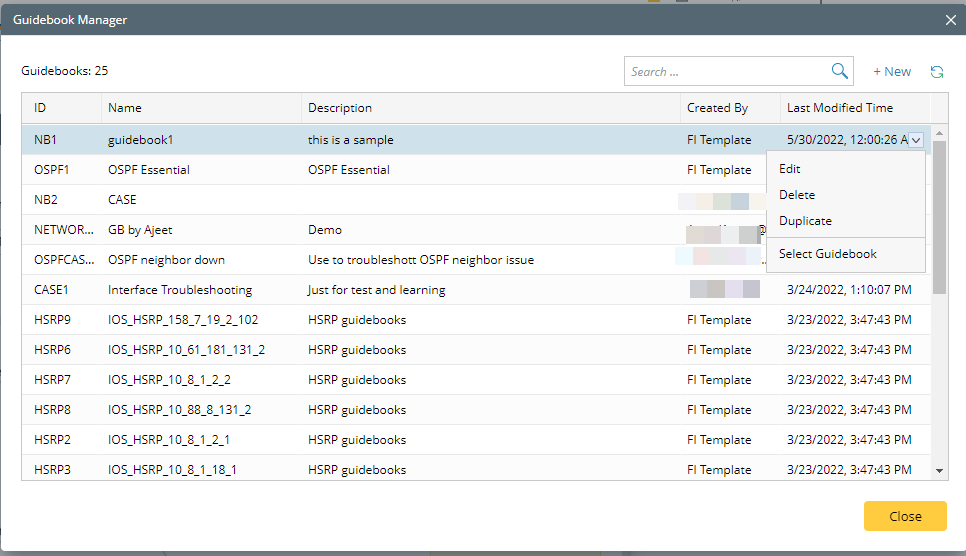
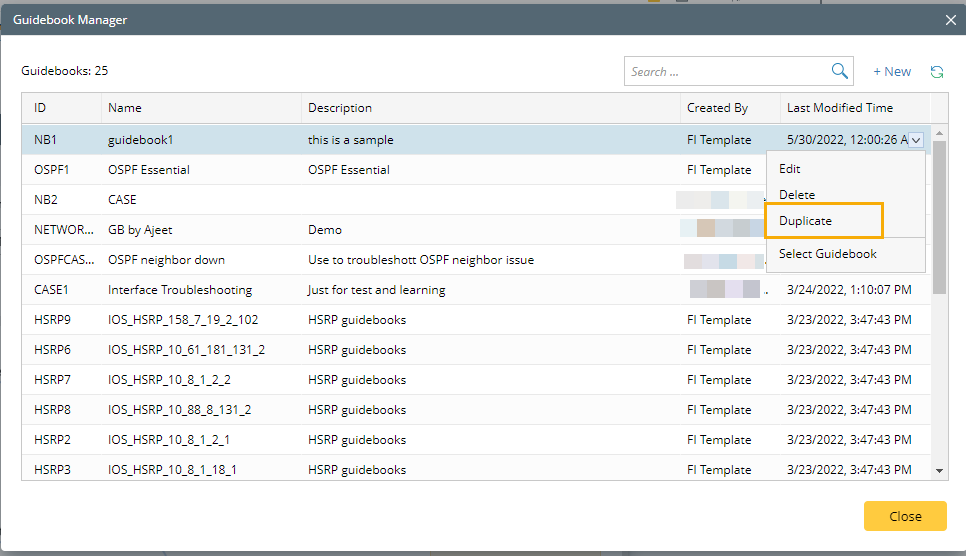
You can view all saved Guidebooks in Guidebook Manager interface, and its respective detailed information:
oGuidebook ID
oGuidebook Name
oDescription
oCreated by
oLast Modified Time
See also:
Create Guidebook
1.Click +New.

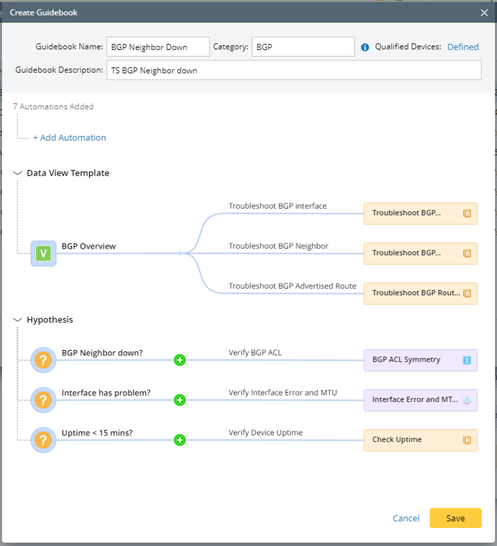
2.In the Create Guidebook window, you can create a Guidebook.
Edit Guidebook
1.Select a Guidebook, right-click or click  .
.
2.Click Edit in the drop-down menu.
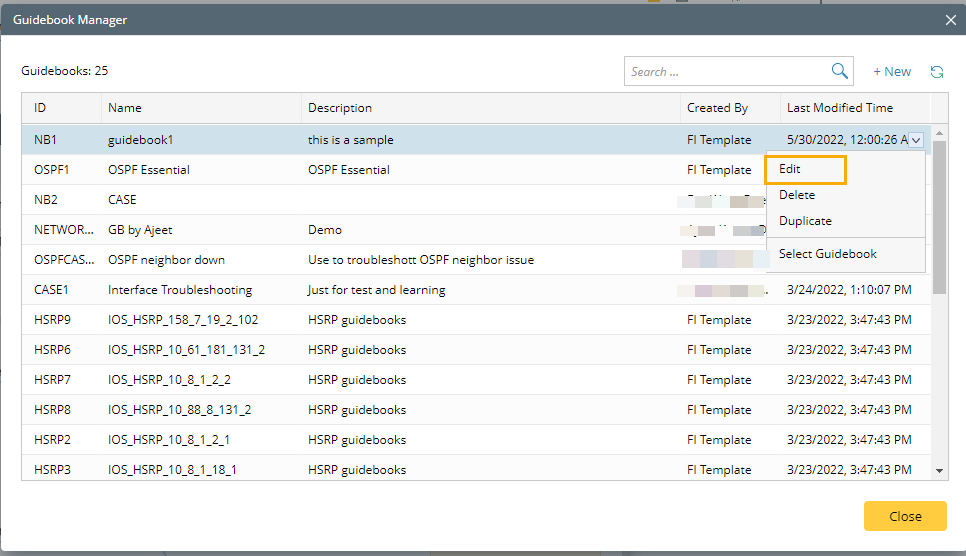
3.In the Edit Guidebook window, you can modify all the settings.
Delete Guidebook
1.Select a Guidebook, right-click or click.
2.Click Delete in the drop-down menu.
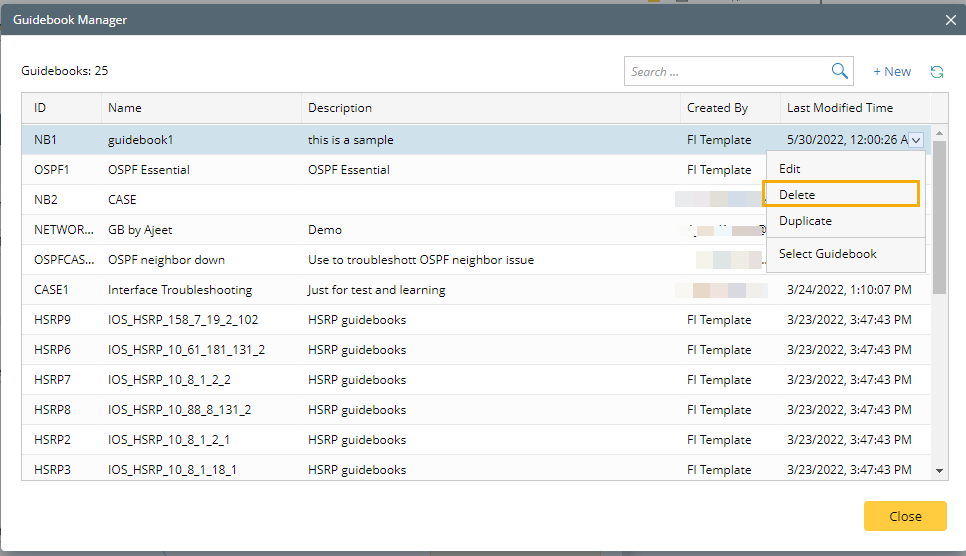
3.In the Warning window, click Delete.

Note: The selected Guidebook as well as the respective Hypothesis will be deleted.
Duplicate Guidebook
1.Select a Guidebook, right-click or click.
2.Click Duplicate in the drop-down menu.
3.In the Create Guidebook window, the current settings will inherit the settings of the selected Guidebook.
Select Guidebook
1.Select a Guidebook, right-click or click.
2.Click Select Guidebook to view this Guidebook.

3.In the Add Target Device window, select the applicable device(s) of the Guidebook as the target device(s). The Guidebook will become available.

Note: The applicable devices are the qualified devices defined by user when creating the Guidebook.