Test and Save the Triggered Diagnosis
- Click Test in the Install Intent for Diagnosis window.
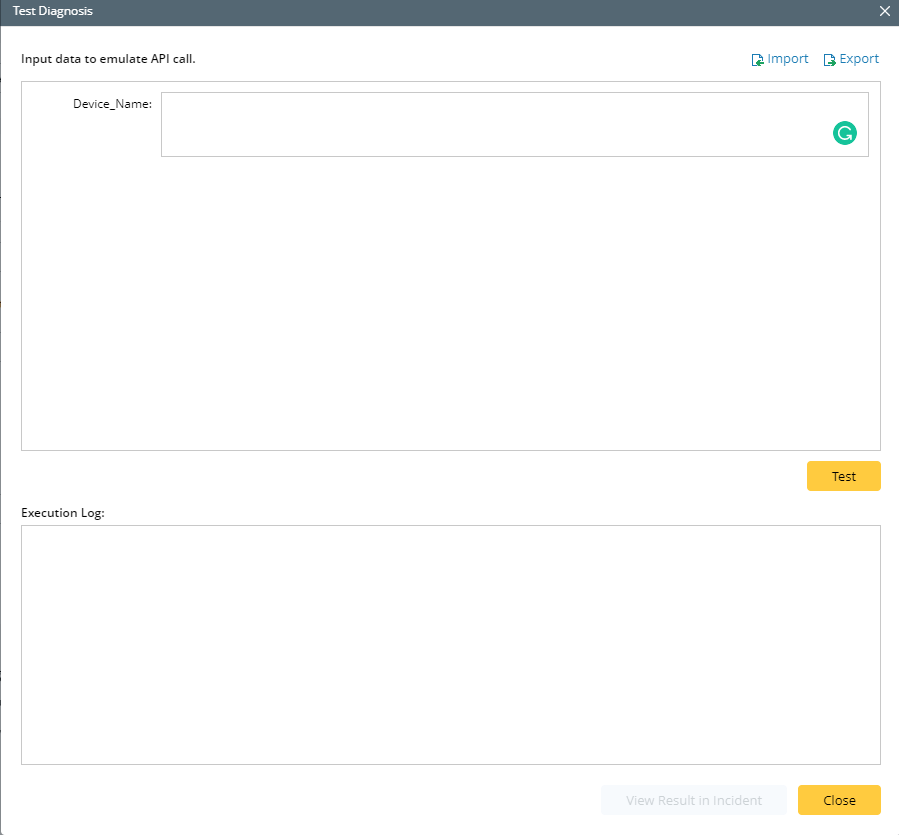
- In the Test Diagnosis window, Input the data fields to emulate the API call, and the system prints out the execution log with the following output:
• The results of Incident type.
• Matched triggered Diagnosis.
• Matched member NIs for NIC triggered Diagnosis.
• NI execution results if execution mode includes the execution of NI.
• The message “Created map incident message.” if the execution mode includes the Intent Map. Likewise, the map note is displayed if the corresponding option is selected.
• Incident devices if Set Incident Device option is set.
• Incident message if the option is enabled.
• Whether the incident message is successfully created by the Guidebook or Runbook template if the corresponding option is selected.
• Whether the subscription to preventive automation is successfully enabled if it is configured.
A View Result in Incident button is provided to view the Incident for this incoming call.
- Click Close to close the Test Static Diagnosis window.
- In the Install Intent for Diagnosis window, click OK to save the triggered diagnosis.