R11.0a-March2023
Public Cloud (AWS/Azure/GCP)
Public Cloud (AWS/Azure/GCP)
How to collect the python error/debug logs from worker/front server
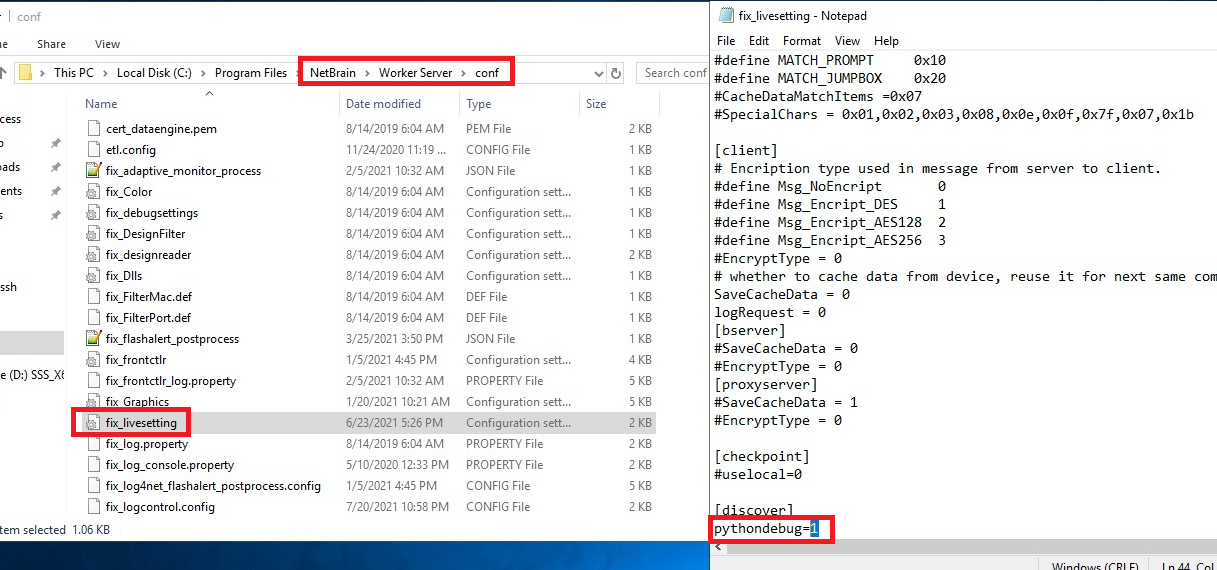
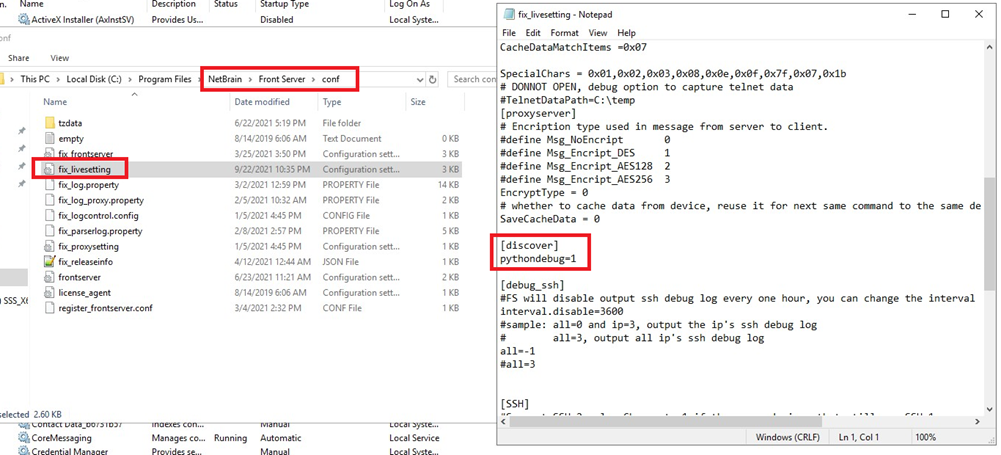
- Before collecting the python error/debug logs, log in to the server and check if the pythondebug parameter is enabled in the …\NetBrain\Worker Server\conf\fix_livesetting for worker server or …\NetBrain\Front Server\conf\fix_livesetting for Front server file (1 indicates enabled and 0 indicates disabled).
- Worker Server config:
- Front Server config:
- Worker Server config:
- Restart the Worker Server if you changed its config file. The same method applies to Front Server.
- Collect the python error/debug logs from Worker Server and Front Server. Check the Data modified field to make sure it covers the time when issue occurred.
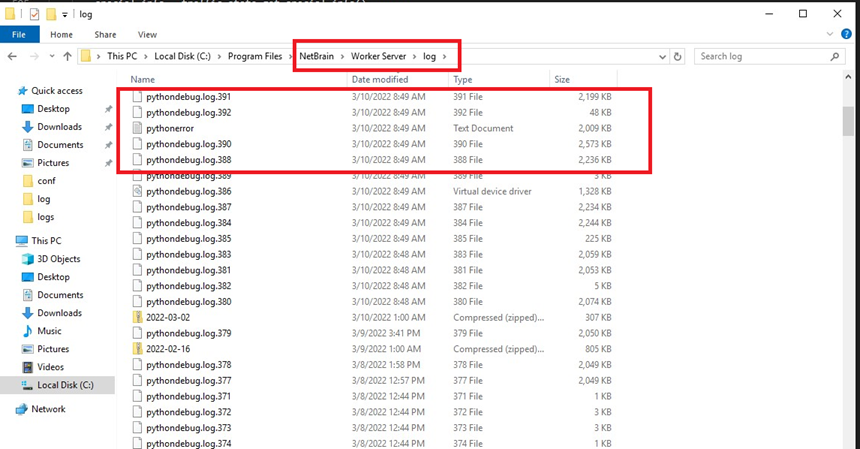

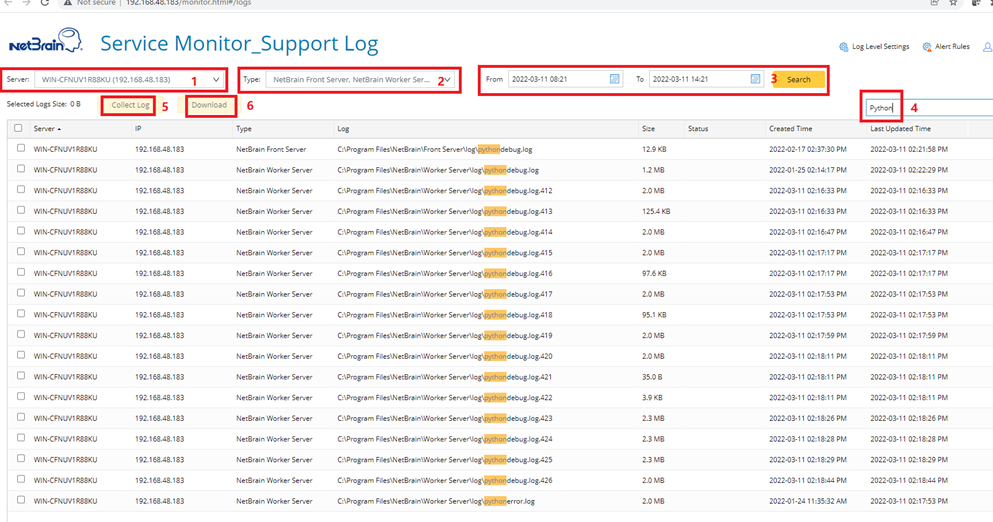
Note: Use Service Monitor > Support Log to export the python error/debug logs from Worker Server and Front Server. 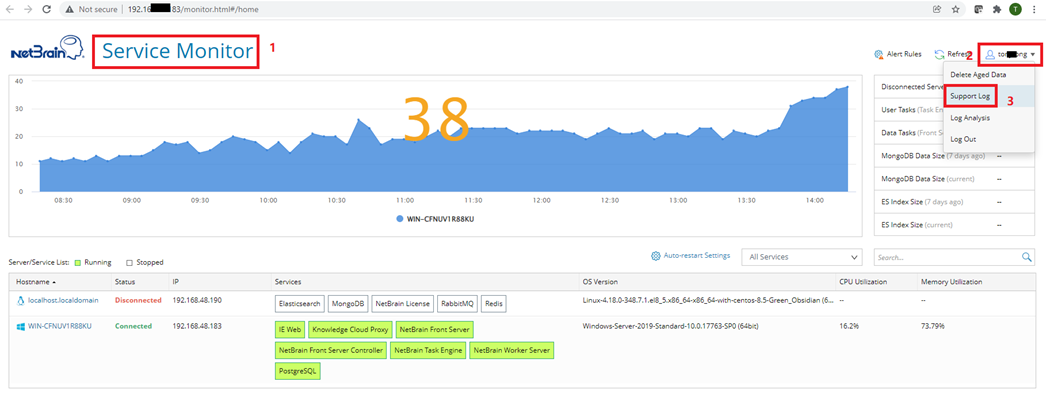
- Download the logs.
- Select the server.
- Select the type.
- Select the time range and click Search.
- Enter python in the search bar to filter the logs.
- Click Collect Log.
- Click Download.
How to enable API Dump Data Export
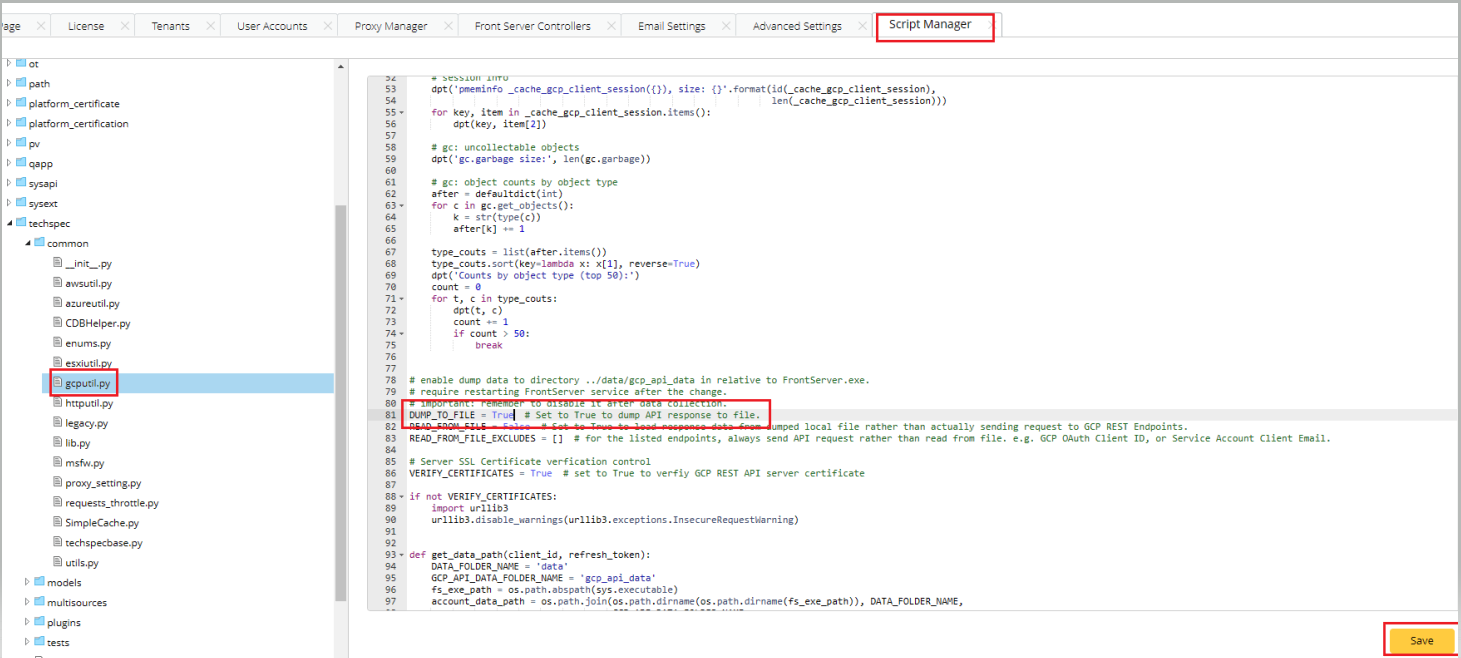
- Change the variable DUMP_TO_FILE to True in System Management >Script Manager> Built-in >techspec> common
- AWS: awsutil.py
- Azure: azureutil.py
- GCP: gcputil.py
- Save it and make sure the new script is synced to Front Server:
These global scripts must be synced to Front Servers every 10 minutes or so. It’s highly recommended to manually trigger a sync on each Front Server by doing the followings:- RDP to the FS machine. Note that it can be Windows or Linux, but the operations and file directories below should be the same.
- Navigate to the FS installation folder “\Front Server\resource\nb_python\netbrain\techspec\common\__pycache__”, and delete the python cache file “gcputil.cpython-3x.pyc”.
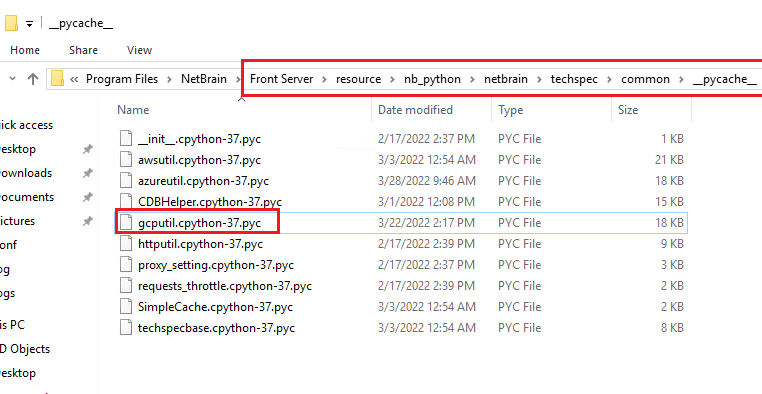
- Check if the file “gcputil.py” is updated (check the “Date modified” field to see if it is just updated.) The file path is the parent folder of step 2, which is “\Front Server\resource\nb_python\netbrain\techspec\common”.

- If the file “gcputil.py” is not updated yet, trigger a manual update by restarting the “NetBrain Front Server Service” TWICE.
- Start a Basic Benchmark, or any benchmark which matches the following configurations. When IE retrieves basic data from GCP, or retrieves NCT tables, all the data should be saved to the Front Server.
- Have the “GCP API Server” checked in the “Device Scope” tab.
- Have all the Legacy checked in the “Device Scope” tab. You can also select a Device Group which contains all the GCP related devices instead of all the devices in the domain. You can create a Device Group by doing a Dynamic Search with Vendor contains Google (or search with Google instead if you applied the latest KC common patch of April 2022).
- Have “GCP Cloud > Basic Data” checked in the Retrieve Live Data tab.
- Have all the GCP related NCT tables checked in the “Retrieve Live Data” tab.
How to collect API Dump Data
|
|
Note: Collect API data when the Benchmark is finished. |
- Log in the Front Server. If you have multiple Front Server, login each of them. The API Data only exists in active Front Server so maybe some of Front Server does not have this folder.
- Compress the entire folder if have:
- AWS: <$Installation folder>\Front Server\data\aws_api_data
- Azure: <$Installation folder>\Front Server\data\azure_api_data
- GCP: <$Installation folder>\Front Server\data\gcp_api_data”. You should see some sub-folders with GUID as their name. If you don’t see this “gcp_api_data” folder, contact the NetBrain Platform team.
How to use database export/import tools
- Select the domain that you want to export data from.
- Go to Domain Management > Plugin Manager > My Plugins, and import DBexporter.plugin.
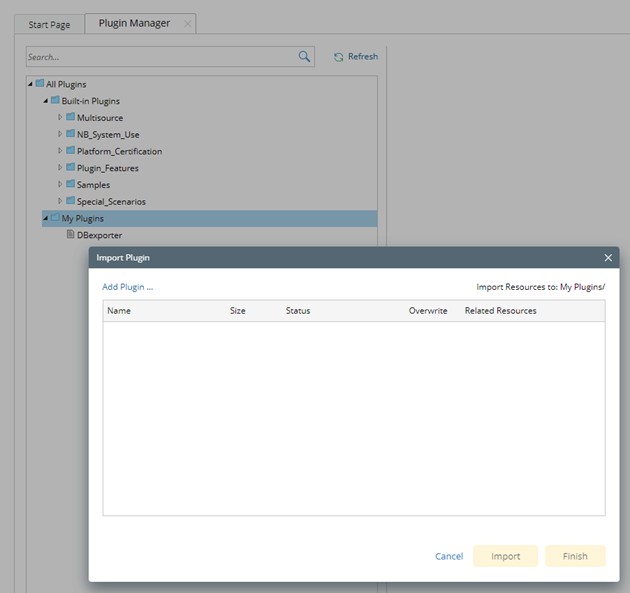
- Run DBexporter.plugin:
- Click Debug Run at “DBexporter” and the Debug DBexporter window will pop out.
- Provide public cloud names as input (case-insensitive). For example, “Azure” if you only need to export Microsoft Azure data; “Azure, AWS” if you want to export Amazon AWS and Microsoft Azure; “Azure, AWS, GCP” if you want to export Amazon AWS, Microsoft Azure and Google Cloud.
Note: There is no specific order for these cloud names. Legacy device data will be exported automatically as well. 
- Click Run and wait for the plugin to finish the execution.
- Collect dump data. A folder named “DB_dump_data” should have been created under “C:\Program Files\NetBrain\Worker Server\Log”. You can use that dumped data in NetBrain’s environment.
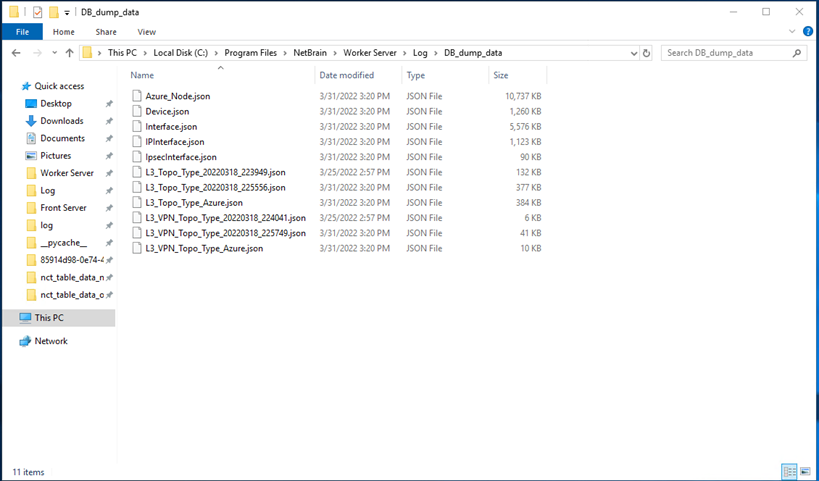
- Import the data into NetBrain’s lab environment.
- Copy the unzipped “DB_dump_data” under “C:\Program Files\NetBrain\Worker Server\Log”.
- Have a domain prepared for the dumped data and go to Domain Management > Plugin Manager > My Plugins.
- Import “DBimporter.plugin” and click Debug Run > Run in the pop-up windows. All data will be import to DB directly after execution, such as vhub/vnic effective routes.
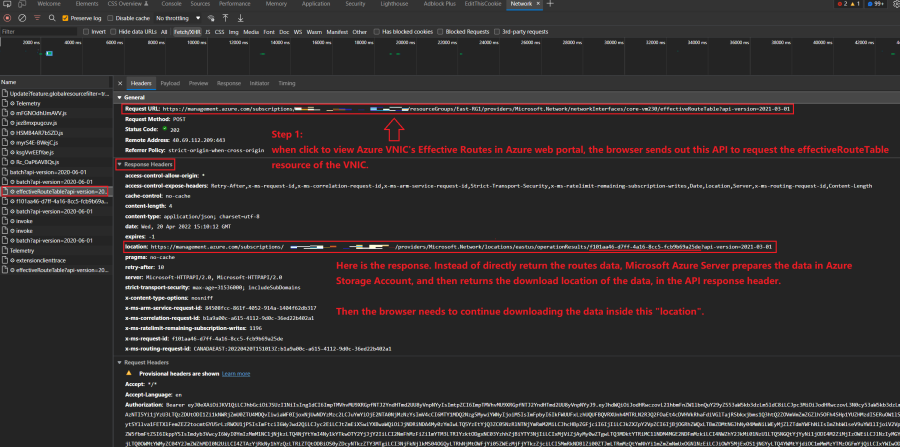
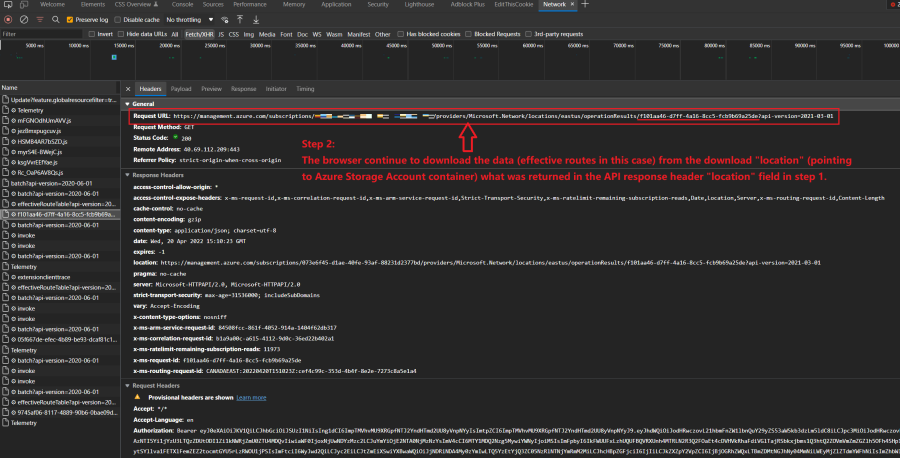
Basically, when people request to download data from Azure, Azure will first create some storage account/container in Azure's Storage service. Then Azure prepares the requested data, such as vhub/vnic effective routes, in that Azure storage accounts. Then Azure returns a "download location link" pointing to the storage area. You need to send another API to get the data in that location. Note that this procedure is required by Azure.
This download procedure is the same either via Azure Web Portal UI, Azure CLI, or Rest APIs. You can see it by analyzing the API requests sent when you load the route tables.
Take Azure Web Portal loading vnic's effective routes as an example.