R12 Publication-2025July16
Open a Map
You can open a map in one of the following ways:
- Search and Open a Map
- Open a map from Desktop or Files
For an existing map, you can find and open the map from the file folders or from the desktop. As the number of map files gradually increases in your domain, you can search and open a map from the search results. For site maps and device group maps, you can open the site maps or device group maps from the corresponding site or device group.
Search and Open a Map
To search and open a map from the search bar, complete the following steps:
- Enter one of the following search terms in the search bar:
- Map name
- Map page name
- Device hostname or management IP address
- Interface name or IP address
- Map note
- Press the Enter key on your keyboard to start searching. The search results are displayed with the matched keyword highlighted.
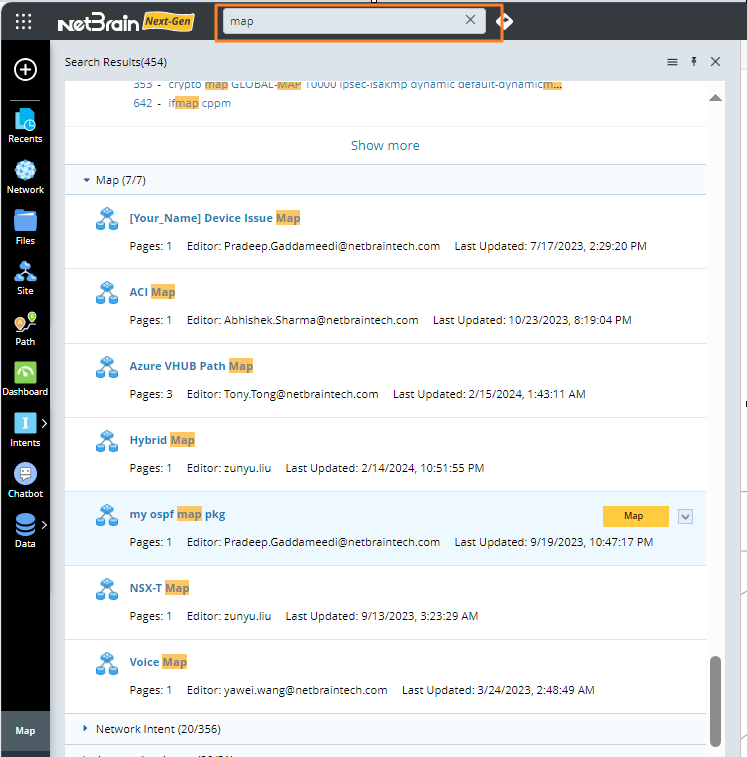
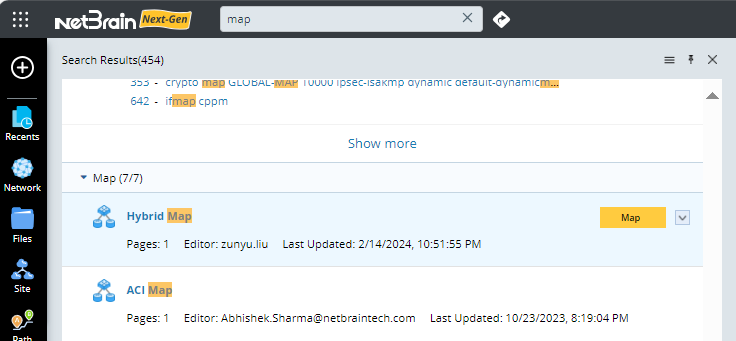
- Point to a map result and then click Map.
Open a Map from Desktop or Files
To open a map file from Desktop or Files, see Manage Desktop and Manage Files for details.
To open a map file from Desktop or Files, see Managing Desktop and Managing Files for details.
You can close an open map by clicking the  icon at the upper-right corner of the map. After closing the map, you will navigate to the desktop.

icon at the upper-right corner of the map. After closing the map, you will navigate to the desktop. When a map is open, you can switch between the open map page and Desktop at the bottom-left of the Taskbar.

See also: