You can choose between using the mouse, keyboard, or a combination of both for your interactions with the chatbot.
Here are the primary keyboard interactions available with the chatbot.
| Operations | Keyboards |
|---|
| See available input options | Press the Tab key before typing anything.  |
Auto-Completion | Press the Tab key. Example:
- BJ-Arista-1 and BJ-Arista-2 are in the candidate list. Enter BJ and press the Tab key, BJ-Arista-1 will be auto-completed in the input box.
 - View Detail Message and Intent Output Map buttons are available. Enter v and press the Tab key, View Detail Message will be auto-completed in the input box.
 - More examples for auto-completion: Check MTU and Check BGP Error buttons are available. Enter Ch and press the Tab key, the first option will be auto-completed. In this example, Check BGP Error will be completed.

|
| Scroll up and down in the candidate list. | Arrow keys: ↑ and ↓ 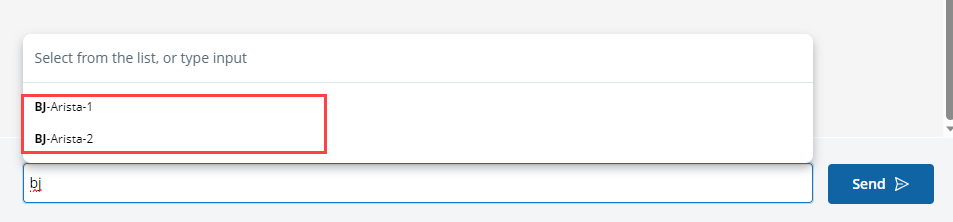
|
| Send the input to the chatbot |
- Single Selection: Select the value in the candidate list and press Enter:
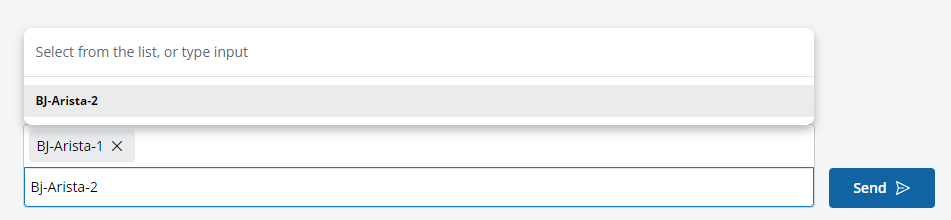
 - Multiple Selection:
- Select the desired values and place them in the input box: select it in the candidate list and press Enter.
- Send out the values: press Enter again.

- Multiple Selection and Allow User Custom Input:
- Select the desired values and place them in the input box: select it in the candidate list and press Enter; Or manually enter the value in the input box.
- Send out the values: press Enter again.
- Text Input: Manually enter the value and press Enter.

|
| Delete a value from the input box | Arrow keys and Delete key. Example: Delete BJ-Arista-2 Use the arrow keys to select BJ-Arista-2, press the Delete key.  |