R12 Publication-2025July16
Common Operations in Network Intent Manager
All operations you can perform on an intent item are listed in the right-click drop-down list.
Two major operations are explained in detail below:
- View Intent: You can open and view intent in one of the following ways:
- Directly click the intent item in the left pane to open and view the intent in View Mode.

- Point to an item from the intents listed in the left pane and click Open to view the intent in View Mode.

- Click Open Intent from the right-click drop-down list of the target intent item.

- Directly click the intent item in the left pane to open and view the intent in View Mode.
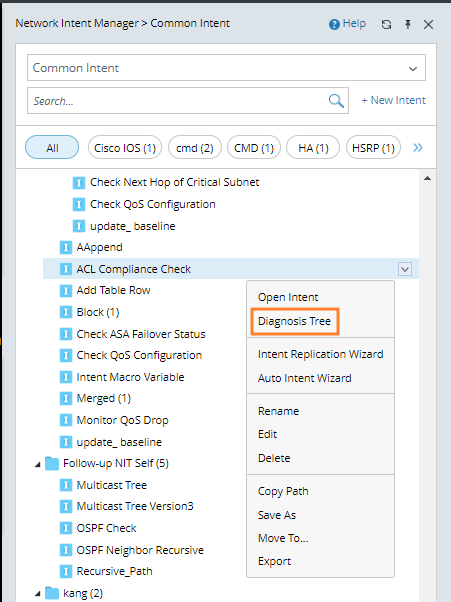
- Open Diagnosis Tree: Click Diagnosis Tree from the right-click drop-down list of the target intent item.

|
Note: The operations of viewing the intent and open Diagnosis Tree can be performed on other types of intents in the same way. |
The following table describes the operations that can be performed from the drop-down menu of an intent.
Tab in the Drop-down Menu of an Intent | Description |
Open Intent | Open the intent in View Mode. |
Diagnosis Tree | Open the Diagnosis Tree of the intent. |
| Intent Replication Wizard | Open a wizard to guide you to complete many definitions in one UI. |
| Auto Intent Wizard | Open a wizard to guide you to enable an intent template for auto inten. |
| Rename | Modify the curremt intent name. |
Edit | Edit the intent in Edit Mode. |
| Delete | Delete
the intent from the Network Intent Manager. |
| Copy Path | Copy
the Path of the intent to clipboard. |
| Save As | Save
the intent as a new intent with a different intent name. |
| Move To... | Move
the intent to another folder in the Intent Manager. |
| Export | Export the intent to your local computer. |