R12 Publication-2025July16
Arrange the Order of Columns
From Column Settings from the ADT main menu, the following functions can be performed.
- Show/Hide an ADT column
- Arrange the order of the columns in ADT
Show/Hide ADT Column
This function will determine which ADT columns will be shown. 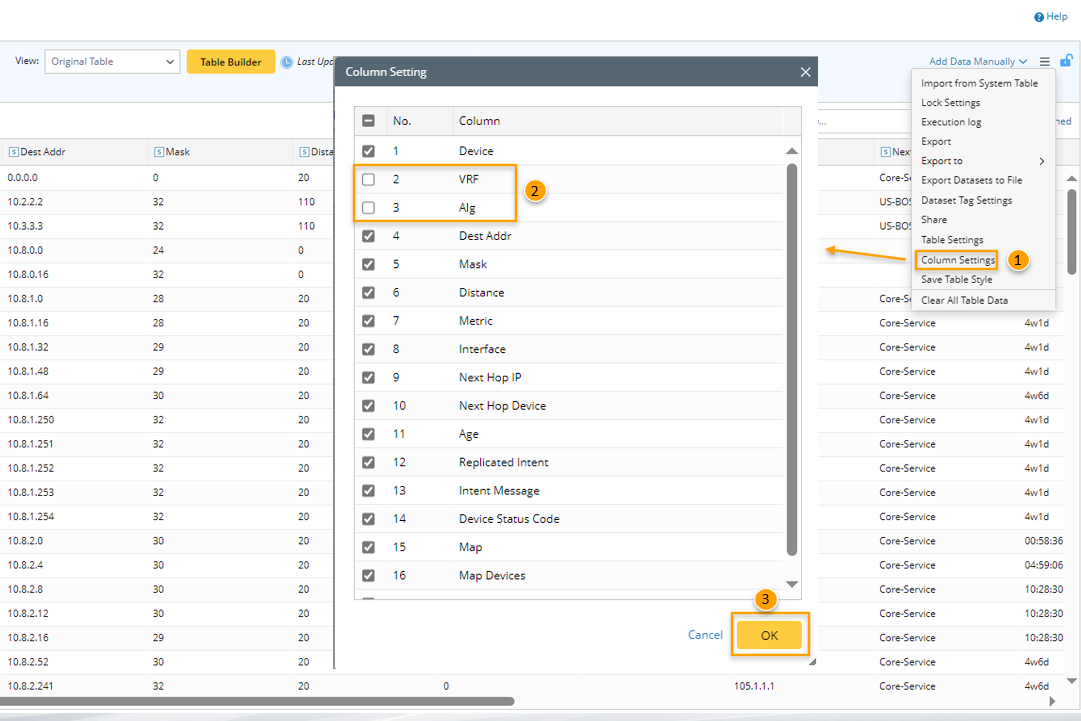
- Click the
 icon, then select Column Settings from the main menu.
 - In the pop-up Column Setting window, all the columns will be listed by default.
- Uncheck some columns, then these column will be hidden.
- Check the checkbox, these columns will be shown again.
- Click OK.
Arrange the order of the columns in ADT
The column order can be changed from the ADT main menu. 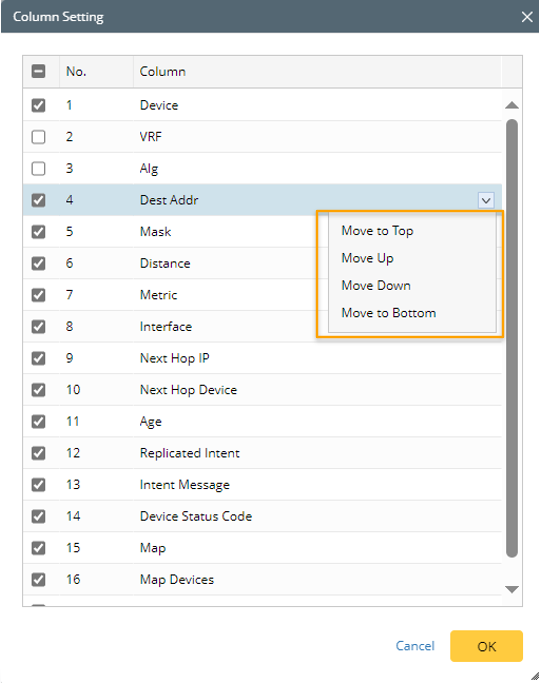
- Click the
 icon, then select Column Settings from the main menu.
 - In the pop-up Column Setting window, all the columns will be listed. Click the icon from a column that you want to change its order. then select Move to Top/Move Up/Move Down/Move to Bottom to change its order.
- Click OK.