R12.1 Project Publication-2025Dec23
Define Virtual Incident Type
Follow the steps below to define a virtual incident type:
- Click the start menu and select Triggered Automation Manager.
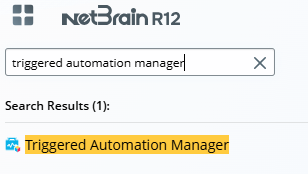
- In Triggered Automation Manager, navigate to the Manual-setup Triggered Diagnosis tab > Virtual Incident Type tab, click Add Virtual Incident Type.
- On the New Virtual Incident Type window, define the name and description for the virtual incident type. For example, Name: BGP Device, Description: Verify BGP status.
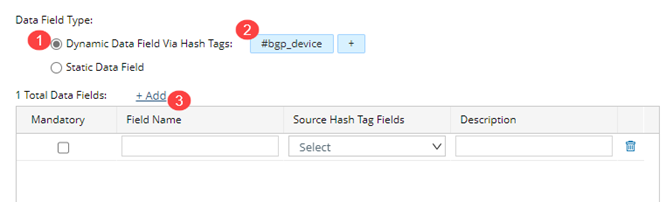
- Define the Data Field Type.
- Dynamic Data Field Via Hash Tags: Hash Tags will pass the value to the data field.[+] Show Steps[-] Hide Steps
- Click Add and select the Hash Tag from the drop-down list. For example, select #bgp_device.
- Click Add to add the data field name and its corresponding source Hash Tag fields so the Hash Tag can pass the value to the data field.
- Define a field name and select its source Hash Tag fields. For example, enter device_name and select #hostname as the source Hash Tag field, so the value of the #hostname will pass to the device_name data field.
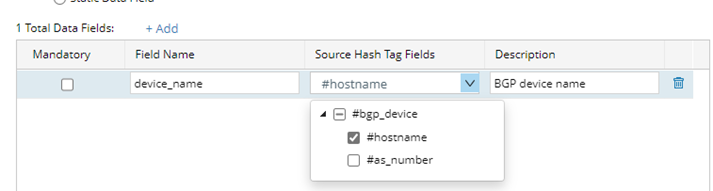
- Enter the description for this data field so all other users can be aware of the meaning of the data field.
- You can decide whether to enable the Mandatory checkbox. If the data field is mandatory and its value is empty, no automation will be triggered.
- Repeat steps a-e if you need to define more than one data field.
- Static Data Field: After the static data field is defined, the data field value received from self-service will pass the value to this data field.[+] Show Steps[-] Hide Steps
- Select Static Data Field.
- Click Add.
- Enter the field name and its description.

- You can decide whether to enable the Mandatory checkbox. If the data field is mandatory and its value is empty, no automation will be triggered.
- Repeat steps a-d if you need to define more than one data field.
- Dynamic Data Field Via Hash Tags: Hash Tags will pass the value to the data field.
- Define the advanced settings.
If you select the Enable Incident Portal option, the Incident Portal will be created.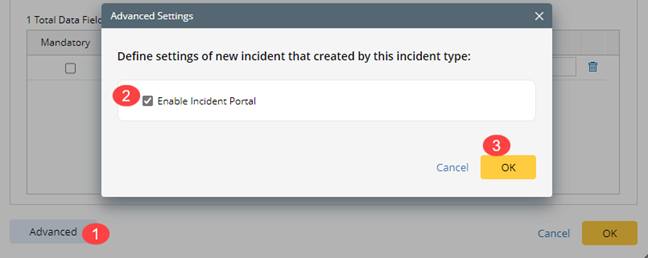
- Click OK to save the virtual incident type.