The Select NI and Select NIT dialogs have the following advantages for user convenience:
- Simple first-layer UI: The primary filter is a keyword search, while advanced filters are available in a secondary popup dialog.
- Consistent UI: A uniform interface is maintained across the Select NI and Select NIT dialogs.
This function UI has four distinct variations, summarized below:
| Use Case | Main UI | Advanced Filter |
Fully-Featured Select Intent Template | 
Note:
- Used by ADT Table Builder
- Used by follow-up Intents
- User can select ‘Any Intent Template’ or ‘Installed Intent Template’, set to ‘Installed Intent Template’ by default.
| 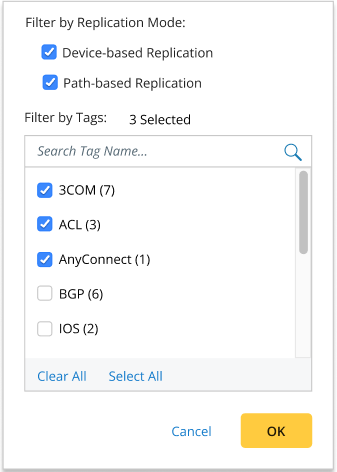 |
| Select Uninstalled Intent Template | 
Note:
- Hide the type selection radio above and show ‘Any Intent Template’ for users to select.
- Used to Install an Intent Template in the IBA Center.
| 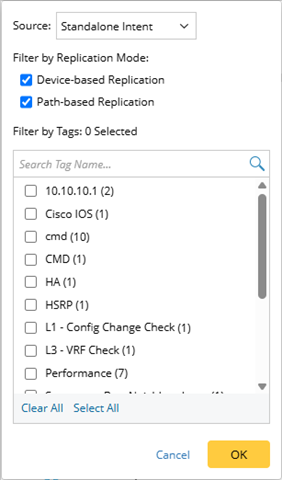 |
| Select Installed Intent Template | 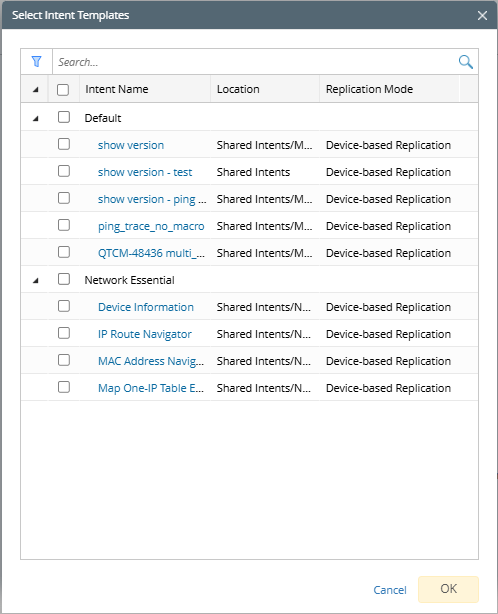
Note:
- Hide the type selection radio above and only show ‘Installed Intent Template’ for users to select.
- Used to add Installed Intent Template to Auto Intent Folder.
| |
| Select Intent | 
Note:
- Hide the type selection radio above and show all Intents for users to select, including common intents, map intents, path intents, etc.
- Used to select intents to run.
| 
Note:
- ‘Show Intent Template Only’ check box: Only the intents that are served as intent template can be displayed.
- 'Filter by Devices on Current Map' check box: The intents are filtered by the devices in the current map page.
|