Rule Discovery
Discovering and creating config rules in the current network can be difficult and time-consuming. Rule Discovery is introduced to discover the config rules in the existing network using the pre-built config rule template. It will discover the existing config rules in the network and further create assessment rules and golden configs automatically. These config rules can be enforced via preventive automation, eliminating the amount of time and resources required to create these rules. The procedural sequence to discover and build rules is:

Discover Rules
Discover the golden rules using the following settings provided at the top of the table:
-
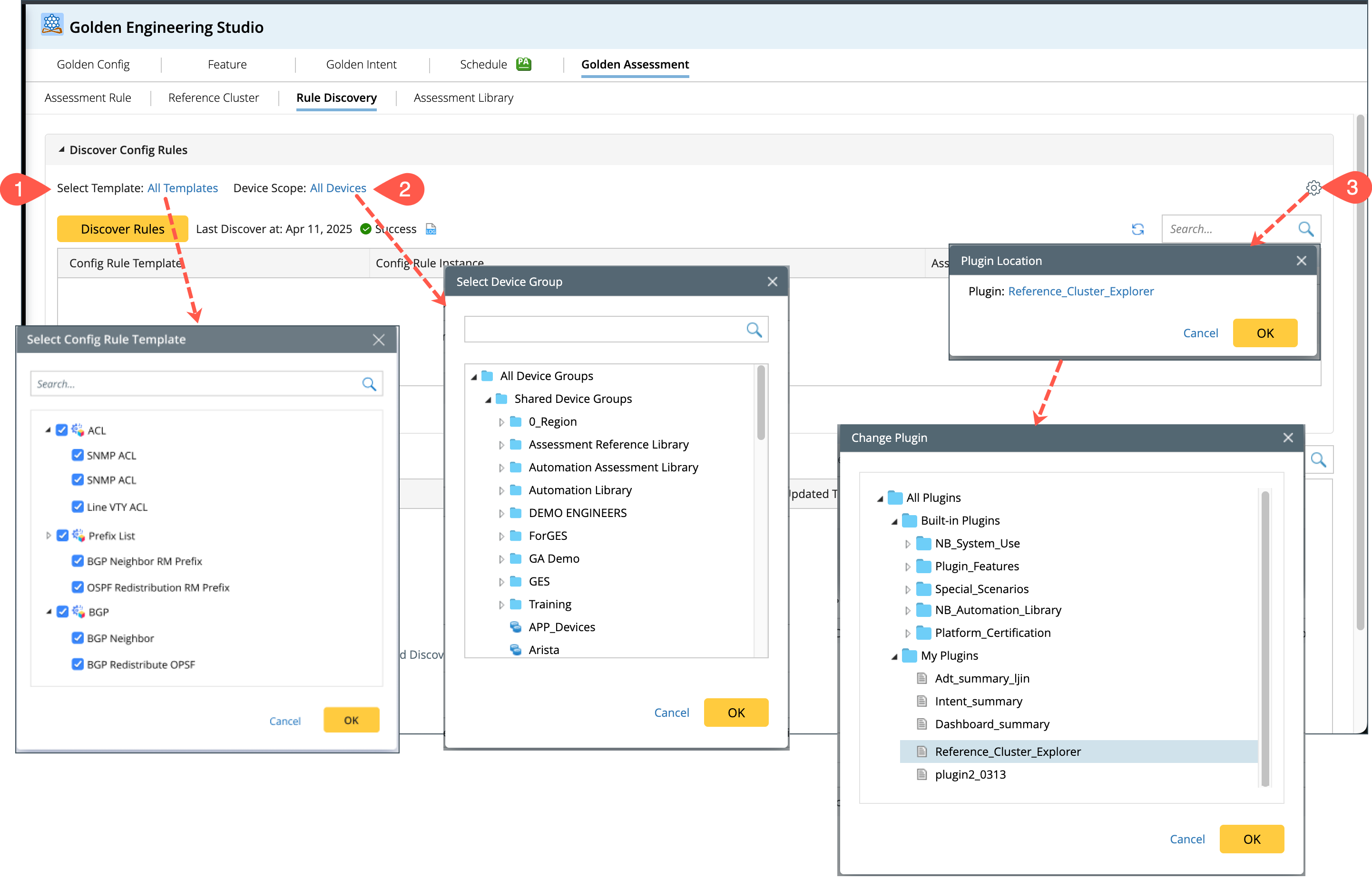
Select Template: Click All Templates to view the template list, select the number of Config Rule Templates in the list. By default, all the templates are displayed.

Note: The list Select Config Rule Template uses the system's default Plugin to retrieve the relevant information. -
The Device Scope defaults to All Devices, representing all the devices in the current domain. Click All Devices to perform Device scope switching through a Device Group.
-
You can modify the default plugin path from the
 icon located at the upper right corner.
- Refer to Device Config Parameters to understand the settings in plugin for extracting the device config parameters.
-
Golden Intent names generated by the plugin (Network Feature Explorer) support input variables. Using input variables in the GI names provides more descriptive and readable naming and users can easily distinguish between similar intents.
For example: GI name format Interface QoS ClassMap AccessList OperationalCheck [Cisco IOS] do not provide clear indication of class map or ACL the intent referred to.
When you define GI name as:
Interface QoS ClassMap ($input.class_map) AccessList ($input.acl) OperationalCheck [Cisco IOS]
After execution the variables will be replaced with actual values:
Interface QoS ClassMap (voice) AccessList (193) OperationalCheck [Cisco IOS]
- Click Discover, and the current plugin will be executed. The results will be displayed in the following way:
- Config Rule Template: Represents the related feature information from the plugin used by the current config rule template.
-
Config Rule Instance: Represents the Rule Instance information obtained from the corresponding Config Rule Template. One Config Rule Template may yield multiple config rule instances.

-
Associated Devices: Represents the list of related devices obtained from the current config rule. Click XXX Devices to see the list of devices opening in a new window Associated Device, displaying the information of the devices associated with the current Config Rule Instance.

-
Config Violation: This refers to the number of devices in the Associated Devices that have a discrepancy with the reference device after comparing the target config with the reference device. Click the number in this column to see the comparison results between the devices with Violations and their Reference Devices in a new window as follows:
- On the left side, Config for Reference Device displays the reference device information identified from the current Config Rule Instance. Here, the number of reference devices identified is determined by the combined eigen definition logic and variable value configuration of the current config rule template.
- Without Control Variable configured: There will only be one reference device.
- With Control Variable configured: Multiple devices will be found based on the control variable value and listed here.
-
The right side displays the Config Violation Device list for each selected reference device. Click the device drop-down list to switch devices and view the comparison results.

-
When the config rule instance has no device violations, it will be displayed as 0. Click the number 0 to view the information of the reference devices on the left side.

Add Discovered Rules to Build Assessment Rules
Add the discovered features to the Build Assessment Rule as follows:
-
Select the discovered config rules and click Add. If a rule already exists, then a prompt appears on how to proceed:
- Cancel: cancel the current Add operation.
- Ignore and Continue: ignore the duplicate entries and add the remaining non-duplicate entries to the list.
- Overwrite and Continue: replace the existing rule and display the latest information discovered this time.

-
After adding the Rules to the table, the table will display the following information:

- Config Rule Template
- Config Rule Instance
- Parser: The parser information found from the parser in YMAL's ges_generator_settings.
-
Status: The status of the Config Rule with one of the three statuses:
- To be Installed: The initial and default state of an entry to the list.
- Installed: When the user successfully installs Build Assessment Rules.
- To be Updated: After the user adds the discovered rules to the installed rule list and manually modifies the parser of an entry, the status will change to To be Updated.
- Updated Time: The update time of the current entry.
Build Assessment Rules
-
Select one or multiple rules regardless of their status and perform Build Assessment Rules operations. The options to Build Assessment Rule include:
- Data Source: The default Data Source is Live. The user can modify it to other Data Sources.
- Auto Verify Golden Config after generation.
- Auto run Golden Intent after generation.
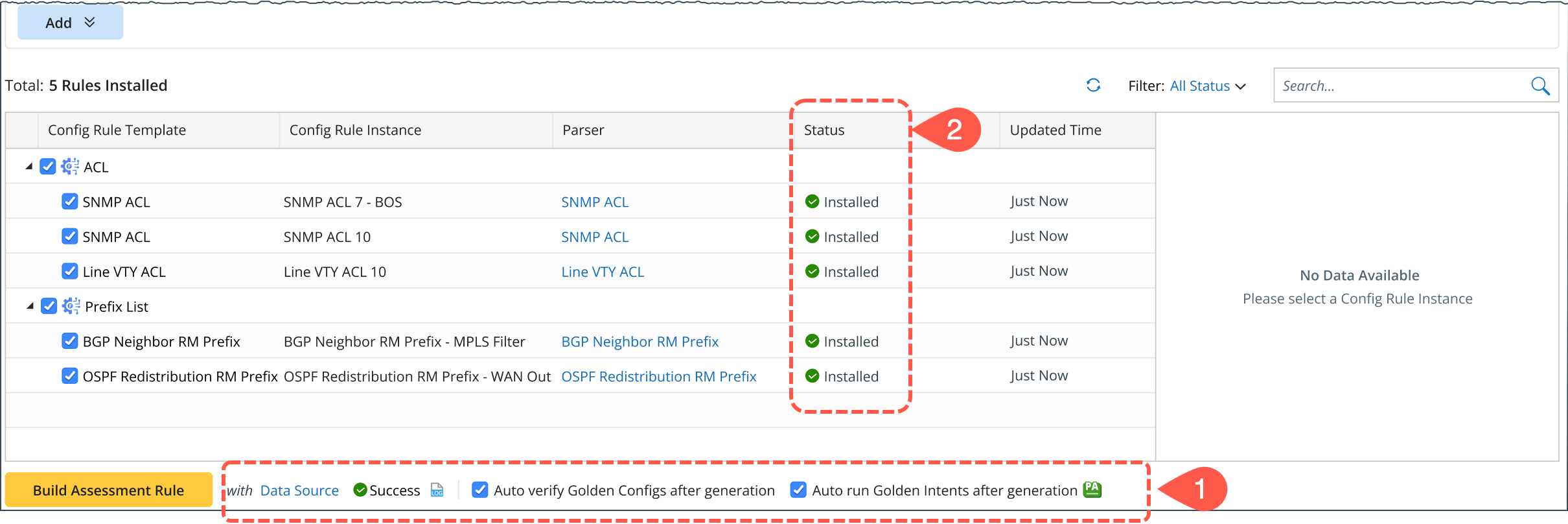
- When the Build Assessment Rule operation is executed, the status of the config rule template will change to Installed.
-
Select a rule, and the build results will appear in the Config Rule Instance window located at the bottom right side of the UI with the following information:
- Assessment Rule: Name of the Assessment Rule created, and the user can jump to the Assessment Rule page interface with a click on the hyperlink.
- Alert/Compliance Information: Number of Alerts and Compliances obtained based on the Golden Config results.
- Assessment Feature: Lists the Assessment Feature information.
- Golden Config: Displays the name of the Golden Config.
- Golden Intent: Displays the name of the Golden Intent.

Rename/Delete Installed Rules
-
Rename an existing rule, and the name will be updated in the display as follows:
- If the rule is installed, it is equivalent to renaming the assessment rule. It does not require Build Assessment Rule operation.
- If the status of the rule is To be installed or To be updated, click Build Assessment Rule to regenerate the rule with the new name.

- You can delete an installed rule. The delete operation will delete the Assessment Rule and Reference Cluster. It will also delete the Golden Config and Golden Intent generated.
|
|
Note: If the final generated Golden Config/Golden Intent is not deleted and the same Config Rule Instance is generated again, it will result in generation failure. Therefore, it is necessary to delete the last generated Golden Config/Golden Intent |