R12.1 Project Publication-2025Dec23
Revoke Two-Factor Authentication
In some cases, it is needed to reset two-factor authentication. For example, Authenticator App is not available, the verification code is not working, or there are suspicious login attempts using the verification code. Users with ‘user management privilege’ can revoke two-factor authentication for an end user, but only one user can be processed at a time. Revoking two-factor authentication clears all associated authentication data, including the QR code and secret key. After 2FA is revoked, the user will be prompted to set up two-factor authentication again upon their next login attempt.
- Go to System Management > User Accounts > Users.
- Select a target user, then select Revoke Two-Factor Authentication from the dropdown menu.
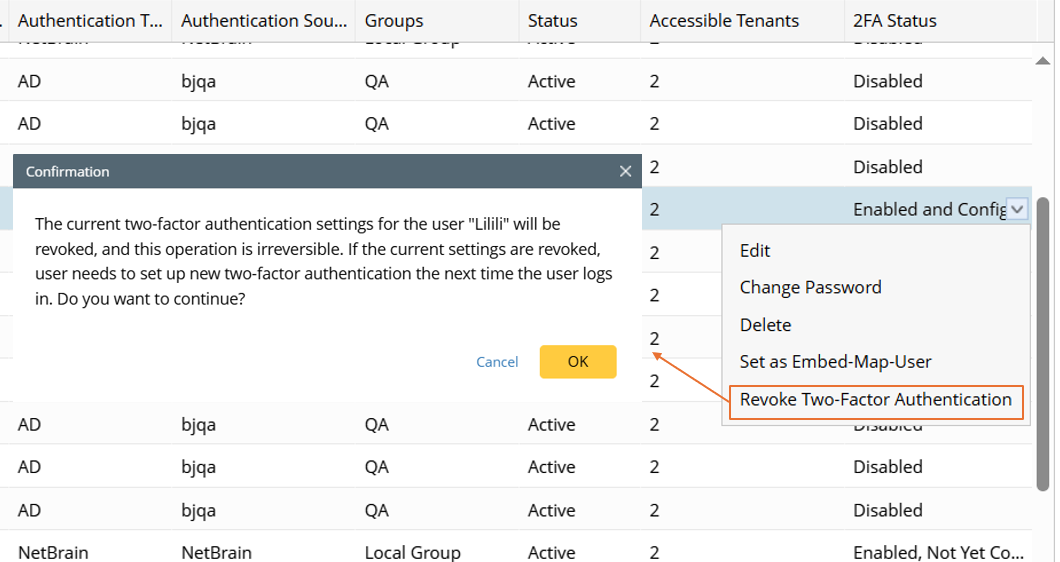

Note: 2FA Status Column shows the two-factor authentication Status for a user (Disabled/Enabled, Not Yet Configured/Enabled and Configured). The Revoke Two-Factor Authentication option is available only when the two-factor authentication Status is "Enabled and Configured". - A confirmation message dialog will appear. Click Yes.