R12.1 Project Publication-2025Dec23
Intelligent Interface
Users can interact with the AI bot in the conversational UI.
-
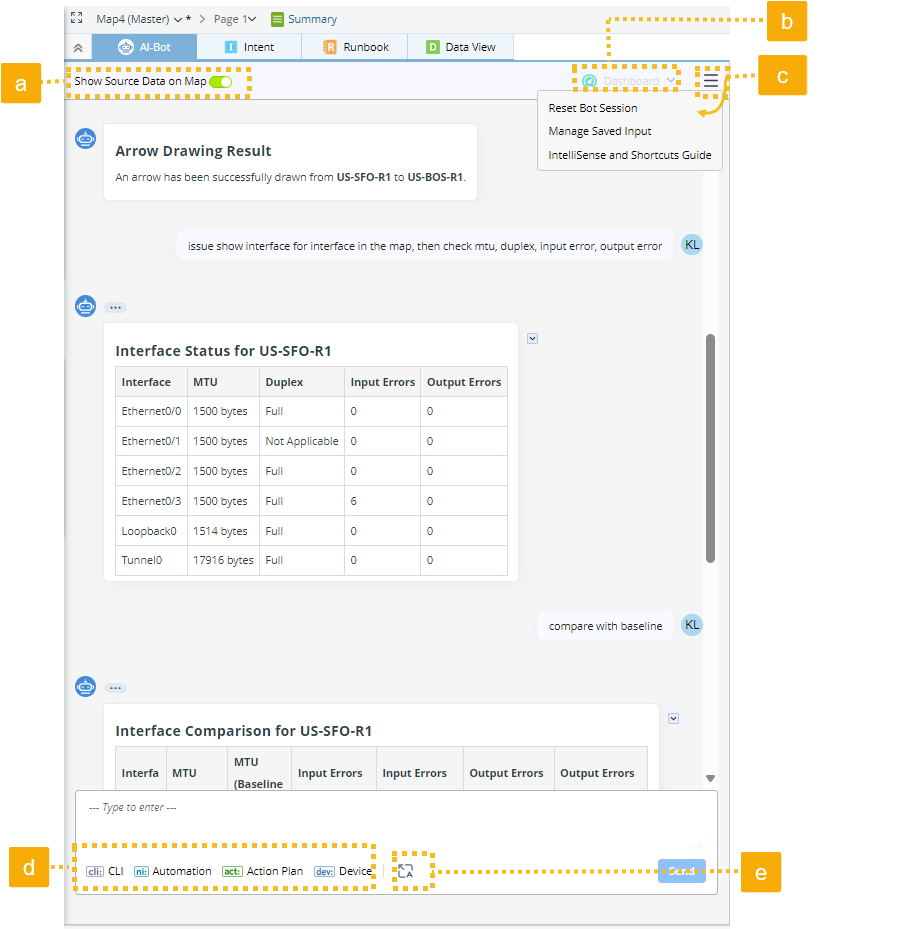
Show Source Data on Map: Show the results on the map. The results will be updated if the CLI command/ automation is run again in the session.
- Display the CLI command or parser results on the map as a data view.
- Display the status code of the NI results on the map.
-
Map Dashboard:
- When a user creates a dashboard without a name, the AI bot will create the map dashboard.
- Users can access the map dashboard from here.
- When no map dashboard is created, the icon will be greyed out.
- These dashboards can be managed in the Map Dashboard folder in the Observability Dashboard.
-
Hamburger menu:
- Reset Bot Session: Clear the current session.
-
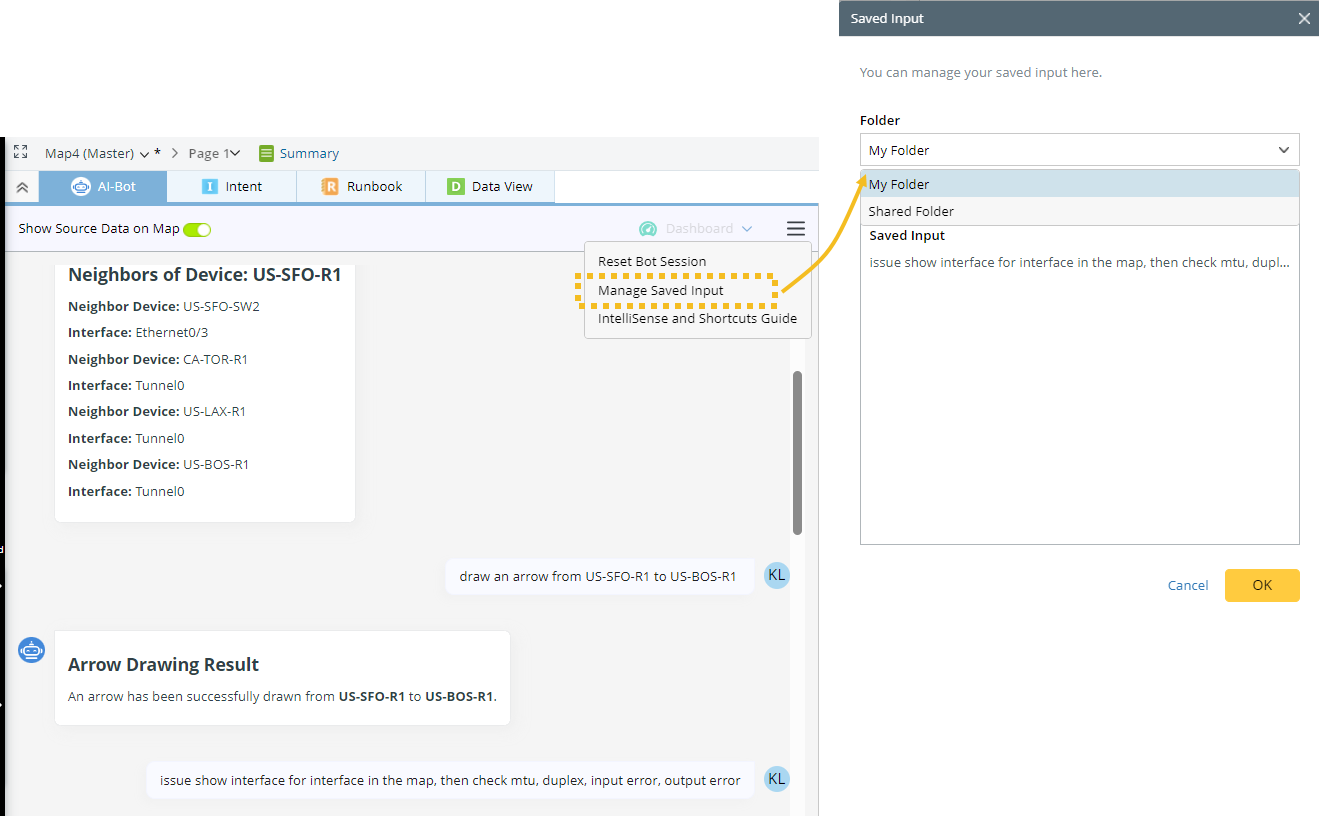
Manage Saved Input:
-
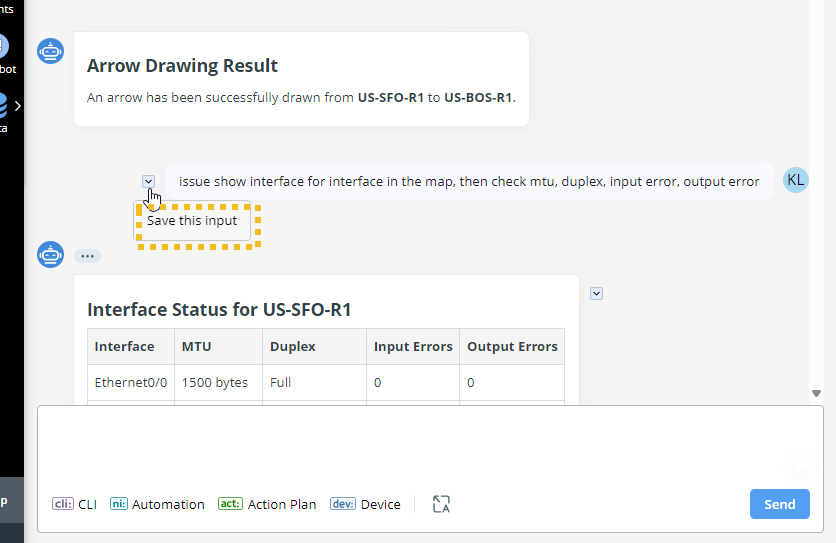
Users can save their input to reuse it later.
-
Users can save their input in a private or shared folder.
-
Users can save their input to reuse it later.
-
IntelliSense and Shortcut Guides.

- Export Document. Export the response to a Word file. You can download it to your local drive, save it as a NetBrain file, or go to AI Document to edit it before saving.

-
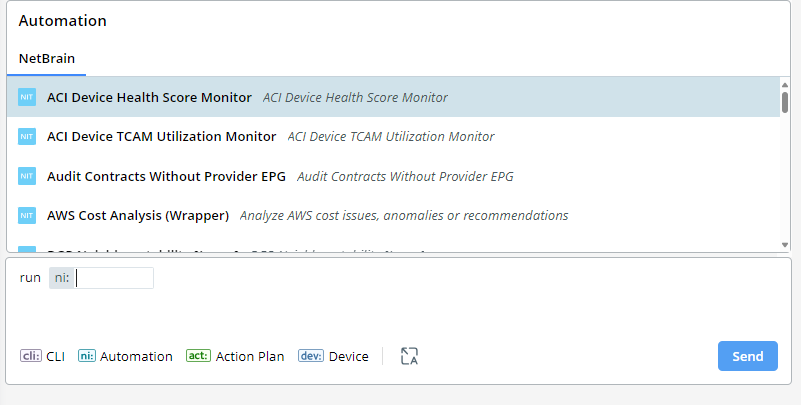
Specify the input type for the AI bot to reason and respond more precisely. If the user knows what they want to do and/or what automation they want to execute and wants to receive a more precise response from the bot, they can tag their input by specifying the type (CLI, Automation, Action Plan, or Device).
Example: A user wants the AI bot to follow the Host Unreachable action plan for troubleshooting.

Users also have the option to use only the keyboard with the help of IntelliSense to specify the input type. Refer to IntelliSense and Shortcut Guides.
Example: Type run ni: and use the arrow key to select the NI.