Input Dialog
You can use a dedicated Input Dialog to specify which template variables can be used as input variables, as well as the style and functionality of the input UI displayed when creating a runbook from the RBT.
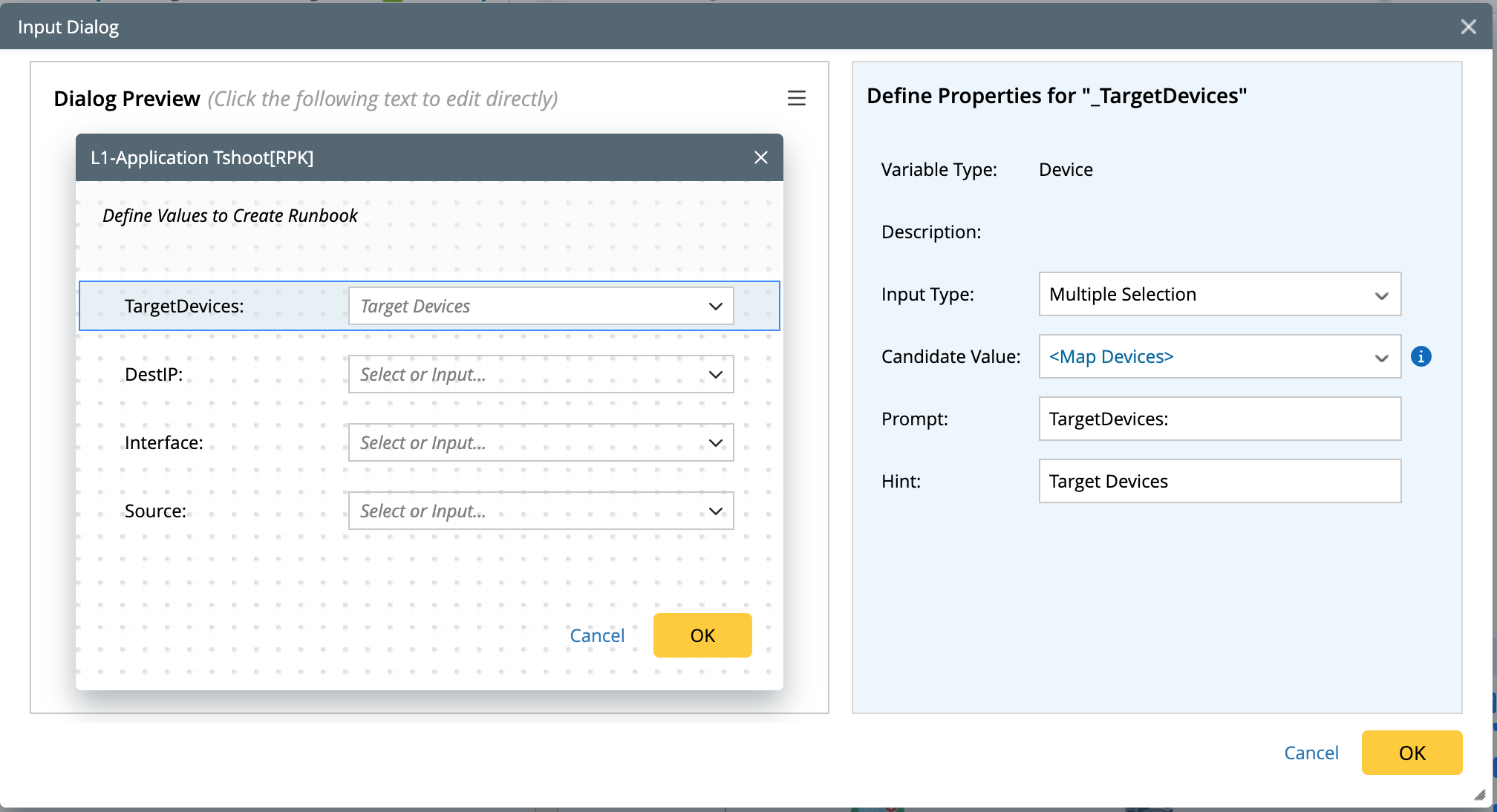
The table below lists the property pane for each component of the input dialog.
- Title: The title doesn't need to be edited; it always displays the current RBT name.
-
Instruction: Users can customize information such as explanations, descriptions, or author details.

-
Define Key Properties: This section allows you to configure the properties of the selected variable component:
- Variable Type: Shows the type of the variable.
- Description: Displays a description of the current variable, if defined.
-
Input Type: This is the default component type generated for each variable.
- Single Selection / Multiple Selection: Displays as a drop-down list. In this case, Candidate Value is required.
-
Text Input: Displays as a text input box. In this case, Default Value is required.
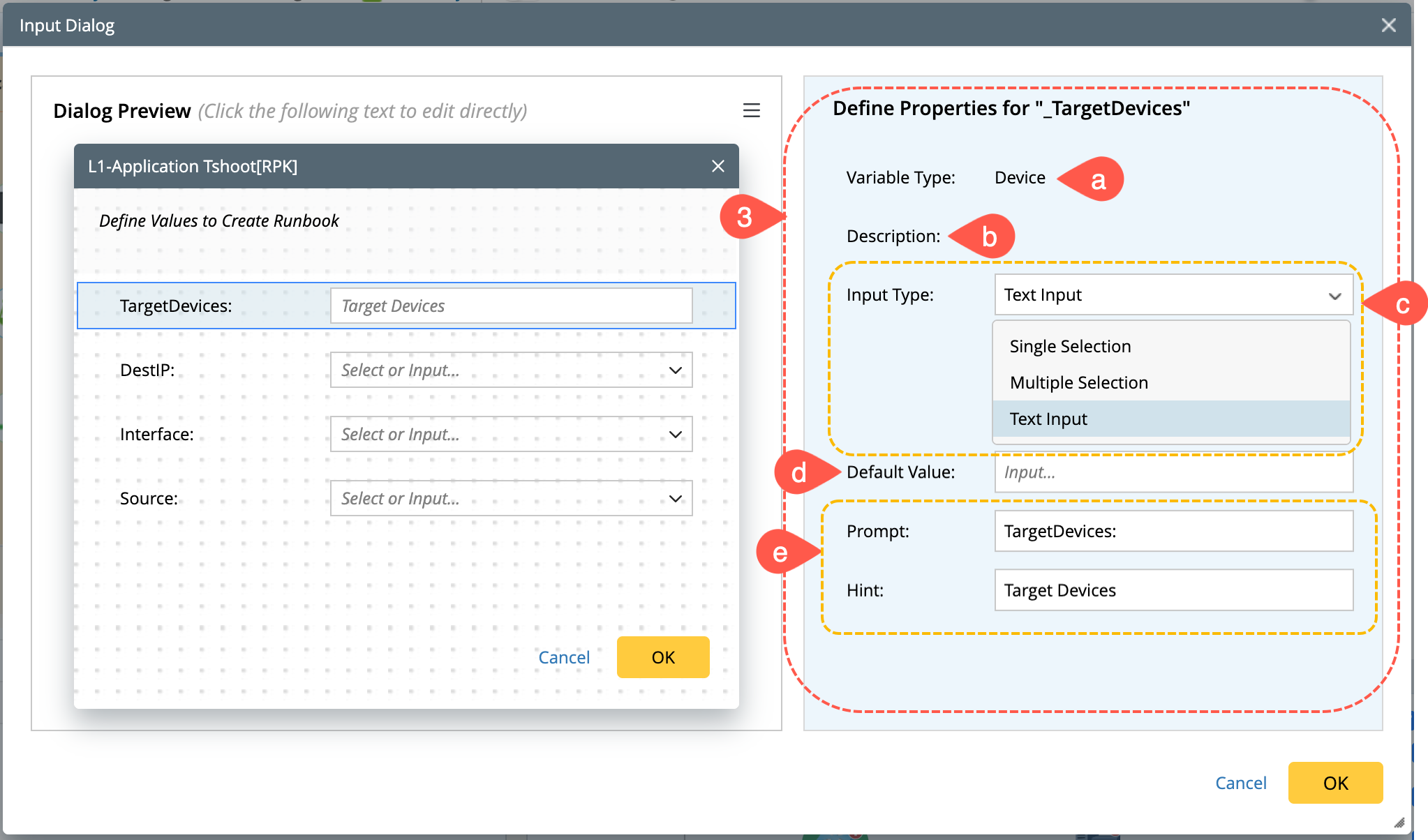
- Default Value (for Input Text only): Specifies the default value for the variable.
- Prompt/Hint: Displays the corresponding prompt and hint for the component. Define the hint for each component in the dialog to provide guidance or additional context.
Candidate Value for Variable
The Candidate Value setting specifies the list of options for a template variable when the Drop-down List input type is used. This feature simplifies value assignment during Runbook Template (RBT) creation or execution.
Candidate values can be defined using the following methods:
-
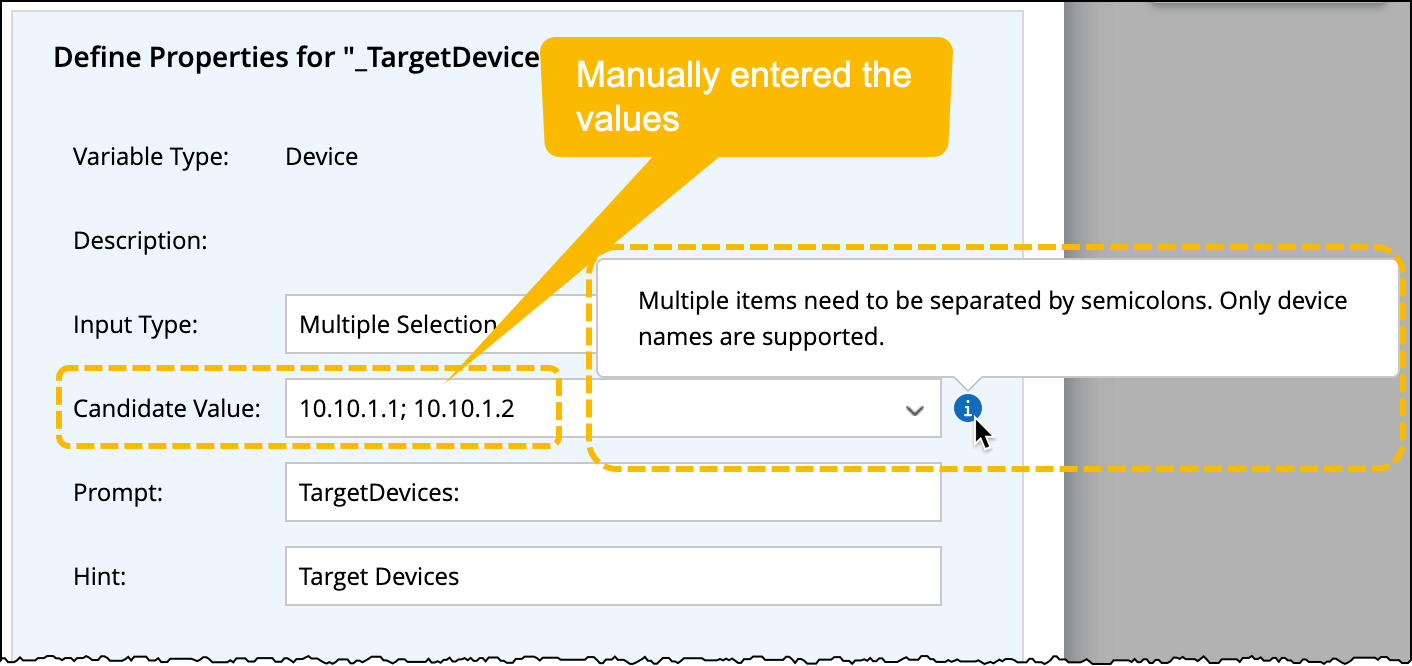
Manually Define: Enter values directly in the input field. Multiple values can be used by separating them with a semicolon (
;).Example:10.10.1.1; 10.10.1.2.
- Map Devices: Devices from the current map will be used.
- Via ADT Column: Use a column from a selected ADT as the source for candidate values. The system will match the selected variable value with ADT column to retain only relevant rows based on the variable's context.
-
Via Device Group: Use devices retrieved dynamically from a selected device group as candidate values. This option is applicable only to variables of type Device.

- From Device / Interface Property: This option is applicable only to variable type String. Define a parent variable (e.g., a device) for the current variable and derive candidate values from its properties.
- After selecting a parent, specify which property (such as interface name) to use as the source of values.
- For device variables, you can select from properties of either visible interfaces or all interfaces.

Supported Variable Types and Descriptions: