Install NIT to Probe
Installing Network Intent Templates to Probes for Diagnosis Automation
Follow the steps below to install Network Intent Templates (NITs) on probes to automate diagnostic actions:
- Navigate to Preventive Automation Manager and switch to the Triggered Intent Template tab.
- Click +Install Intent Template to select an intent template.
- Click OK to open the Configure Preventive Automation for Intent Template window.
- Select the triggering probe(s) using one of the following methods:
- Batch Add Probes - Select the probes based on intent devices. Use the drop-down list to search and select probes, then click Add.
- Add specific probe - Manually add any probe from the domain by clicking +Add, then selecting the probe from the list.
-
Define the input devices to clone seed intent:
- Probe Device Only – Only the probe devices will be used to clone the NI.
-
Probe Device & Related Device from System Data: The probe and its related devices (e.g., in the same VLAN group) will be used to clone the NI. Select the relevant system data option from the drop-down list.
Example: If Same VLAN Group is selected, the probe and all devices in the same VLAN group will be used.

-
Probe Device & Related Device from NCT Table: Related devices are determined using NCT table. Click Select NCT Table and choose a column that will be used to determine the related devices.

-
Define Post-Execution Settings:
-
Send Email Notification: This is to to receive notifications when NI generates alerts.
- Click Undefined to enter and save the recipient email address.
-
Enable email notifications.
-
Additional Settings
-
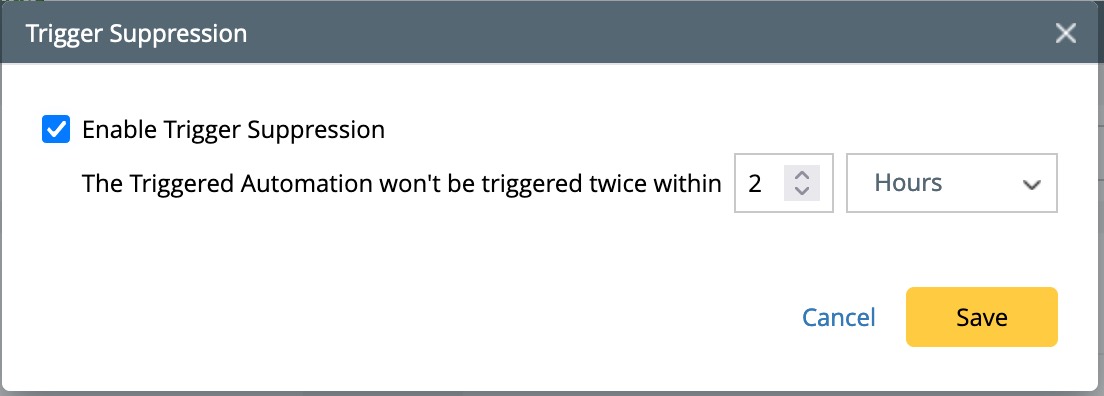
Trigger Suppression: Prevent the NI from being triggered repeatedly within a specified time window.
-
Trigger Event Template: Define a template that triggers when NI generates alerts.

-
Trigger Suppression: Prevent the NI from being triggered repeatedly within a specified time window.

-
Send Email Notification: This is to to receive notifications when NI generates alerts.
- Click Calculate Installation to save the settings and proceed with the intent creation process.
-
Click Create and Save to finalize the installation. The NI will be cloned to the listed devices.


