Advanced Settings for Table Parser
The system provides more advanced settings to help parsing of a broader range of table-formatted text.
Align Text in Table Columns
You can select the table text to appear left-aligned or right-aligned with the column separators in the sample text. By default, left-aligned is selected.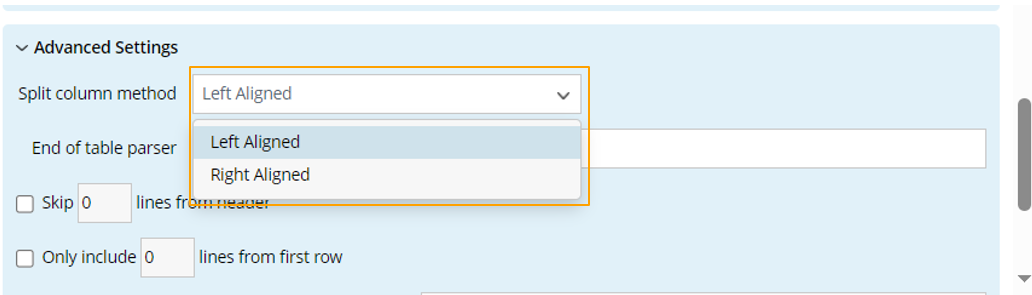

|
Note: The parsed result may differ depending on the alignment you select. The default option, left-aligned, usually works in most cases. If it won't work, use the right-aligned option. |
Redefining the Stop Identifier for Table Parsing
By default, the Table Parser stops parsing when it encounters a blank line, using “^" or "$” as the stop identifier. If blank lines are part of the intended text structure, you can redefine the stop identifier.
For example, if you want to exclude BGP device data, set "bgp" as the stop identifier. In this case, parsing continues until a line contains the word "bgp." As shown in the diagram below, the parsing process stops at line 14.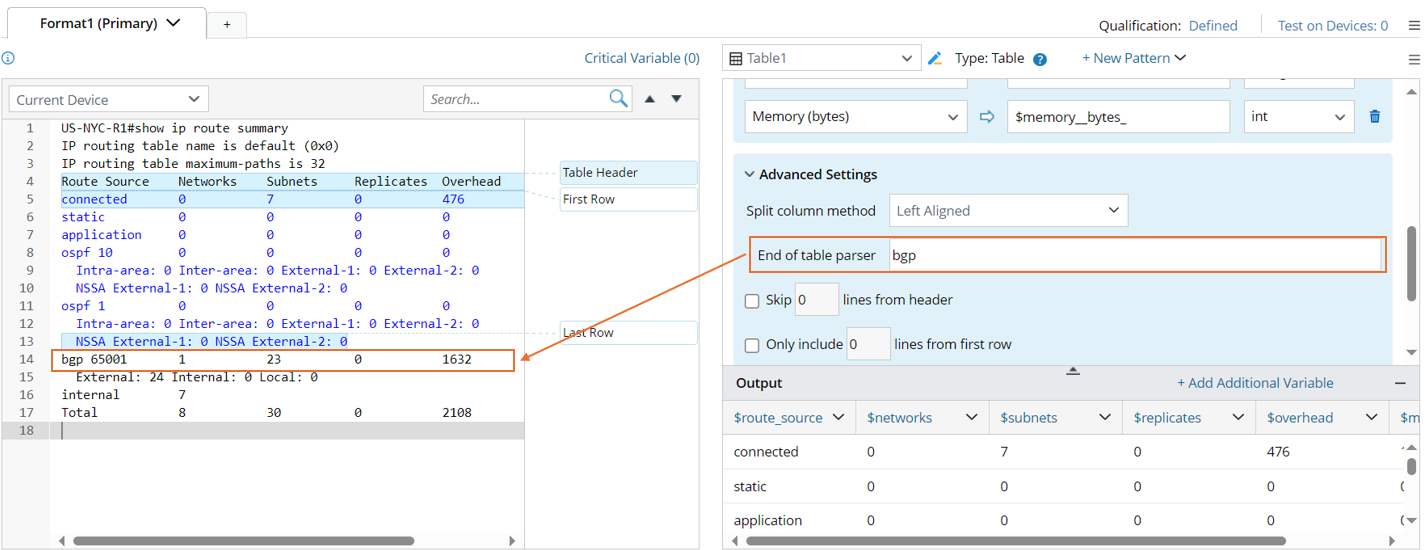
| |
Note: A blank line will not be parsed, regardless of whether it is defined as the identifier to stop parsing. |
Skip N Lines from Table Header Line
When there are extra lines between the line of the table header and the lines of the table rows, for example, the table header in the command output of 'show ip eigrp neighbor' is wrapped and occupies two lines. You can select to skip 1 line from the table header line in the Advanced Settings so that the unwanted lines will not be parsed.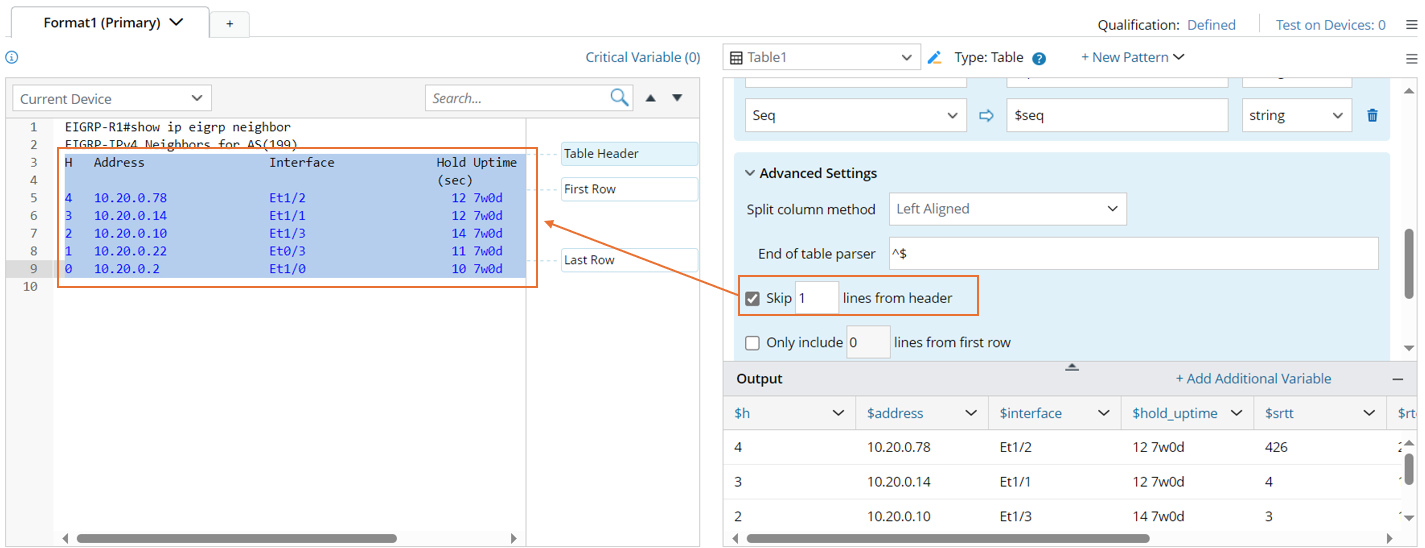
|
|
Note: You can define how many lines from the first row to be displayed in the parsed result. |
Only Include N Lines From First Row
There are cases where only several consecutive lines are expected in the output table. For example, in the parser shown below, the sample text in line 9 is not needed.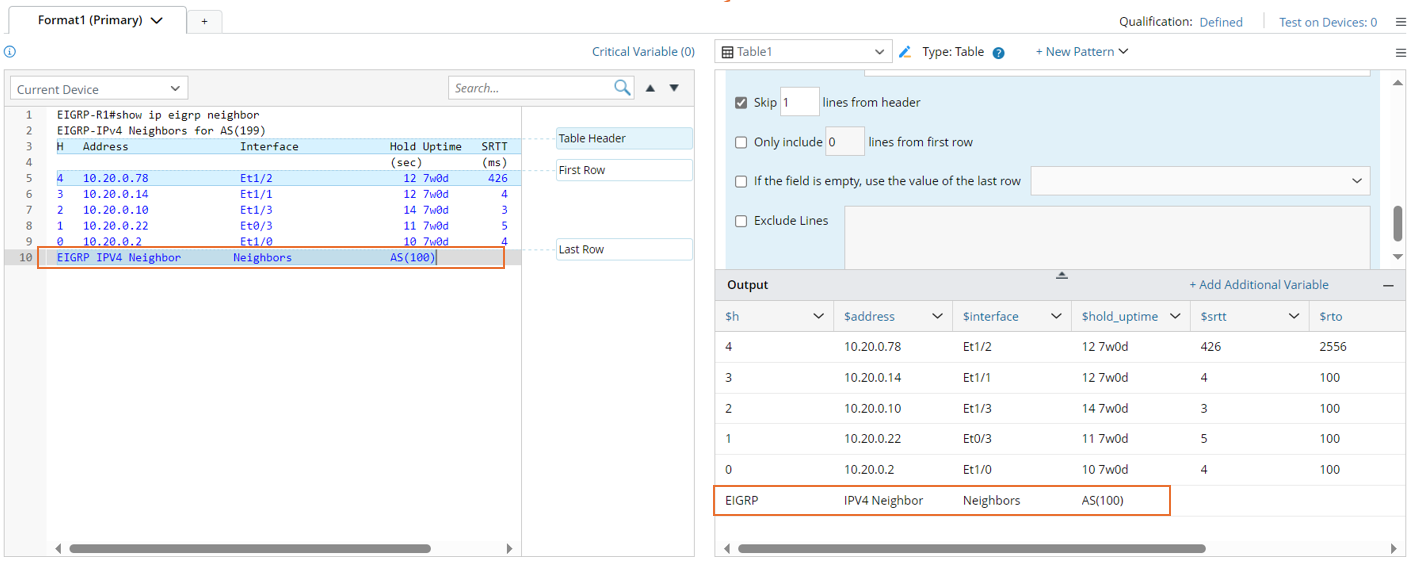
To exclude this line from the output, you can define it to only include the 4 lines from the first row. 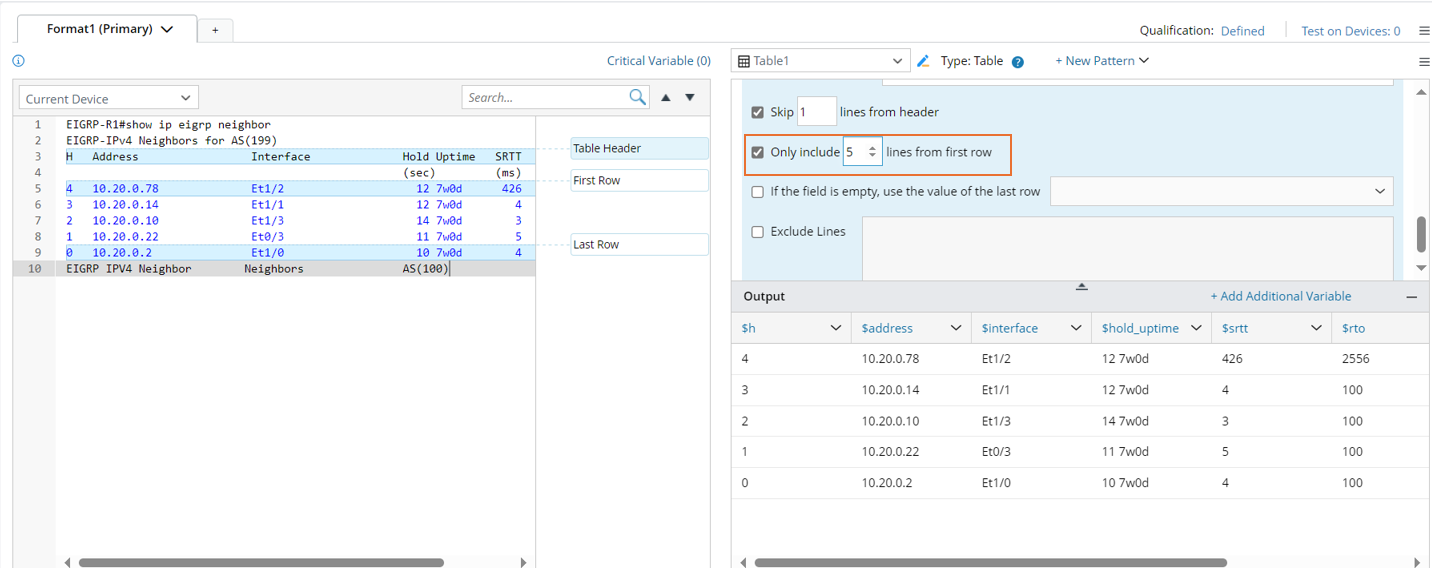
Reuse Last Row’s Value in Empty Cells
Sometimes, suppose a value of a table cell appears recursively in the same column of consecutive rows. In that case, the value will only be displayed in the first row and omitted in subsequent rows until the value changes.
For example, the empty cells of the Metric column in the following raw text indicate that the value remains the same as the one in the last row. However, they will be treated as empty cells after being parsed, which may not meet your expectations.
To resolve this case, you can enable the option If the field is empty, use the value of the last row in the Advanced Settings and select the Metric column. Then the parsed result will include all the required values as follows:
Exclude Table Lines
Sometimes, the raw text of table-formatted data may contain a line of separators or unnecessary data inside a table. To filter the line out, you can enable the Exclude Lines option in the Advanced Settings and enter the rules to exclude lines. In the example below, enable this function, then input "application" to remove the data of parsing the original text in line 7. 
The rule for excluding a line can be in either of the following shapes:
- Character (the line including application in the following example)
- Regex
Note: When you define multiple rules in the Exclude Lines field, use the Enter key to separate the two rules.