10.1.15.12-06212024
Allocate License Nodes to Your NetBrain Tenant and Domain
Allocate License Nodes to Your NetBrain Tenant and Domain
Select an appropriate way to allocate license nodes to your tenant and Domain.
- Allocate License Nodes to a New Tenant and Domain
- Allocate License Nodes to an Existing Tenant and Domain

|
Note: Before continuing with the following steps, make sure your license has been activated. |
Allocate Licenses to a New Tenant and Domain
- Log in to System Management Page.
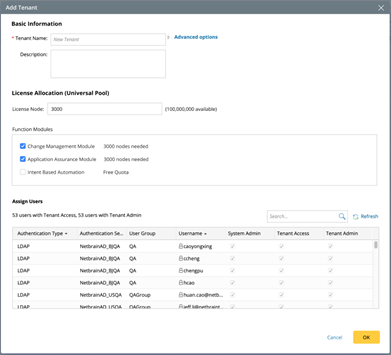
- Select the Tenants tab, and then click Add.
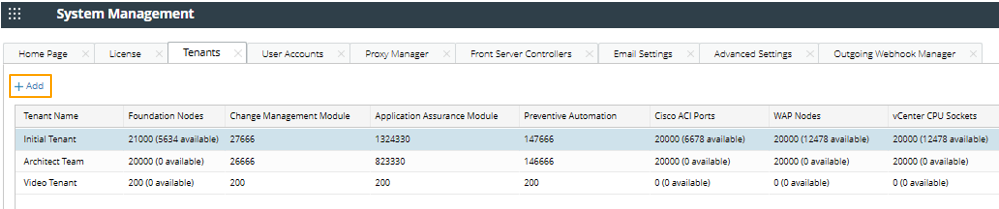
- Specify a tenant name and enter the description optionally.
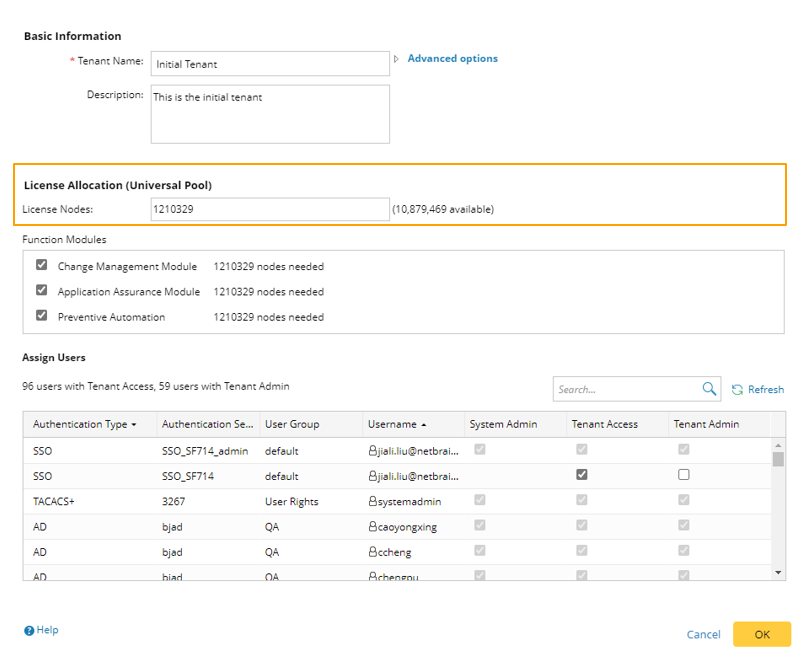
- Allocate the maximum number of license nodes to this tenant.
Note: The user interface is different depending on your license type.
- For the separate module License: you need to enter the maximum units for each network module in your license, such as Foundation Nodes, Cisco ACI Ports, etc.

- For Universal Pool License, you only need to enter the maximum license nodes.
- (Optional) Allocate the Function Modules for the user of Managed Service Provider (MSP).
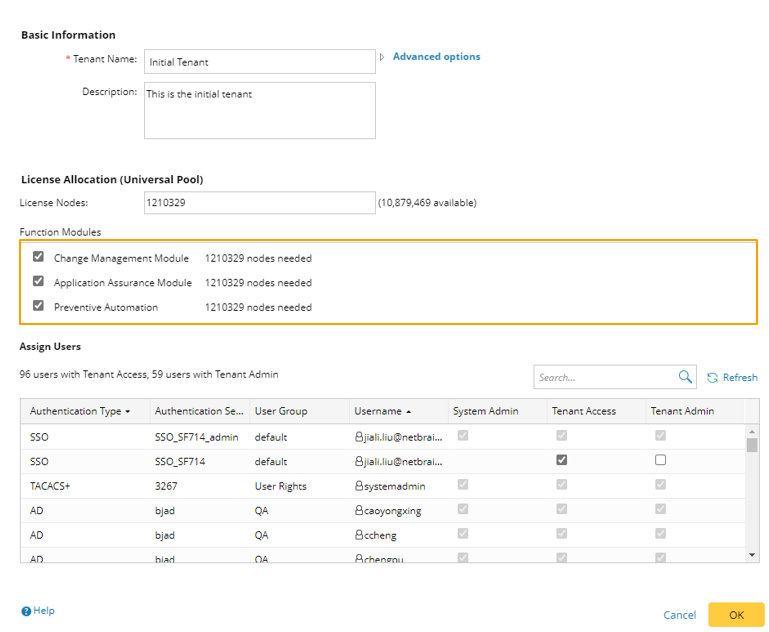
Note: Enterprise users still need to purchase the full Node License to use the corresponding Function Module. However, for MSP users, enabling/disabling the corresponding Function Module at Tenant Level is supported.
- Click OK to submit.
- Log in to End User Page.
- Click
 from the quick access toolbar, then click Select Domain from the drop-down menu.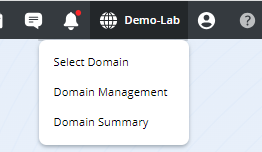
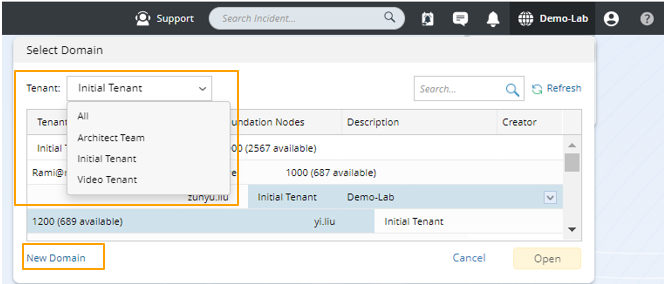
- Select the tenant you created and click New Domain.
- Enter the domain name.
- Allocate the maximum number of license nodes to this Domain.
Note: The user interface is different depending on your license type. For the separate module License: you need to enter the maximum units for each network module in your license, such as Foundation Nodes, Cisco ACI Ports, etc. For Universal Pool License, you only need to enter the maximum license nodes.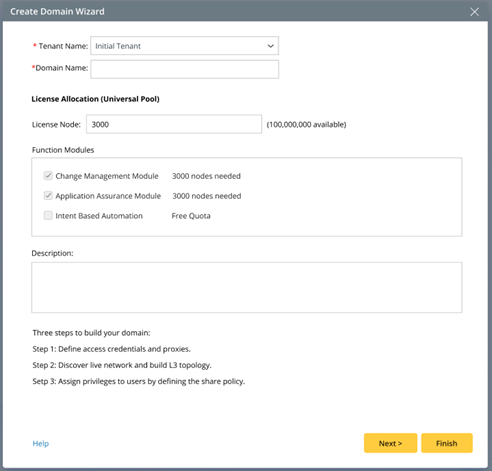
- Click Finish.
Allocate License Nodes to an Existing Tenant and Domain
- Log in to System Management Page.
- Select the Tenants tab, and then select Edit from the drop-down list of the desired existing tenant.

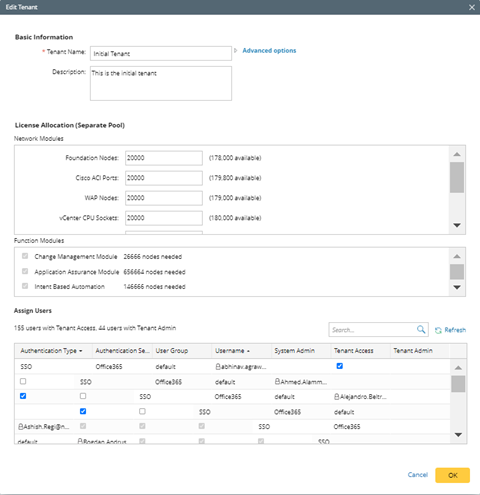
- Allocate the maximum number of license nodes to the tenant.
Note: The user interface is different depending on your license type.
- For the separate module License: you need to enter the maximum units for each network module in your license, such as Foundation Nodes, Cisco ACI Ports, etc.
- For Universal Pool License, you only need to enter the maximum license nodes.
- Click OK to submit.
- Log in to End User Page.
- Click
 from the quick access toolbar, then click Select Domain from the drop-down menu.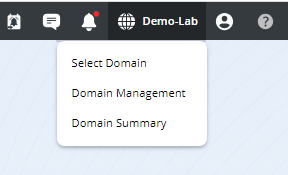
- Select the existing tenant from the quick access toolbar, and then select Edit from the drop-down list of the existing Domain.

- Specify a domain name.
- Allocate a maximum number of nodes to the Domain.
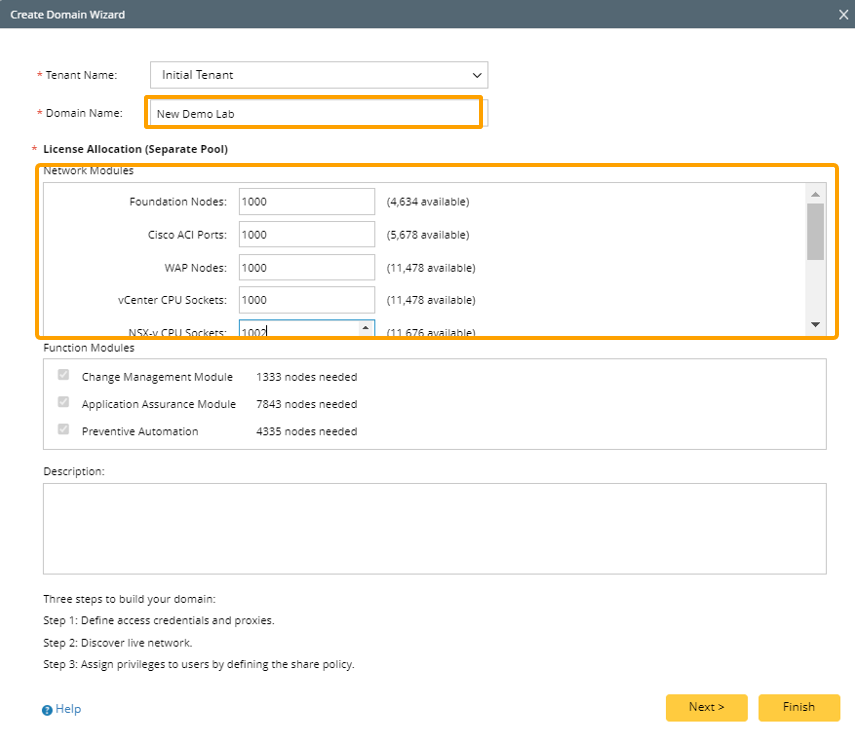
Note: The user interface is different depending on your license type.
- maximum units for each network module in your license, such as Foundation Nodes, Cisco ACI Ports, etc.

- For Universal Pool License, you only need to enter the maximum license nodes.
- Click OK.